Time Frame Event Guide
Overview
Time Frame Events in Zupcal provide a flexible scheduling solution that allows you to create events with multiple hosts and combine different event types within a single timeframe. This feature is perfect for workshops, training sessions, or complex scheduling scenarios where you need to offer various appointment types during specific time periods.
What is a Time Frame Event?
A Time Frame Event allows you to:
- Bundle multiple events into a single scheduling interface
- Set specific timeframes for when different services are available
- Combine different event types (one-on-one, group, round-robin, collective)
- Manage multiple hosts across different time slots
- Create complex scheduling scenarios with unified booking experience
Key Features
1. Multi-Event Integration
- Combine different event types in one interface
- Support for one-on-one, group, round-robin, timeframe, and collective events
- Flexible event selection and configuration
2. Advanced Host Management
- Multiple hosts per timeframe
- Individual host configurations
- Flexible time slot assignments
3. Unified Booking Experience
- Single shareable link for multiple event types
- Streamlined client booking process
- Comprehensive event preview
Step-by-Step Setup Process
Step 1: Create Event Description
-
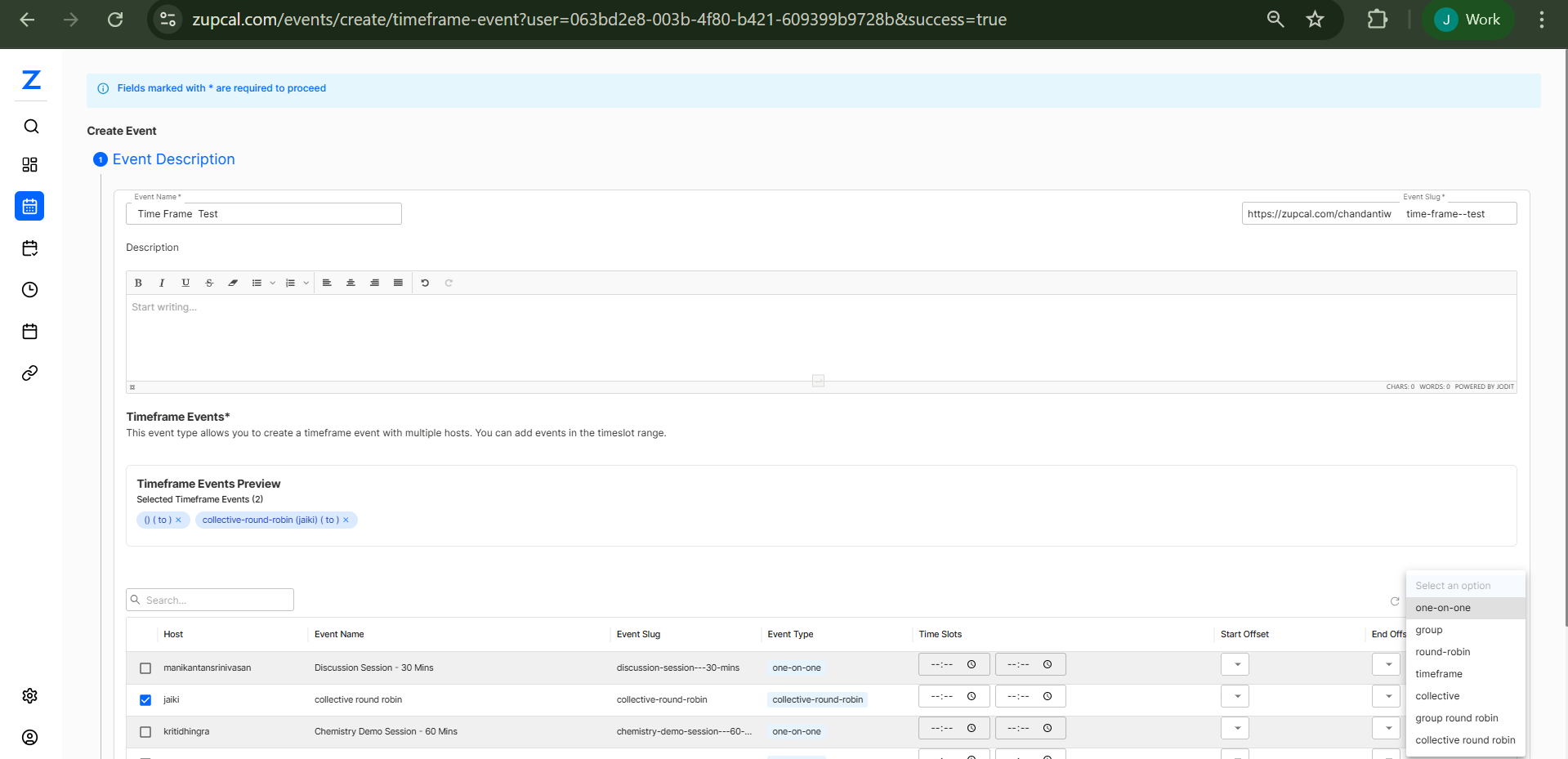
Navigate to Time Frame Event Creation
- Go to
zupcal.com/events/create/timeframe-event - You'll see the "Create Event" interface
- Go to
-
Fill Basic Information
- Event Name: Enter "Time Frame Test" (or your preferred name)
- Event Slug: Auto-generated as
https://zupcal.com/chandantw.../time-frame-test - Description: Use the rich text editor to provide comprehensive event details
-
Event Description Editor Features
- Rich Text Formatting: Bold, italic, underline, strikethrough
- Lists: Bullet points and numbered lists
- Alignment: Left, center, right, justify
- Links: Add hyperlinks to external resources
- Advanced Formatting: Additional styling options
Step 2: Configure Time Frame Events
Time Frame Events Section Overview:
- Purpose: "This event type allows you to create a timeframe event with multiple hosts. You can add events in the timeslot range."
- Event Selection: Choose from existing events to include in your timeframe
Time Frame Events Preview: Shows "Selected Timeframe Events (2)" with currently selected events:
() ( to )collective-round-robin (abc) ( to )
Step 3: Event Selection and Configuration
The interface provides a comprehensive event management table with the following columns:
| Column | Description | Purpose |
|---|---|---|
| Checkbox | Selection toggle | Choose events to include |
| Host | Event host username | Identify who will conduct the event |
| Event Name | Descriptive event title | Clear identification of service type |
| Event Slug | URL-friendly identifier | Technical reference and URL generation |
| Event Type | Category classification | Understand the scheduling method |
| Time Slots | Available time configurations | Set when events are available |
| Start Offset | Beginning time adjustment | Fine-tune start times |
| End Offset | Ending time adjustment | Fine-tune end times |
Available Events in the System:
-
Discussion Session - 30 Mins
- Host:
manikantansrinivaasan - Slug:
discussion-session---30-mins - Type:
one-on-one - Configurable time slots and offsets
- Host:
-
Collective Round Robin ✓ (Selected)
- Host:
abc - Slug:
collective-round-robin - Type:
collective-round-robin - Currently selected for inclusion
- Host:
-
Chemistry Demo Session - 60 Mins
- Host:
krishningrja - Slug:
chemistry-demo-session---60-mins - Type:
one-on-one - Configurable time slots and offsets
- Host:
Event Type Filter Options:
one-on-one: Direct individual appointmentsgroup: Multiple participants per sessionround-robin: Rotating host assignmentstimeframe: Flexible time-based schedulingcollective: Team-based appointment distributioncollective round robin: Advanced team rotation
Step 4: Advanced Configuration
Time Slot Configuration:
- Custom Time Ranges: Set specific hours for each event type
- Offset Management: Fine-tune start and end times
- Availability Windows: Define when each service is bookable
Host Assignment:
- Multiple Hosts: Assign different hosts to different time slots
- Host Specialization: Match hosts to their expertise areas
- Backup Hosts: Configure alternative hosts for coverage
Step 5: Link Shareable Completion
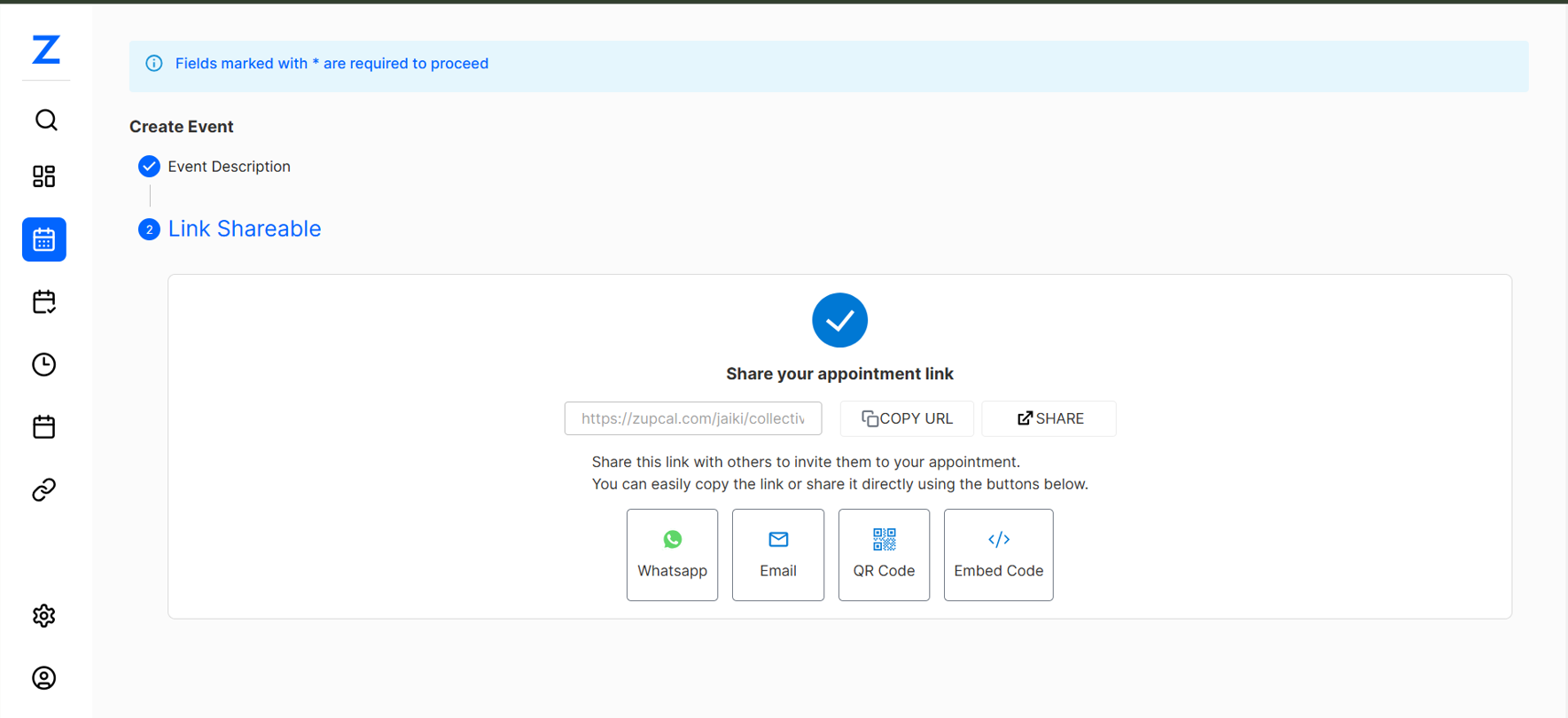
After configuring your timeframe event:
- Confirmation: Checkmark indicates successful setup
- Share Your Appointment Link: Generated unique URL
- Multiple Sharing Options:
- Copy URL: Direct link copying
- Share Button: Quick sharing functionality
- WhatsApp: Instant messaging integration
- Email: Email sharing capability
- QR Code: Mobile-friendly access
- Embed Code: Website integration code
Best Practices
1. Event Organization
- Clear naming conventions: Use descriptive, consistent event names
- Logical grouping: Group related services together
- Duration consistency: Maintain reasonable time slots across events
2. Host Management
- Expertise matching: Assign hosts based on their specializations
- Availability coordination: Ensure adequate coverage across time slots
- Backup planning: Have contingency hosts for popular time slots
3. Time Slot Optimization
- Peak hour coverage: Ensure popular times have multiple options
- Buffer time: Include preparation time between different event types
- Time zone consideration: Account for client and host time zones
Advanced Features
1. Offset Management
- Start Offset: Adjust when events actually begin relative to booking time
- End Offset: Modify when events conclude for buffer time
- Preparation Time: Built-in time for host preparation
2. Dynamic Scheduling
- Real-time availability: Live updates across all integrated events
- Conflict resolution: Automatic prevention of scheduling conflicts
- Capacity management: Handle multiple concurrent bookings
🧠 Frequently Asked Questions (FAQ)
1. How many events can I include in a Time Frame Event?
2. Can I mix different event types in the same timeframe?
3. How do I manage different appointment durations?
4. Can hosts have different availability in the same timeframe?
5. What happens if a host becomes unavailable after bookings?
6. Can I assign backup hosts for events?
7. How are hosts notified of new bookings?
8. How do clients choose between different event types?
9. Can clients book more than one event type?
10. What if a client needs to reschedule?
11. How are time zones handled?
12. Can I embed the scheduler on my website?
13. How do I track bookings across different event types?
Troubleshooting
Common Issues
1. Events Not Showing in Selection
- Cause: Events may not be properly configured or published
- Solution: Verify that individual events are set up correctly and marked as active
2. Time Slot Conflicts
- Cause: Overlapping time slots between different event types
- Solution: Review and adjust time slots and offset settings to prevent conflicts
3. Host Availability Issues
- Cause: Host calendar conflicts or incorrect availability settings
- Solution: Check host calendar integrations and availability configurations
4. Booking Errors
- Cause: System conflicts or insufficient availability
- Solution: Review event configurations and ensure adequate time slot coverage
Performance Optimization
1. Slow Loading Times
- Reduce the number of events in a single timeframe
- Optimize event descriptions and images
- Review host availability frequency
2. Booking Conflicts
- Implement adequate buffer times between appointments
- Regular calendar sync verification
- Monitor peak booking periods
Integration Issues
1. Calendar Sync Problems
- Verify calendar permissions and authentication
- Check time zone settings across all systems
- Review recurring event configurations