Round Robin Guide
What is a Round Robin Event?
A Round Robin event in Zupcal automatically distributes meeting bookings among multiple team members based on their availability and priority settings. This ensures fair distribution of meetings and optimal resource utilization across your team.
🛠️ Step-by-Step Setup Process
Step 1: Create New Round Robin Event
-
Navigate to Event Creation
- Go to your Zupcal dashboard
- Click on "Create Event"
- Select "Round Robin" as your event type
-
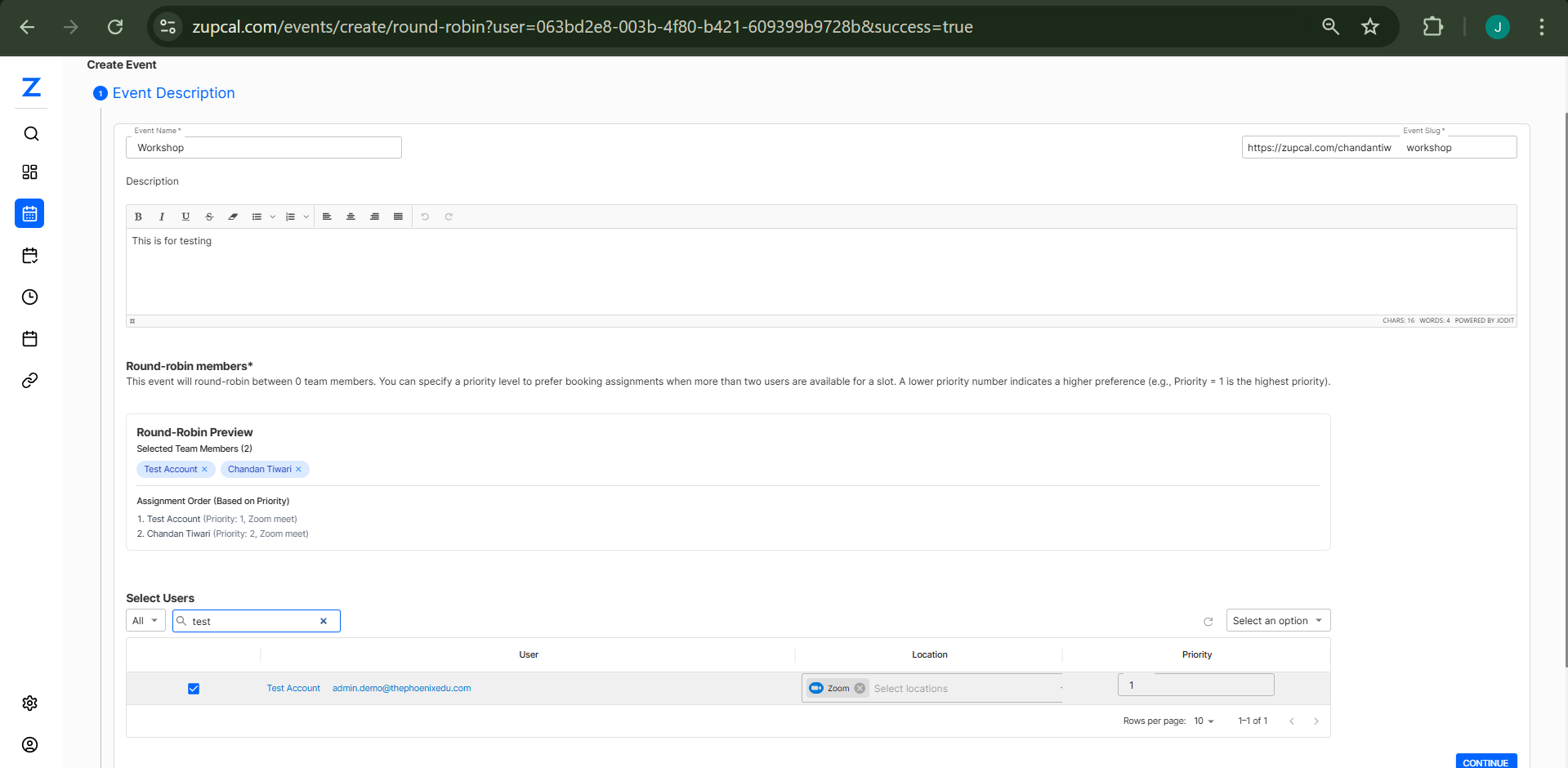
Basic Event Information
- Event Name: Enter a descriptive name (e.g., "Workshop", "Sales Call", "Consultation")
- Event Slug: This auto-generates your booking URL (e.g.,
https://zupcal.com/chandantiwari/workshop) - Description: Add details about what the meeting will cover
Step 2: Configure Round Robin Settings
Round Robin Members Setup
- Add Team Members: Select team members who will participate in the round robin
- Priority Levels: Assign priority numbers to each member
- Priority 1 = Highest preference
- Higher numbers = Lower preference
- Assignment Preview: View how bookings will be distributed based on priority
Member Selection Process
- Click on "Select Users"
- Search and filter team members
- Select checkboxes next to desired participants
- Set priority levels for each member
- Configure location preferences (Zoom, in-person, etc.)
Step 3: Set Availability Schedules
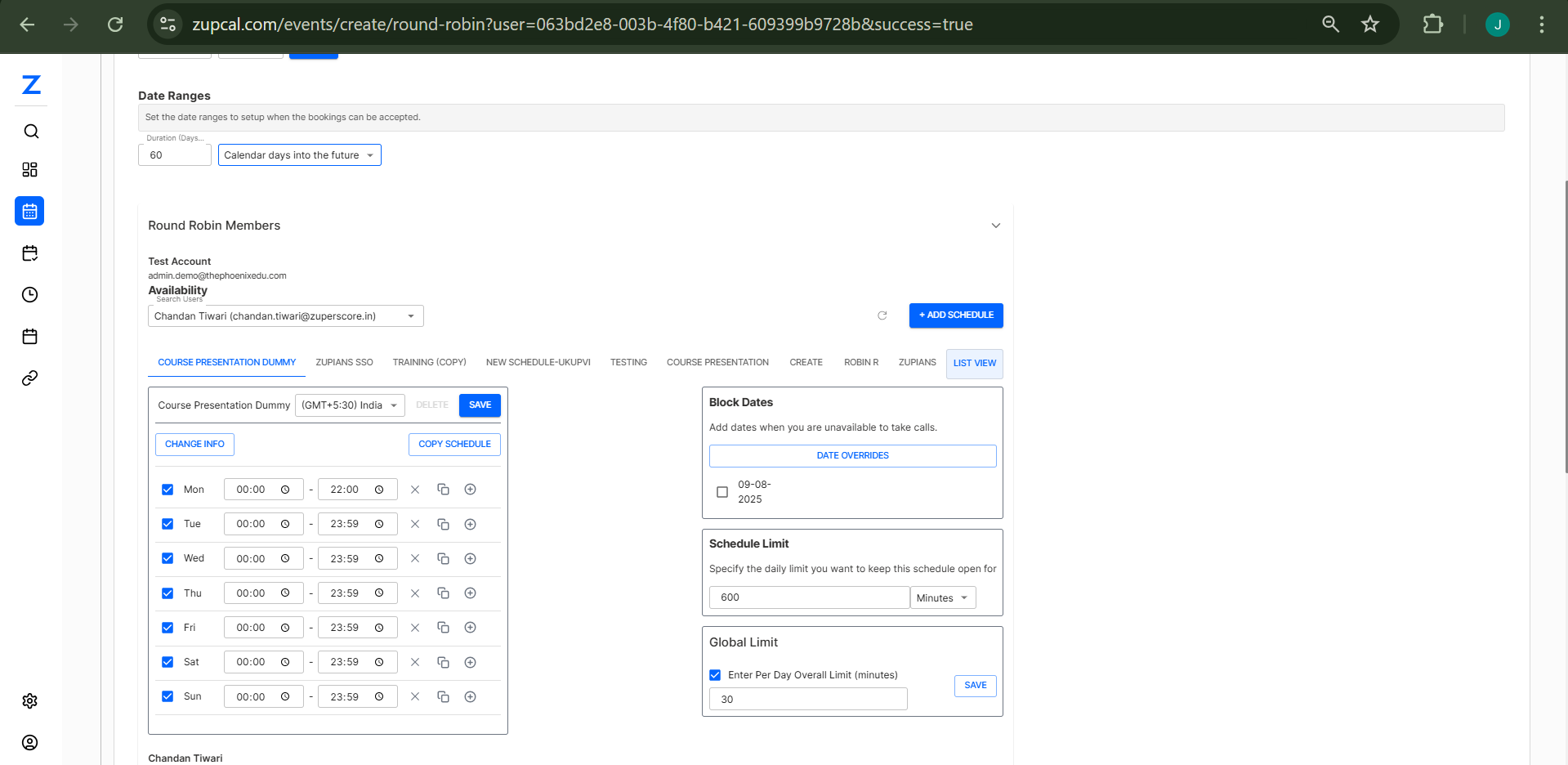
Individual Member Availability
For each round robin member:
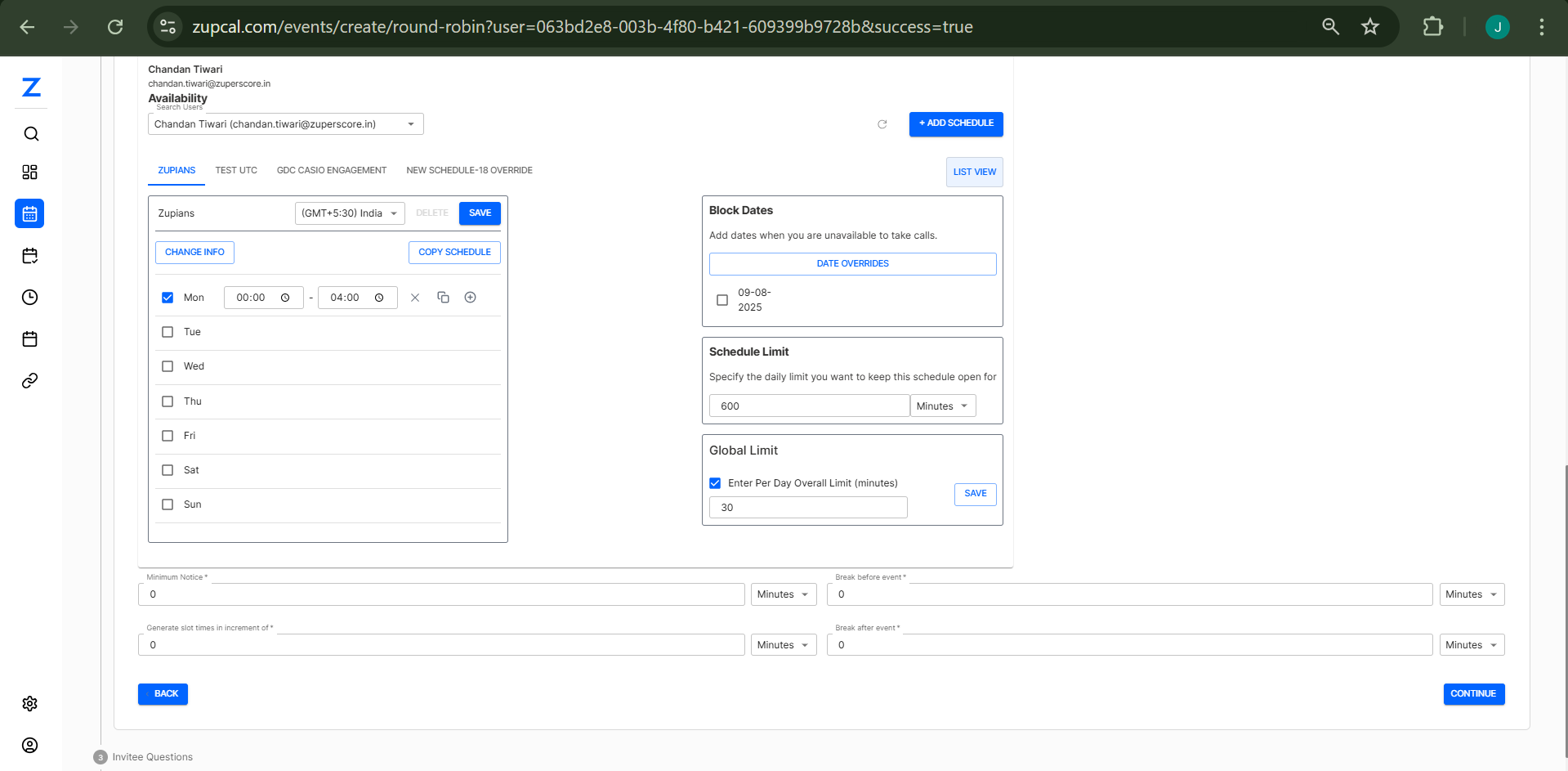
- Select Member: Choose from dropdown (e.g., "Chandan Tiwari")
- Add Schedule: Click "+ ADD SCHEDULE"
- Configure Weekly Schedule:
- Monday to Sunday: Check days when available
- Time Slots: Set start and end times for each day
- Time Zone: Select appropriate timezone (e.g., GMT+5:30 India)
Schedule Options
- Multiple Schedules: Create different schedules for different purposes
- Copy Schedule: Duplicate existing schedules to save time
- Schedule Names: Use descriptive names (e.g., "Course Presentation Dummy", "Training Schedule")
Step 4: Set Booking Limits and Restrictions
Block Dates
- Unavailable Dates: Add specific dates when team members can't take calls
- Date Overrides: Handle exceptions to regular schedules
Schedule Limits
- Daily Limit: Set maximum minutes per day (e.g., 600 minutes)
- Global Limit: Set overall daily limits across all members
- Per Day Overall Limit: Configure maximum total booking time (e.g., 30 minutes)
Break Settings
- Minimum Notice: Set minimum time before bookings can be made
- Break Before Event: Buffer time before meetings
- Break After Event: Buffer time after meetings
- Generate Slots: Configure how time slots are created
Step 5: Configure Guest Settings
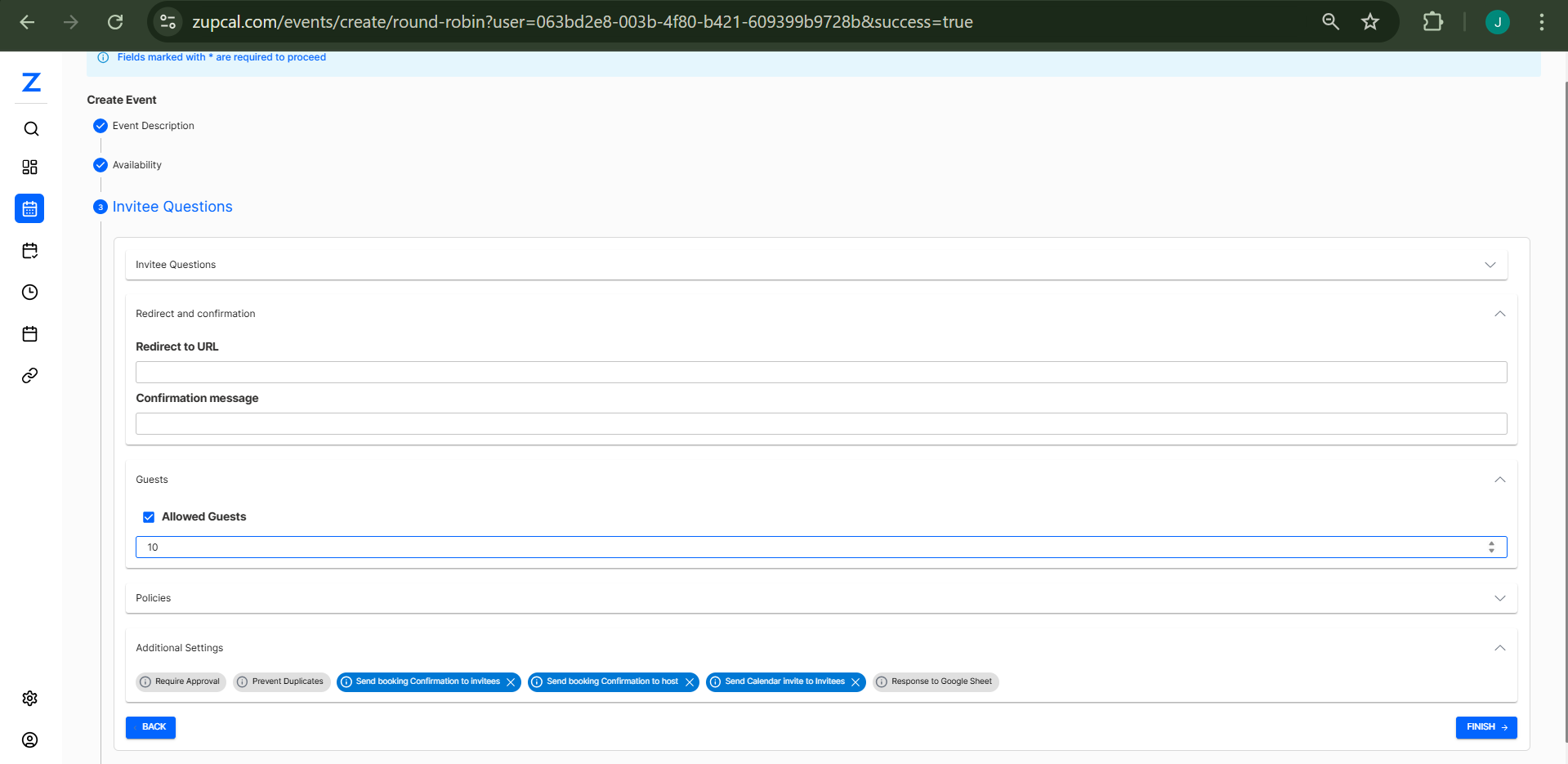
Allowed Guests
- Guest Limit: Set maximum number of attendees (default: 10)
- Guest Permissions: Configure what information guests can see
Booking Policies
- Require Approval: Enable if bookings need manual approval
- Prevent Duplicates: Avoid double bookings
- Confirmation Settings:
- Send booking confirmation to invitees
- Send booking confirmation to host
- Send calendar invite to invitees
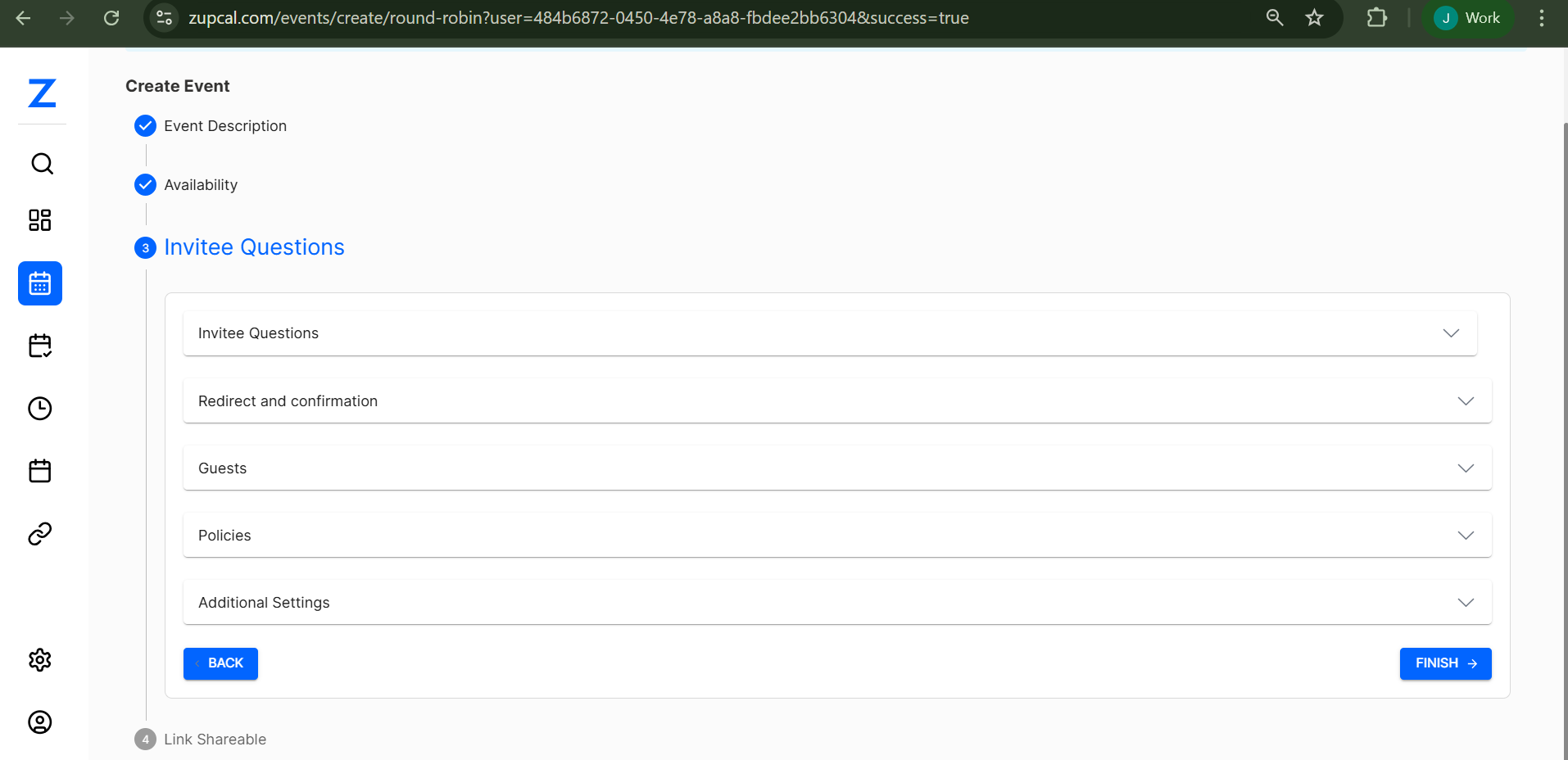
Step 6: Set Up Invite Questions and Redirects
Custom Questions
- Add custom questions for invitees to answer when booking
- Configure required vs optional questions
Redirect and Confirmation
- Redirect URL: Where to send users after booking
- Confirmation Message: Custom message shown after successful booking
Additional Settings
- Response to Google Sheet: Export booking data automatically
- Integration Options: Connect with other tools and platforms
Step 7: Date Range Configuration
Booking Window
- Duration Days: Set how far in advance bookings can be made (e.g., 60 days)
- Calendar Days into Future: Configure booking horizon
- Availability Range: Define when the round robin is active
✅ Best Practices
1. Priority Assignment
- Assign priorities based on workload capacity
- Consider expertise levels for specialized meetings
- Regularly review and adjust priorities as needed
2. Schedule Management
- Keep individual schedules updated
- Use descriptive names for different schedule types
- Coordinate break times across team members
3. Booking Limits
- Set realistic daily limits to prevent burnout
- Consider different limits for different types of meetings
- Monitor booking patterns and adjust accordingly
4. Communication
- Clearly communicate round robin setup to team members
- Establish protocols for schedule changes
- Set expectations for response times
🧩 Troubleshooting Common Issues
Members Not Receiving Bookings
- Check Priority Settings: Ensure priorities are correctly assigned
- Verify Availability: Confirm individual schedules are active
- Review Booking Limits: Check if daily limits have been reached
Uneven Distribution
- Adjust Priorities: Rebalance priority levels
- Check Schedule Conflicts: Look for overlapping unavailable times
- Monitor Usage: Track booking patterns over time
Integration Problems
- Calendar Sync: Verify calendar connections are active
- Notification Settings: Check email and notification preferences
- Third-party Tools: Ensure proper API connections
🔁 Round Robin Events 🧠 Frequently Asked Questions (FAQ)
1. How many team members can I add to a round robin event?
You can add multiple team members. The system supports teams of all sizes, each with custom priority levels and availability schedules.
2. Can I have different round robin events for different purposes?
Yes, you can create multiple round robin events, each with unique teams, settings, and schedules for use cases like sales, support, or consultations.
3. How does the priority system work?
The system uses priority numbers (1 = highest). If multiple members are available, the one with the lowest number is chosen. If unavailable, it moves to the next.
4. Can team members have different availability schedules?
Yes. Each team member can have a custom schedule with personalized hours, days, and even time zones.
5. What happens if no one is available for a requested time slot?
That time slot won’t be shown to the booker. Only slots with at least one available member are displayed.
6. Can I set different time zones for different team members?
Yes. Team members can work in different time zones. The system will automatically convert and display times accurately for all parties.
7. How do I handle vacation days or temporary unavailability?
Use the “Block Dates” feature or create schedule overrides. You can also temporarily pause a member from round robin participation.
8. How does the system decide which team member gets the next booking?
The system checks availability, priority, and recent booking load to distribute bookings fairly across the team.
9. Can I manually assign a booking to a specific team member?
Depending on your plan, you may be able to reassign bookings manually. Check your admin settings for this feature.
10. Can I integrate round robin bookings with Google Sheets?
Yes. Enable “Response to Google Sheet” in Additional Settings to export booking data for easy tracking and analysis.
This guide covers the essential aspects of setting up and managing Round Robin events in Zupcal. For additional support or advanced features, consult your Zupcal documentation or contact their support team.