Calendar
Overview
ZupCal provides a comprehensive platform combining calendar management with integration capabilities. The system offers seamless connectivity with popular calendar, meeting, and productivity tools while providing an intuitive calendar interface for viewing and managing events.
Key Features
- Unified Calendar View
- Admin Control
- User Self-Service
- Event Details
- Multiple View Options
- Real-time Synchronization
Calendar Dashboard Overview
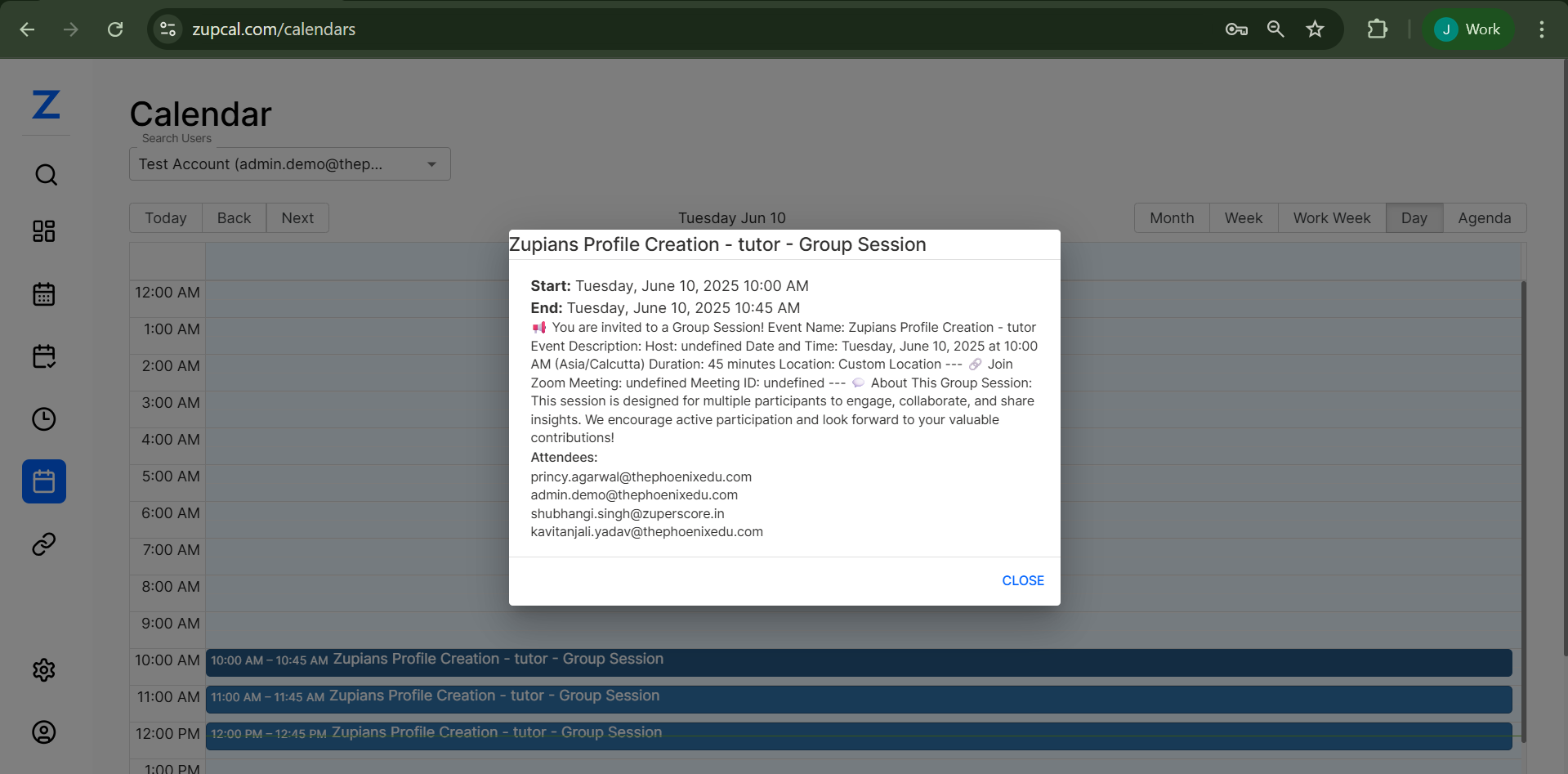
The calendar is accessible at zupcal.com/calendars.
Key Interface Elements:
- Navigation Controls
- View Options
- User Selector & Search
- Time Slots with Visual Scheduling
- Overlapping Event Clarity
Calendar Views and Features
Daily View Includes:
- Time-based Layout
- Visual Event Blocks
- Timestamps
- Current Date Indicator
Event Display Format:
- Time Range
- Event Title
- Color Coding
- Click for Modal
Event Detail Modal
Shows:
- Title, Time, Duration, Timezone
- Host, Type, Purpose, Notes
- Meeting Location & Links
- Attendee List
Modal Features:
- Close Button
- Responsive Design
Admin Calendar Capabilities
- Multi-User View & Control
- Full Scheduling Access
- Calendar Switching
- Event Oversight & Reporting
User Calendar Experience
- Personal Calendar Only
- Integration Status
- Role-based Privacy
Calendar Integration Sync
- Real-time Sync
- Bi-directional Updates
- Conflict Handling
Supported Actions:
- Create, Modify, Delete Events
- Attendee Updates
Navigation and Usability
- Quick Controls: Today, Back/Next
- Date Picker
- Toggle Views
- Responsive Design
Calendar Workflow
Steps:
- Access Calendar
- Navigate Dates & Views
- View Events
- Open Event Details
- Admin: Switch Users
Integration
Admin Dashboard Access
![Integration Dashboard]
At zupcal.com/integrations admins can:
- View & Manage Integrations
- Toggle Status
- Bulk Settings
- Assign Role Templates
Available Integrations
Calendar
- Apple Calendar
- Google Calendar
Meeting
- Google Meet
- Zoom
Productivity
- Google Sheets
Step-by-Step Integration Process
For Admins
- Visit Dashboard
- Enable Integration
- Configure Settings
- Test Sync
For Users
- Self-Access Settings
- Authenticate
- Save Preferences
User Integration Access
- Based on Admin Permissions
- Self-Service for Available Options
- Toggle Enabled/Disabled
- Real-Time Effect on Calendar
Troubleshooting
Common Issues & Fixes
Calendar Not Syncing
- Verify Timezone, Refresh
Missing Meeting Links
- Enable Integration, Test Again
Modal Not Opening
- Clear Cache, Check Browser
Remove Integration
- Disable Toggle, Revoke Access
🧠 Frequently Asked Questions (FAQ)
Q: Who can access integrations?
Access depends on your role and permissions set by administrators. Admins have full access, while users have access based on their assigned role templates.
Q: How do I know if an integration is working?
Toggle switches show current status – blue/enabled means active, gray/disabled means inactive. Test with sample events to verify functionality.
Q: Can I use multiple calendar integrations simultaneously?
Yes, you can enable both Apple Calendar and Google Calendar integrations simultaneously for comprehensive calendar management.
Q: What happens when I enable Google Sheets integration?
Form responses from your scheduling forms will automatically be saved to your connected Google Sheets, enabling data analysis and reporting.
Q: Do I need separate accounts for each integration?
Yes, you need valid accounts for each service (Google, Apple, Zoom, etc.) and appropriate permissions to integrate them with ZupCal.
Q: Can I disable an integration temporarily?
Yes, use the toggle switches to enable/disable integrations as needed. Your settings will be preserved when you re-enable.
Q: What's the difference between Admin and SuperAdmin roles?
SuperAdmin has extended privileges (26 modules vs 16) and can access advanced system configuration options not available to regular Admins.
Q: Can I change someone's role template after invitation?
Yes, administrators can modify user permissions and role assignments after initial setup through the user management interface.
Q: How do I invite multiple users with different permissions?
Send separate invitations for each role template, or invite users with a basic template and modify permissions individually afterward.
Q: Are there any limitations on the number of integrations?
Integration limits depend on your ZupCal plan and the connected service's API restrictions. Contact support for specific limits.
Q: How often do integrations sync data?
Sync frequency varies by integration type – calendar events typically sync in real-time, while other data may sync every 15–30 minutes.
Q: What data is shared through integrations?
Only event-related data (titles, times, descriptions, attendees) is shared. Personal information remains private unless specifically configured otherwise.
Q: Why can't I see all events in my calendar?
Ensure your calendar integrations are properly enabled. Check the toggle switches in the integrations section – they should be blue/active.
Q: How do I view event details?
Click on any event block in the calendar view. A detailed modal will open showing attendees, description, meeting links, and timing.
Q: Can I modify events directly in ZupCal?
Event modification depends on your permissions and the integration. Some events are editable in ZupCal, others only via the source calendar.
Q: What's the difference between admin and user calendar views?
Admins can view all team calendars via the selector dropdown. Users see only their own events.
Q: How do I switch between calendar views?
Use the top-right view buttons: Month, Week, Work Week, Day, and Agenda.
Q: Why do some events show "Host: undefined"?
This means the host info didn’t sync from the source calendar. The event is valid, but host details may need correction in the original calendar.
Q: Can I see who's attending an event?
Yes, click the event to open its modal. The "Attendees" section lists all participants.
Q: How do I navigate to different dates quickly?
Use the "Today", "Back", and "Next" buttons or select a date from the calendar interface.
Q: What does the timezone information mean?
It ensures accurate scheduling across time zones. Displayed in each event modal (e.g., "Asia/Calcutta").
Q: How often does the calendar refresh with new events?
Calendar events sync in real-time when integrations are enabled. Modifications should appear almost immediately.
Q: Why is my integration toggle switching back to off?
This usually indicates authentication issues. Re-authenticate or check API permissions.
Q: My calendar events aren't syncing. What should I do?
Check timezone settings, verify enabled integrations, and ensure permissions are correct. Refresh or re-authenticate if needed.
Q: I can't see the event detail modal when clicking events. Why?
This may be a browser issue. Try refreshing, clearing cache, or disabling pop-up blockers.
Q: How do I remove an integration completely?
Disable the toggle, revoke API permissions in the third-party account, and contact support if needed.