Settings Home Dashboard Guide
Overview
The Settings Home Dashboard serves as the central hub for all administrative functions in your system. It provides quick access to eight main categories of settings, each designed to manage specific aspects of your organization's setup and operations. This comprehensive control center enables administrators to efficiently manage users, configure system features, and customize organizational workflows.
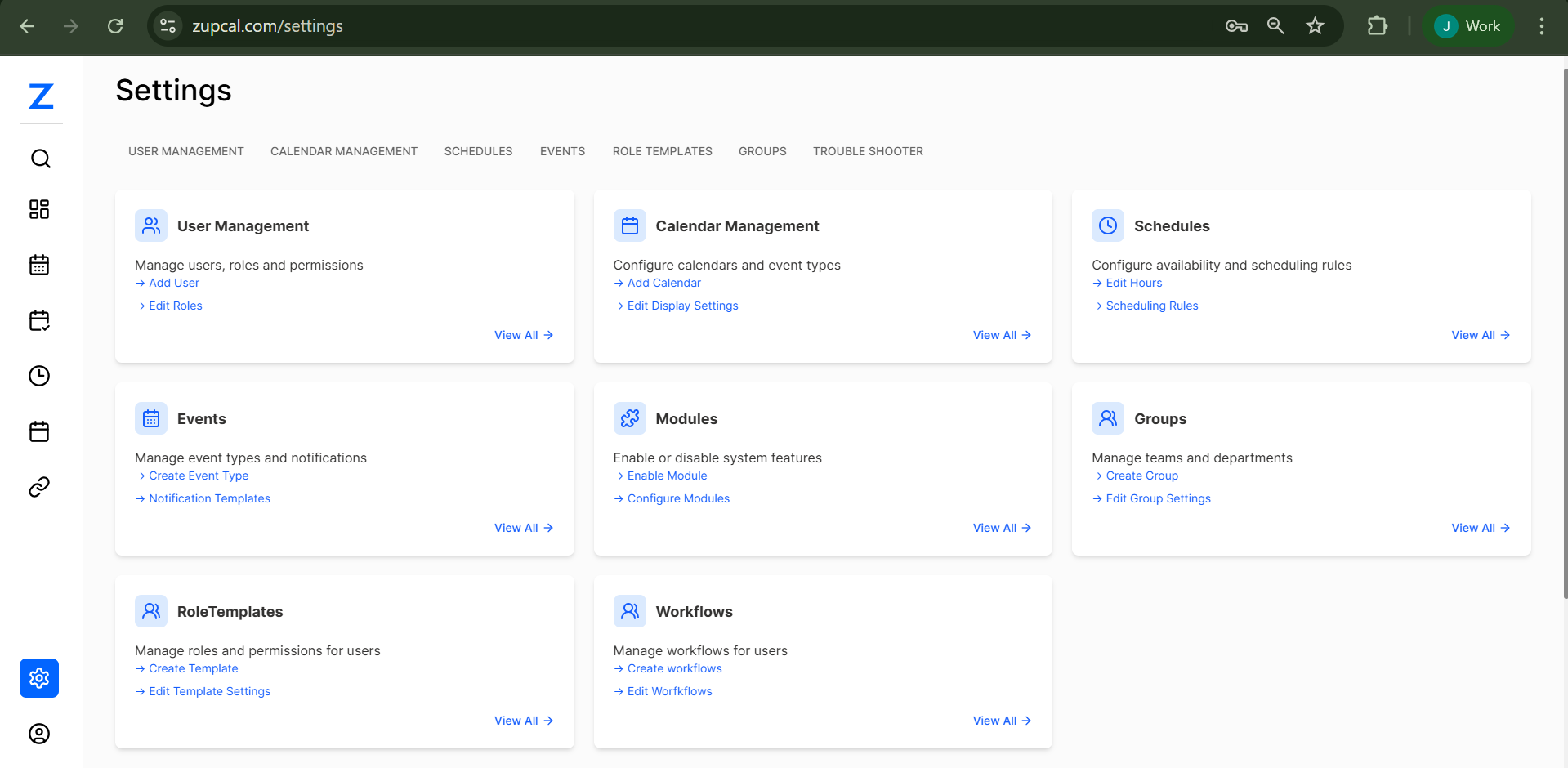
Accessing the Settings Dashboard
- Navigate to your main application interface
- Click on Settings from the primary navigation menu
- You'll arrive at the Settings Home Dashboard
- The dashboard displays eight main setting categories in a card-based layout
Main Settings Categories
1. User Management 👥
Purpose: Manage users, roles and permissions
Description: Complete control over user accounts, role assignments, and permission structures within your organization. This section handles all aspects of user lifecycle management from creation to deactivation.
Available Quick Actions:
- → Add User: Create new user accounts with appropriate permissions and profile information
- → Edit Roles: Modify existing role configurations, permissions, and access levels
Key Features:
- User account creation and management
- Role assignment and modification
- Permission structure configuration
- User profile management
- Account activation/deactivation
Common Use Cases:
- Onboarding new employees or team members
- Updating user permissions based on role changes
- Managing organizational role hierarchies
- Deactivating accounts for departed users
- Bulk user operations and management
Navigation: Click "View All →" to access the comprehensive User Management interface with full user listing, advanced search, and detailed management options.
2. Calendar Management 📅
Purpose: Configure calendars and event types
Description: Set up and customize calendar systems, event categories, and display preferences for your organization's scheduling needs. This section manages all calendar-related configurations and viewing options.
Available Quick Actions:
- → Add Calendar: Create new calendar instances for different departments, projects, or purposes
- → Edit Display Settings: Customize calendar appearance, time zones, working hours, and view preferences
Key Features:
- Multiple calendar creation and management
- Event type categorization and configuration
- Display customization and preferences
- Time zone and regional settings
- Calendar sharing and permissions
Common Use Cases:
- Setting up departmental or team-specific calendars
- Configuring company-wide holiday schedules
- Managing event categorization and color coding
- Customizing calendar views for different user groups
- Setting up shared calendars for resources or meeting rooms
Navigation: Click "View All →" to access comprehensive calendar configuration options including advanced settings, integration options, and detailed calendar management tools.
3. Schedules ⏰
Purpose: Configure availability and scheduling rules
Description: Define working hours, availability periods, and scheduling constraints to ensure proper resource allocation and time management. This section establishes the framework for when activities can be scheduled.
Available Quick Actions:
- → Edit Hours: Set standard working hours, break times, and operational periods
- → Scheduling Rules: Configure automated scheduling policies, restrictions, and availability constraints
Key Features:
- Working hours configuration
- Break and lunch period settings
- Overtime and flexible hour policies
- Availability window management
- Scheduling constraint definition
Common Use Cases:
- Setting standard office hours and operational times
- Defining break periods and lunch schedules
- Managing overtime policies and restrictions
- Creating shift schedules for different departments
- Setting up availability windows for meetings and appointments
Navigation: Click "View All →" to access detailed scheduling configuration including advanced rules, exception handling, and comprehensive availability management.
4. Events 📋
Purpose: Manage event types and notifications
Description: Control event creation, categorization, and notification systems to ensure proper communication and event management across your organization. This section handles all event-related configurations and templates.
Available Quick Actions:
- → Create Event Type: Define new categories of events with specific properties, requirements, and workflows
- → Notification Templates: Set up automated notification systems, reminders, and communication templates for events
Key Features:
- Event type creation and categorization
- Notification template management
- Automated reminder systems
- Event approval workflows
- Communication preferences
Common Use Cases:
- Creating different meeting types (team meetings, client calls, training sessions)
- Setting up notification preferences for various event types
- Managing event categories and their specific requirements
- Configuring approval workflows for certain types of events
- Customizing event templates for consistent scheduling
Navigation: Click "View All →" to access complete event management tools including advanced event configuration, notification management, and workflow setup.
5. Groups 👥
Purpose: Manage teams and departments
Description: Organize users into logical groups for easier management, role assignment, and communication. Groups help streamline administrative tasks and permission management by allowing batch operations on related users.
Available Quick Actions:
- → Create Group: Set up new organizational groups with specific roles and permissions
- → Edit Group Settings: Modify existing group configurations, memberships, and permission assignments
Key Features:
- Group creation and organization
- User assignment and management
- Role template assignment to groups
- Group-based permission management
- Communication and collaboration tools
Common Use Cases:
- Organizing users by departments or teams
- Creating project-specific groups for collaboration
- Managing access groups for different system areas
- Setting up communication channels and notification groups
- Streamlining permission assignments through group membership
Navigation: Click "View All →" to access detailed group management including user assignment, role configuration, and comprehensive group administration tools.
6. RoleTemplates 👤
Purpose: Manage roles and permissions for users
Description: Create and maintain role templates that define what users can access and do within the system. Role templates provide standardized permission sets for consistent user management and security implementation.
Available Quick Actions:
- → Create Template: Design new role templates with specific permissions, access levels, and capabilities
- → Edit Template Settings: Modify existing role configurations, permissions, and template properties
Key Features:
- Role template creation and management
- Permission assignment and configuration
- Access level definition
- Template-based user management
- Security and compliance controls
Common Use Cases:
- Creating job-specific roles with appropriate permissions
- Managing different levels of system access
- Standardizing user access across the organization
- Implementing security policies and compliance requirements
- Streamlining user onboarding with pre-defined roles
Navigation: Click "View All →" to access comprehensive role template management including detailed permission configuration, template assignment, and security management tools.
Dashboard Navigation and Usage
Quick Access Features
- Card-based Layout: Each setting category is presented as an individual card for easy identification
- Quick Action Links: Direct access to the most common tasks within each category
- Visual Icons: Clear iconography helps identify different setting types at a glance
- Consistent Design: Uniform layout makes navigation intuitive and efficient
Using Quick Actions
- Identify the Category: Locate the setting category you need to modify
- Choose Quick Action: Use the arrow links (→) for immediate access to specific tasks
- Complete Task: Perform the required action using the streamlined interface
- Return to Dashboard: Navigate back to access additional settings as needed
Accessing Detailed Management
- "View All →" Links: Available on each card for comprehensive management access
- Full Feature Access: Detailed pages provide complete control over all aspects
- Advanced Configuration: Complex settings and bulk operations available in detailed views
- Comprehensive Listings: Full lists, search capabilities, and filtering options
Administrative Best Practices
Initial System Setup
- Start with User Management: Create essential user accounts and basic roles
- Configure Role Templates: Establish permission structures before assigning users
- Set Up Groups: Organize users into logical groups for easier management
- Enable Required Modules: Activate only the features your organization needs
- Configure Calendars and Schedules: Establish time management frameworks
- Set Up Events and Workflows: Implement process automation and communication
Ongoing Maintenance
- Regular Reviews: Periodically audit settings for relevance and accuracy
- User Management: Keep user accounts and permissions up to date
- Feature Updates: Review and implement new module features as needed
- Process Optimization: Continuously improve workflows and automation
- Security Audits: Regular review of roles, permissions, and access controls
Security Considerations
- Principle of Least Privilege: Assign minimum necessary permissions
- Regular Access Reviews: Audit user permissions and group memberships
- Role Template Maintenance: Keep role definitions current and secure
- Module Management: Only enable features that are actively used
- Workflow Security: Ensure approval processes include appropriate controls