🎟️Event Booking Guide
This guide will walk you through the complete process of booking an event after it has been created. The booking process is designed to be simple and user-friendly, allowing attendees to easily register for events.
✅ Prerequisites
- Event must be already created by the host
- You need access to the event booking page
- Valid email address and contact information
📋 Step-by-Step Booking Process
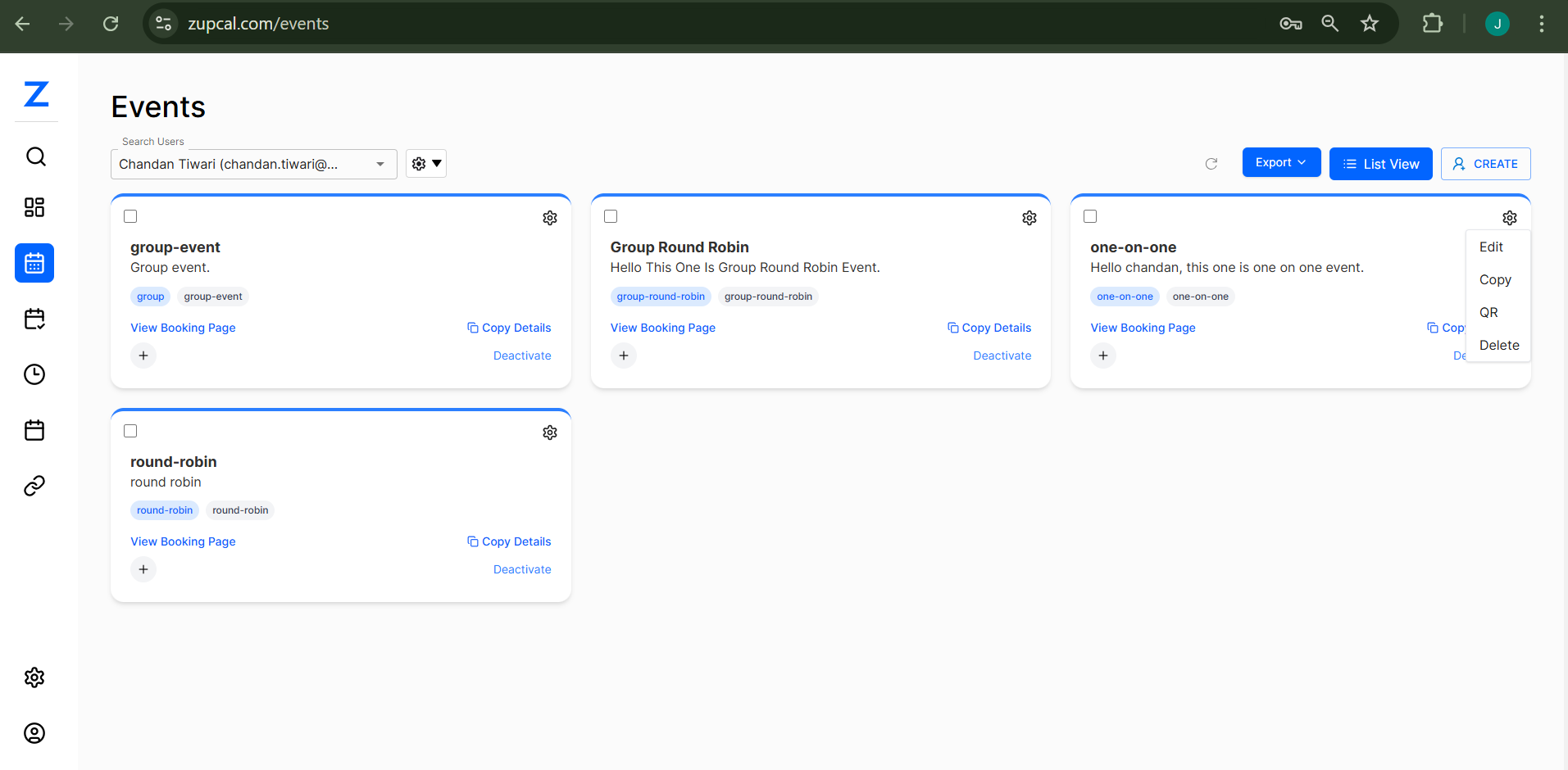
🟢 Step 1: Access the Event
Click on the event card that you want to book, then click on "View Booking Page" to begin.
🕒 Step 2: Select Date and Time
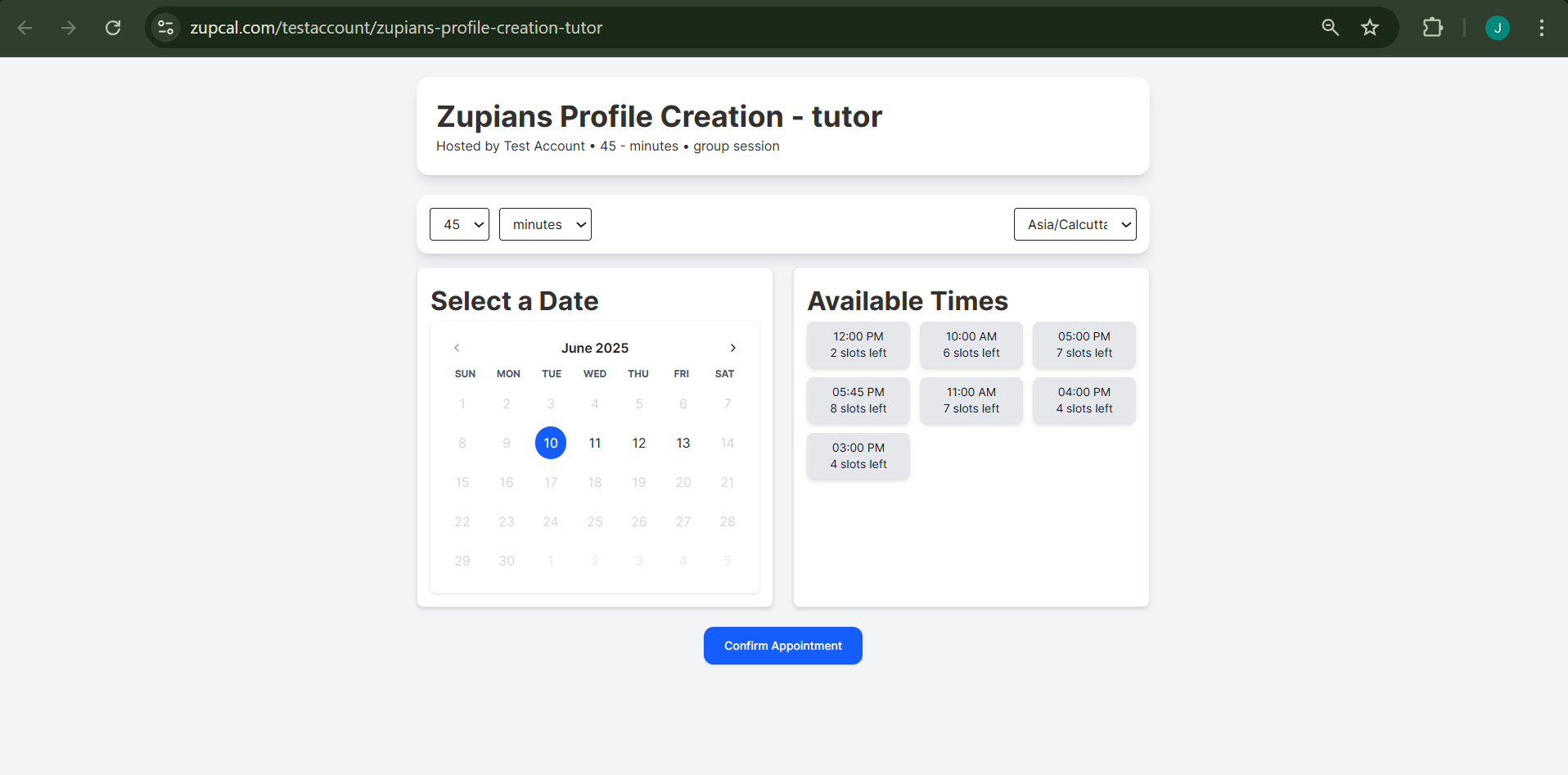
-
Choose Duration: Select the session duration (default: 45 minutes)
-
Set Time Zone: Choose your preferred time zone (e.g., Asia/Calcutta)
-
Select Date: Use the calendar to pick your preferred date
- Available dates are highlighted
- Example: June 10, 2025 selected
-
Pick Time Slot (slots available):
- 12:00 PM (2 left)
- 10:00 AM (6 left)
- 05:00 PM (7 left)
- 05:45 PM (8 left)
- 11:00 AM (7 left)
- 04:00 PM (4 left)
- 03:00 PM (4 left)
-
Click "Confirm Appointment" to continue
👥 Step 3: Add Guest Information (Optional)
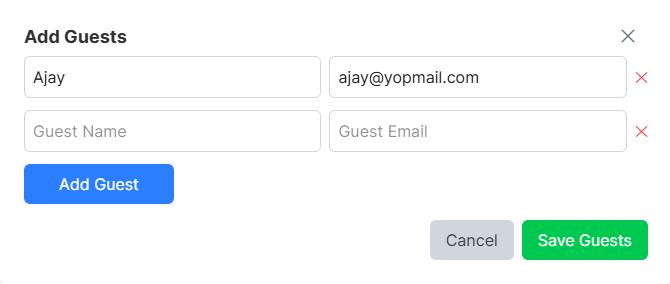
To add guests:
- Click "Add Guest"
- Fill in:
- Guest Name: e.g., Ajay
- Guest Email: e.g., ajay@yopmail.com
- Click "Add Guest"
- Repeat to add more guests
- Click "Save Guests" or "Cancel"
📝 Step 4: Complete Your Registration
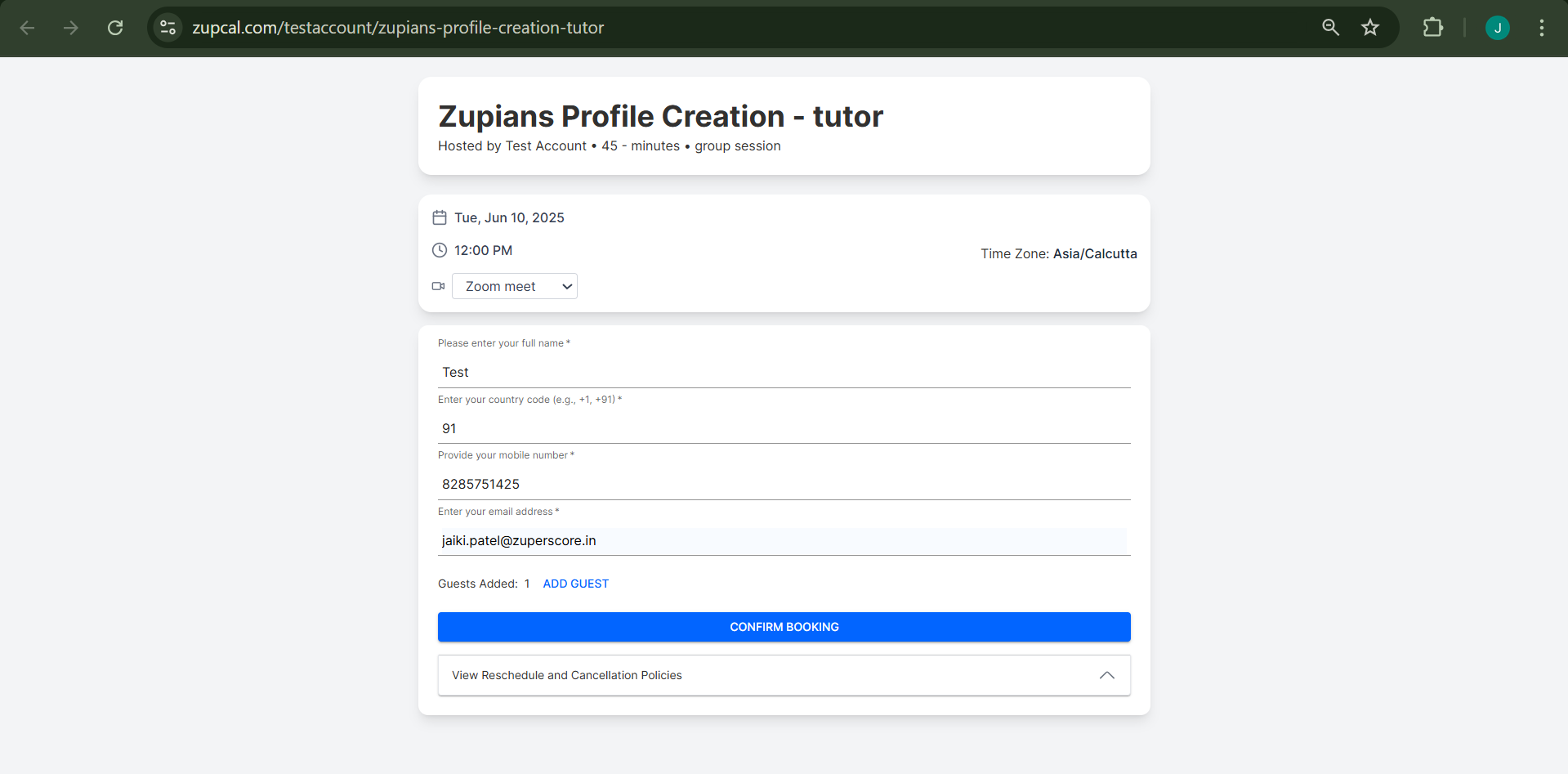
Meeting Details
- Date: Tue, Jun 10, 2025
- Time: 12:00 PM
- Time Zone: Asia/Calcutta
- Platform: Zoom meet (selectable)
Personal Information
- Full Name: Required – e.g., Test
- Country Code: Required – e.g., 91
- Mobile Number: Required – e.g., 1234567890
- Email Address: Required – e.g., xxx@zuperscore.in
Guest Info
- Displays count of added guests
- Option to ADD GUEST
✅ Step 5: Final Confirmation
- Review all information
- Optional: Check "View Reschedule and Cancellation Policies"
- Click "CONFIRM BOOKING"
📤 Notifications & Email Confirmations
-
✅ Host will receive an email notification with all booking details.
-
✅ Attendee (you) will receive a confirmation email including:
- Meeting date and time
- Platform link (e.g., Zoom)
- Calendar invite (if available)
-
✅ Guests added during booking will each receive:
- Separate confirmation emails
- Meeting link and time
- Calendar invitation
📌 Important Notes
- ✅ All required fields must be filled
- ✅ Email is essential for confirmation
- ✅ Mobile number must have country code
- ✅ Time zone affects schedule
- ✅ Guests are optional but recommended for group sessions
🧠 Frequently Asked Questions (FAQ)
1. How do I access the booking page?
2. Can I book multiple time slots?
3. What happens after I confirm my booking?
4. Can I change my selected time after booking?
5. What if my preferred time slot is full?
6. How do time zones work?
7. How many guests can I add?
8. Do guests get confirmation emails?
9. Can I add guests after booking?
10. What platform is used for meetings?
11. Do I need to download Zoom?
12. What if I face booking issues?
13. How can I contact the organizer?
14. How do I cancel my booking?
15. Are refunds available?
🛠️ Troubleshooting Tips
Common Issues & Fixes
- Booking button not working: Fill all required fields
- Email not received: Check spam folder or recheck your email
- Time zone mismatch: Ensure your time zone is selected correctly
- Guest addition fails: Verify email formatting
- Payment issues: Check payment info and card balance
Note: This guide covers the general booking process. Specific events may have variations based on host configurations.