Integration Guide
🧭 Overview
Integration system allows seamless connectivity with popular calendar, meeting, and productivity tools. The platform provides different access levels for administrators and regular users, ensuring proper permission management while maintaining ease of use.
🔑 Key Features
- Admin Control: Full access to all user integrations and system-wide settings
- User Self-Service: Individual users can manage their own integrations
- Team Management: Invite and manage team members with appropriate permissions
- Real-time Status: Toggle switches show current integration status
- Role-based Templates: Pre-configured permission templates for different user roles
🛠️ Admin Integration Management
Admin Dashboard Access
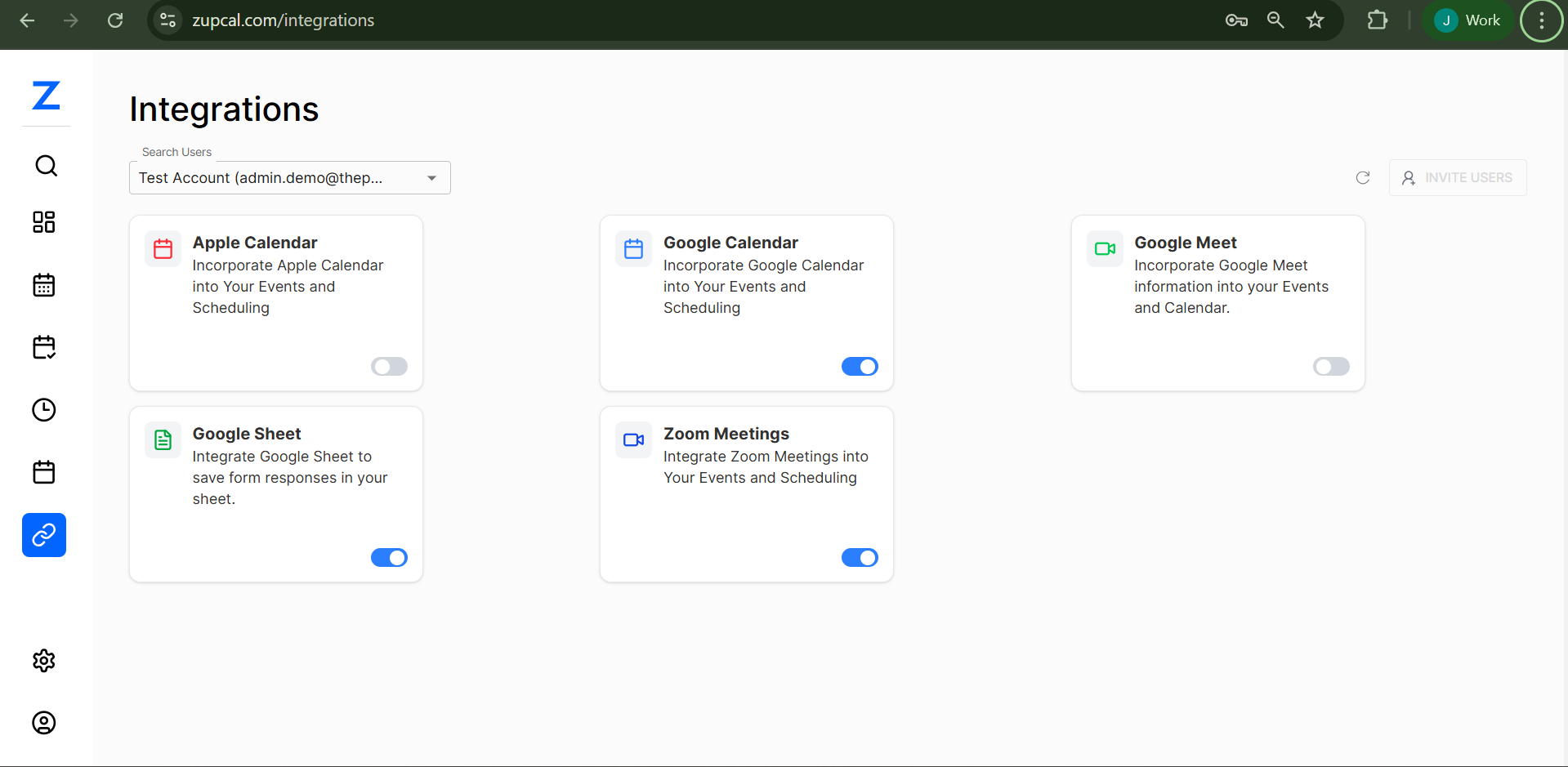
Administrators have comprehensive control over all integrations through the main dashboard located at zupcal.com/integrations.
Admin Capabilities:
- View All Integrations
- Manage User Access
- System-wide Configuration
- Permission Templates
Admin Integration Controls
- Toggle-based activation/deactivation
- Monitor integration status across users
- Bulk configuration options
- Usage tracking
🔗 Available Integrations
🗓️ Calendar Integrations
Apple Calendar
- Use: For Apple ecosystem users
- Status: Toggle-controlled
Google Calendar
- Use: Ideal for Google Workspace
- Status: Active
📹 Meeting Integrations
Google Meet
- Use: Google-native video conferencing
- Status: Toggle-controlled
Zoom Meetings
- Use: Widely used for professional meetings
- Status: Active
📊 Productivity Integrations
Google Sheets
- Use: Auto-save scheduling form responses
- Status: Active
⚙️ Step-by-Step Integration Process
For Administrators
Step 1: Access Dashboard
- Go to
zupcal.com/integrations - Select user
- Review status
Step 2: Enable Integration
- Locate the integration card
- Click toggle
- Authenticate
- Confirm connection
Step 3: Configure Settings
- Open settings
- Adjust permissions
- Enable auto-sync
- Save
Step 4: Test
- Create a test event
- Check calendar sync
- Verify meeting link
For Users
Step 1: Self-Service Setup
- Login
- Navigate to personal integration page
- View allowed integrations
Step 2: Setup
- Select integration
- Authenticate
- Set preferences
- Enable toggle
👥 Team Management & Invitations
Invite Process
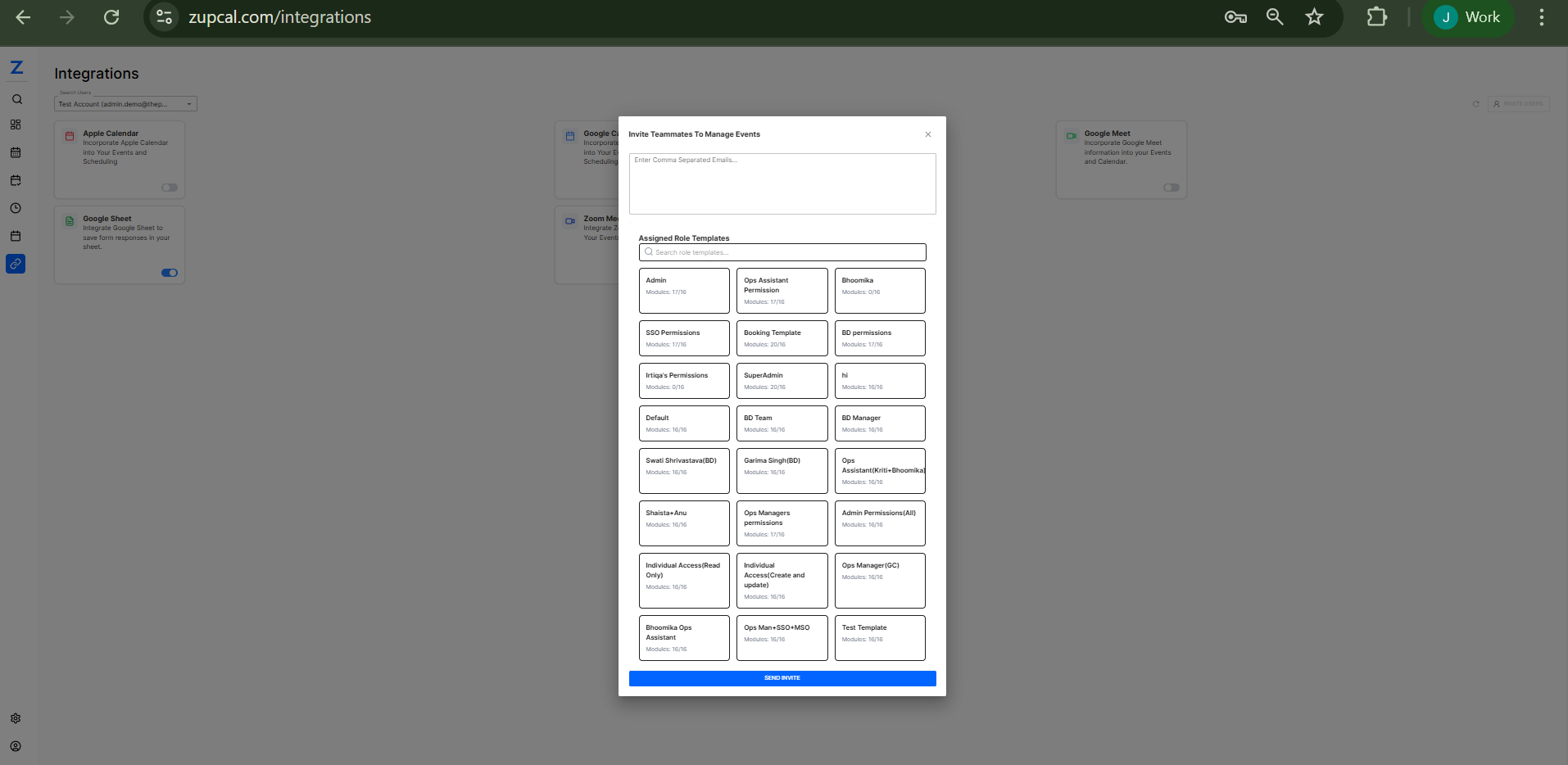
Step 1: Open Invite Modal
- Click
INVITE USERS - Choose role template
Step 2: Configure Details
- Add comma-separated emails
- Select permission template
Step 3: Role Templates
Administrative:
- Admin
- SuperAdmin
Operational:
- SEO Permissions
- Booking Template
- BD Permissions
Specialized:
- Integra Permissions
- Default
- BD Team
Management:
- BD Manager
- Ops Manager(SC)
Content & Analysis:
- Content SingleSO
- Ops Assistant/Kritik/Bhoomika
Step 4: Send Invites
- Review and click
SEND INVITE - Users receive setup emails
Permission Management
- Template-based
- Customizable
- Scalable
🧩 Troubleshooting
🔁 Common Issues
Integration Not Connecting
- Re-authenticate
- Clear cache
- Check API permissions
Calendar Sync Failing
- Check timezones
- Manual sync
- Review calendar permissions
Missing Meeting Links
- Ensure integration is active
- Verify meeting permissions
- Test with dummy event
🆘 Getting Help
- Check indicators
- Review browser errors
- Contact admin or support
🧠 Frequently Asked Questions (FAQ)
Q: Who can access integrations?
Admins can access all; users get role-based access.
Q: How do I know if an integration is working?
Toggle shows status. Test with a sample event.
Q: Can I use Apple & Google Calendar together?
Yes, both can be enabled simultaneously.
Q: What does Google Sheets integration do?
It saves form responses to your linked sheet automatically.
Q: Do I need different accounts for each service?
Yes, each service requires its own login and authorization.
Q: Can I disable integrations temporarily?
Yes, toggles let you disable without deleting configurations.
Q: Admin vs SuperAdmin?
SuperAdmin has extended system control (26 vs 16 modules).
Q: Can I change a user’s role later?
Yes, through the user management dashboard.
Q: Invite multiple roles?
Send separate invites per role or assign after invite.
Q: Limits on integrations?
Based on ZupCal plan and third-party API rules.
Q: Sync frequency?
Real-time for calendar; 15–30 mins for others.
Q: What data is shared?
Event metadata only — title, time, description, attendees.
Q: Why is my integration toggle reverting?
Likely an auth issue. Try re-authenticating.
Q: Events not syncing?
Check timezones, permissions, and try manual sync.
Q: Remove integration completely?
Toggle off, revoke API access, and contact support if needed.