Profile Guide
Overview
The profile system allows users to manage their personal information, contact details, and account settings. This guide covers all features available in the profile interface with step-by-step instructions.
Navigation & Access
Accessing Your Profile
- Log into your ZupCal account
- Navigate to
zupcal.com/profile/[your-profile-id] - Your profile page will display with all personal information sections
Profile URL Structure
- Format:
zupcal.com/profile/86ff67db-493b-41ae-a668-e3fdd3beebc3 - Each user has a unique profile identifier
- The URL is accessible only when logged in
Profile Interface Components
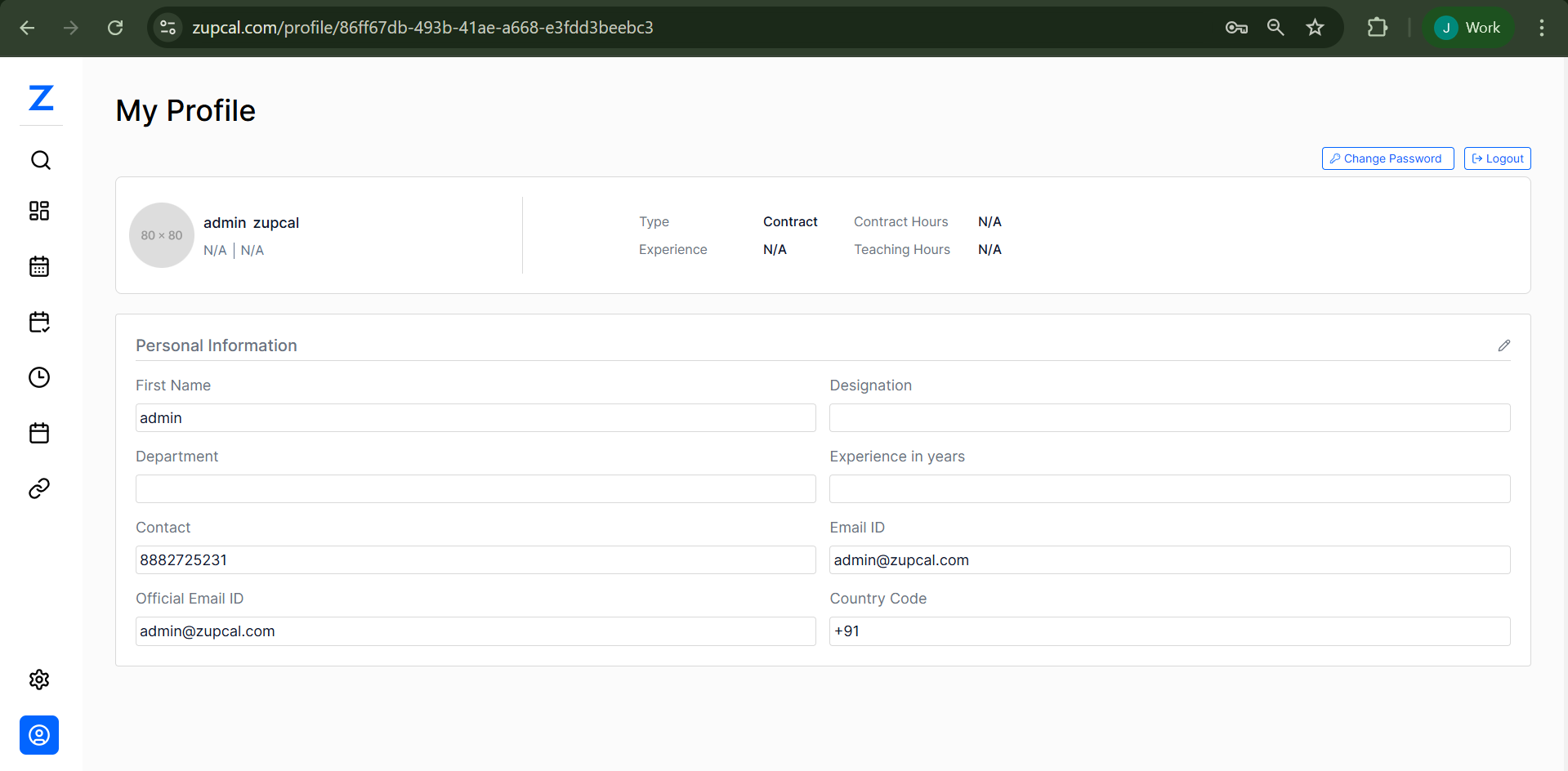
1. Header Section
Location: Top-right corner of the profile page
Available Actions:
- 🔐 Change Password
- 🚪 Logout
Change Password Flow
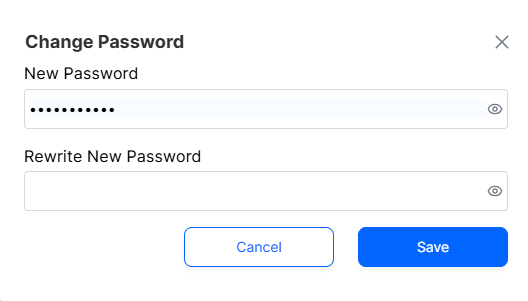
- Click "Change Password"
- Enter your new password and confirm
- Use the 👁️ icon to toggle visibility
- Click Save or Cancel
- Validation ensures both passwords match
2. User Identity Section
Location: Left side of the profile, below navigation
Components:
- Profile Avatar: image
- Display Name: "admin zupcal"
- User Status: "N/A | N/A"
Profile Summary Table:
| Field | Value | Description |
|---|---|---|
| Type | Contract | User classification |
| Contract Hours | N/A | Working hours if applicable |
| Experience | N/A | Years of experience |
| Teaching Hours | N/A | Education-related hours |
Personal Information
3. Personal Information Section
Location: Main content area
Editable Fields:
Left Column:
- First Name: "admin"
- Department
- Contact: "123456789"
- Official Email ID: "admin@zupcal.com"
Right Column:
- Designation
- Experience in years
- Email ID: "admin@zupcal.com"
- Country Code: "+91"
Editing Personal Information
- Click ✏️ edit icon
- Modify fields
- Click Save or Cancel
User Interface Elements
Navigation Sidebar
Menu Items:
- 🔍 Search
- 📱 Dashboard/Apps
- 📅 Calendar
- 📋 Tasks
- ⏰ Time Tracking
- 🔗 Links
- ⚙️ Settings
- 💬 Support
Visual Design
- Blue & white theme
- Clean typography
- Sidebar layout
- Intuitive icons
Data Fields Reference
Contact Information
| Field Name | Format | Example | Required |
|---|---|---|---|
| First Name | Text | admin | Yes |
| Contact | Phone | 123456789 | No |
| Official Email ID | admin@zupcal.com | Yes | |
| Email ID | admin@zupcal.com | No | |
| Country Code | +[Number] | +91 | No |
Professional Information
| Field Name | Format | Example | Required |
|---|---|---|---|
| Department | Text | IT Department | No |
| Designation | Text | Software Engineer | No |
| Experience in years | Number | 5 | No |
Security Features
Password Management
- Passwords masked
- Eye icon for visibility
- Must confirm new password
- Immediate effect
Session Management
- Logout via header
- Profile access requires login
- Data protected and private
🧠 Frequently Asked Questions (FAQ)
Q: How do I change my password?
Click the "Change Password" button in the top-right corner. Enter your new password twice in the modal dialog and click "Save". The password fields are masked for security.
Q: What happens if I forget to confirm my new password?
The system requires both password fields to match. If they don't match, you'll receive a validation error and need to re-enter the passwords correctly.
Q: Can I see my password while typing?
Yes, use the eye icon (👁️) next to each password field to toggle between masked (••••••••••) and visible text.
Q: Why do some fields show "N/A"?
"N/A" appears for fields that haven't been filled out yet or don't apply to your user type. You can edit these fields by clicking the edit icon in the Personal Information section.
Q: What's the difference between "Email ID" and "Official Email ID"?
The "Official Email ID" is your primary contact email used for system communications. "Email ID" can be an alternative contact email.
Q: Can I change my profile avatar?
The current interface shows a placeholder avatar (80x80). Avatar upload functionality may be available through the settings menu or will be added in future updates.
Q: My profile URL looks complex. Is this normal?
Yes, profile URLs use unique identifiers (like 86ff67db-493b-41ae-a668-e3fdd3beebc3) for security and system organization. This is your personal profile ID.
Q: Some fields are empty in my profile summary. Should I be concerned?
No, fields like "Contract Hours" and "Teaching Hours" are specific to certain user types. If they don't apply to your role, they'll remain as "N/A".
Q: How do I update my contact information?
Click the edit icon (✏️) in the Personal Information section, modify the desired fields, and click "Save" to update your information.
Q: How do I access different sections of the platform?
Use the sidebar navigation on the left. Icons represent different features like Calendar (📅), Tasks (📋), Time tracking (⏰), and Settings (⚙️).
Q: What if I can't find a specific feature?
Use the Search function (🔍) at the top of the sidebar, or check the Settings (⚙️) section for additional options.
Q: How do I get help if I'm stuck?
Click the Support/Help icon (💬) in the sidebar for assistance, or contact your system administrator.
Q: Who can see my profile information?
Your profile information is private and only visible to you when logged in. Administrators may have access for system management purposes.
Q: Is my data automatically saved?
Changes to your profile information are saved when you click the "Save" button. The system doesn't auto-save, so make sure to save your changes.
Q: Can I export my profile data?
Contact your system administrator about data export options, as this may depend on your organization's data policies.
Troubleshooting
Common Issues
-
Password Change Not Working
- Ensure fields match
- Meet password requirements
- Refresh the page if needed
-
Profile Info Not Saving
- Ensure you click "Save"
- Check your internet
- Validate access permissions
-
Can't Access Profile Page
- Log in again if session expired
- Confirm the profile URL
-
Missing Navigation
- Refresh browser
- Clear cache
- Contact tech support
Best Practices
Profile Maintenance
- Keep data up-to-date
- Use strong passwords
- Log out when done
- Fill professional info accurately
Security Recommendations
- Don't share credentials
- Always use the logout button
- Keep browser updated
- Report suspicious activity