🔍 Global Search Guide
The Global Search feature allows you to quickly access events, users, groups, tasks, and more—all from one centralized interface.
✨ Accessing Global Search
- Click the search icon (🔍) from the sidebar to open the search modal.
- A pop-up window will appear titled "Search events, users, groups."
🔗 Quick Links
The top section provides one-click access to frequently used actions:
| Option | Description |
|---|---|
| Dashboard | Redirects to your main dashboard. |
| Add User | Opens the Add User form for quick team member onboarding. |
| Edit Calendar | Takes you to the calendar customization/edit page. |
| Create Event | Shortcut to begin event creation flow. |
🕓 Recent Activities
This section displays recent actions performed in the system. Useful for tracking updates without digging through logs.
Examples:
Role "Manager" updated by AdminGroup "Engineering" created
✅ Pending Tasks
Displays high-priority items that may require user attention:
| Task Type | Description |
|---|---|
| Role Assignment | Notifies about users without assigned roles. |
| Event Approval | Lists any events pending admin approval. |
| Meeting Scheduling | Reminds you about scheduling upcoming marketing or other team meetings. |
| Security Review | Prompts for security-related policy confirmations or edits. |
| Quarterly Reports | Task to finalize and submit Q3 (or respective quarter) reports. |
| Onboarding Invites | Send invites to new users during onboarding. |
📈 Use Flow Summary
- Access Search via sidebar or shortcut.
- Browse Quick Links for rapid navigation.
- Review Activities to stay up to date.
- Check Pending Tasks and take action.
This flow ensures streamlined team coordination, time-saving navigation, and complete visibility of what's happening.
🧠 Frequently Asked Questions (FAQ)
1. Can I use the search to find a specific user or event?
Yes. Simply type the name or keyword in the search bar—suggestions will auto-populate as you type.
2. Are Quick Links customizable?
No, the Quick Links are currently fixed. However, future updates may introduce customizability.
3. What if an event is not showing in Pending Tasks?
Check whether the event has been submitted for approval. Only unapproved items appear in Pending Tasks.
4. How often are Recent Activities updated?
Recent Activities update in real time, based on system interactions made by you or others.
5. Can I assign roles directly from the Pending Tasks section?
No. Clicking on a task will redirect you to the relevant module (like User Management) to take action.
🖼️ Reference Image
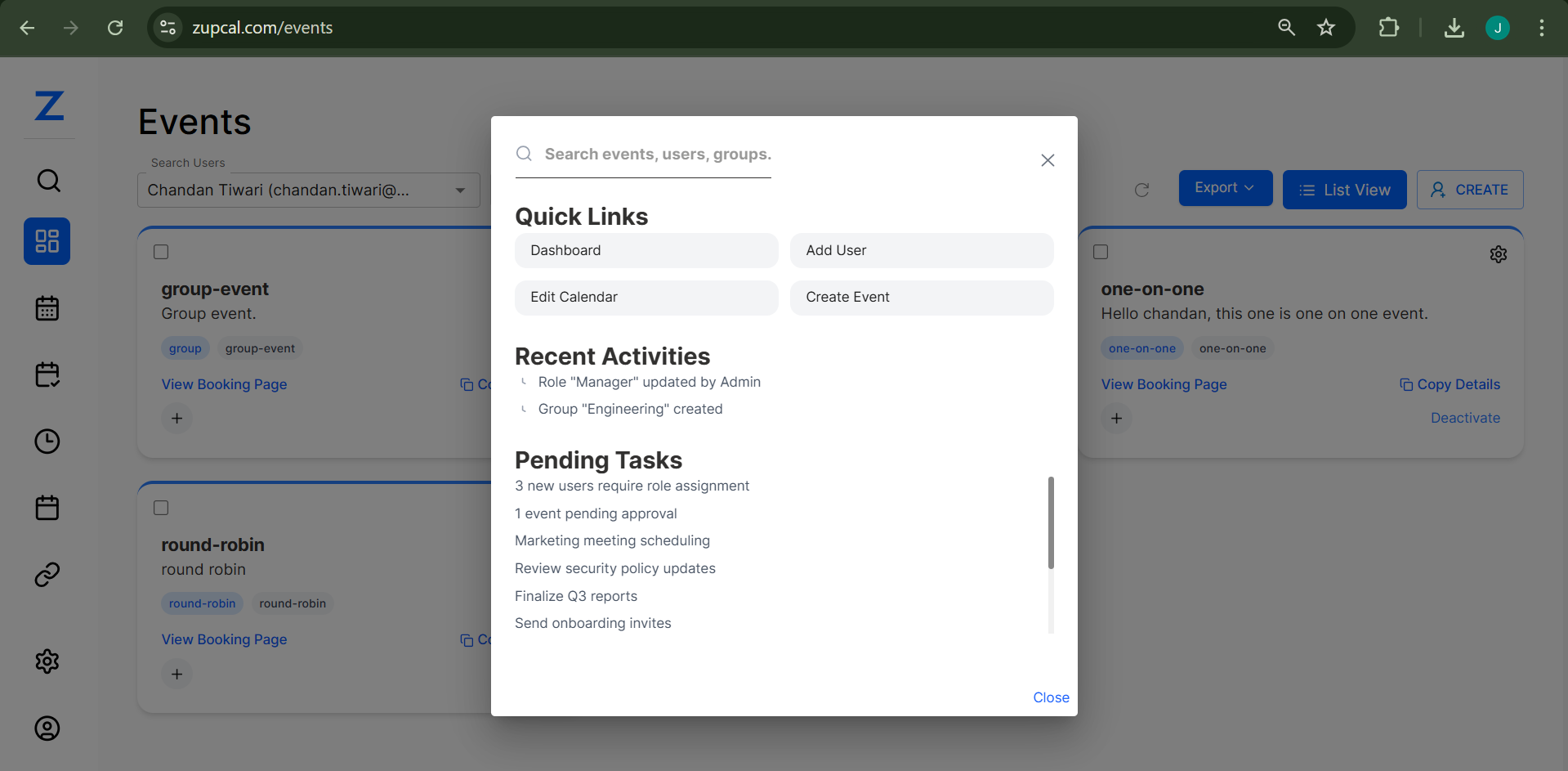
This image shows a sample global search interface with categorized sections for quick navigation and task handling.