Event Guide - Delete, Export & User Controls
Event dashboard provides comprehensive tools for managing events, bookings, and user permissions. This guide covers event deletion, export functionality, and user-based access controls based on admin and regular user roles.
🗂️ Dashboard Layout & Components
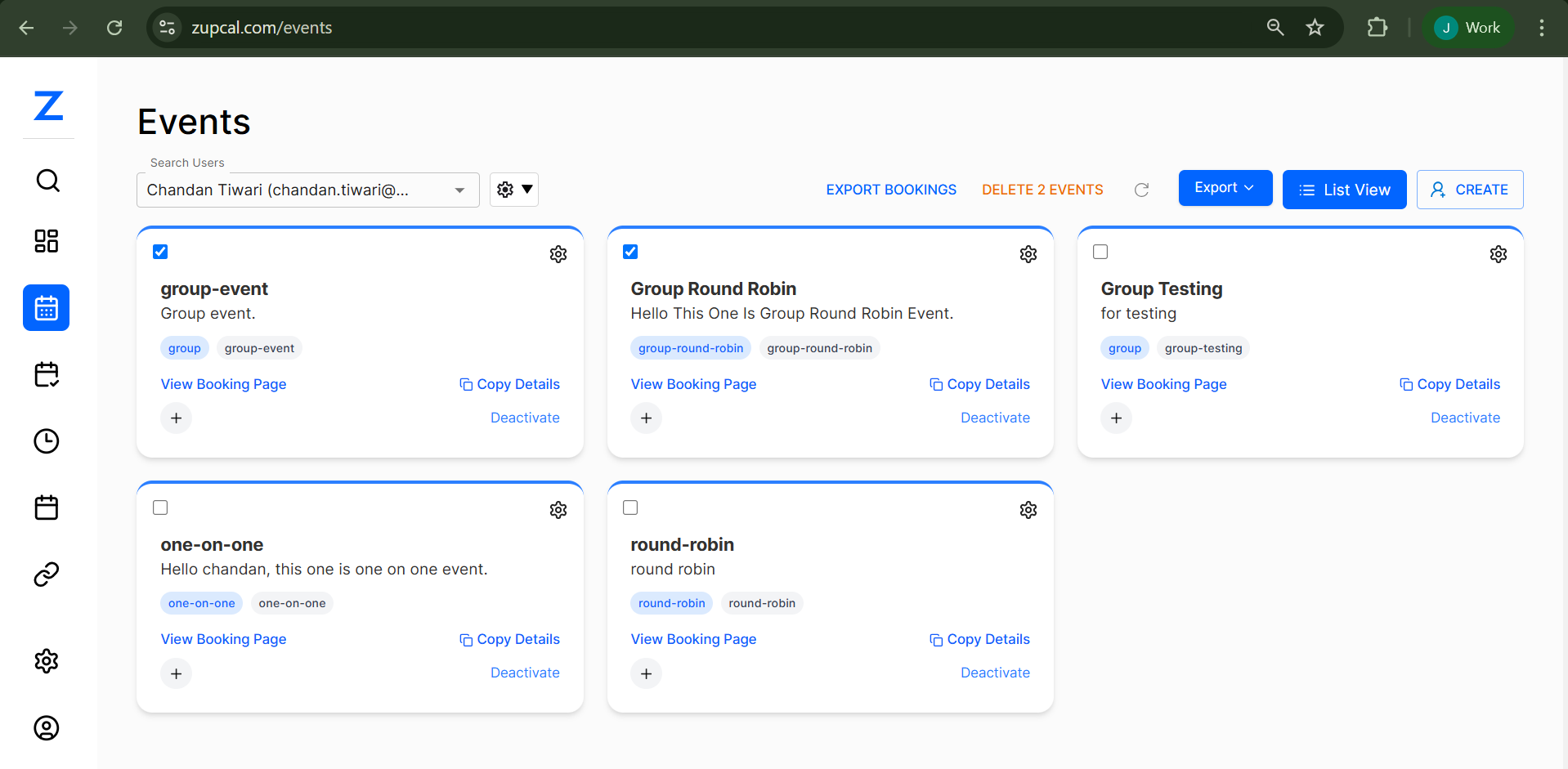
The Events dashboard (zupcal.com/events) displays all your scheduled events with powerful management options.
🏷️ Event Types & Display
🎴 Event Card Structure
Each event is displayed as a card containing:
-
Event Status Checkbox
- ✓ Active events (checked)
- ⬜ Inactive events (unchecked)
- Allows bulk selection for operations
-
Event Title & Description
- group-event: "Group event."
- Group Round Robin: "Hello This One Is Group Round Robin Event."
- one-on-one: "Hello chandan, this one is one on one event."
- round-robin: "round robin"
-
Event Type Tags
group,group-eventgroup-round-robin,group-round-robinone-on-one,one-on-oneround-robin,round-robin
-
Action Buttons
- View Booking Page
- Copy Details
- ⚙️ Settings Gear
-
Additional Actions
- ➕ Plus: Add new related events
- Deactivate
🔍 User Search & Role-Based Access
User: Top-left dropdown showing Users
👑 Admin Capabilities
- View all users
- Switch context
- Full management access
- Manage user permissions
👤 Regular User Limitations
- Own events only
- No user switching
- Limited export
- Restricted delete
🔄 How It Works
- Dropdown Selection
- Search Filter (Admin only)
- Context Switch (Admin only)
- Gear for Settings Access
🔧 Bulk Operations & Top-Level Actions
![Top Action Bar]
🔼 Available Actions
- EXPORT BOOKINGS
- DELETE X EVENTS
- Export ▼ (Advanced export options)
- List View
- CREATE
📁 Export Bookings
Admins:
- Export all users’ bookings
- Filter by date, event type, users
- Formats: CSV
- Include metrics
Users:
- Export only their data
- Limited format
- Personal history only
🗑️ Delete Events
- Shows dynamic "DELETE X EVENTS"
- Confirmation required
- Cannot be undone
Admins:
- Delete across users
- Deleted logs access
Users:
- Only own events
- Configurable booking deletion rules
⚙️ Individual Event Management
![Event Context Menu]
Context Menu Options
- Edit – Modify event settings
- Copy – Clone event with settings
- QR – Generate scannable code
- Delete – Permanent removal with confirmation
🧩 Additional Features
View Booking Page
- Preview attendee interface
- Public sharing
Copy Details
- Clone availability, settings, forms
Deactivate vs Delete
- Deactivate: Temporary, safe
- Delete: Permanent, irreversible
✅ Step-by-Step Operation Guides
🗑️ Delete Single Event
- Navigate to dashboard
- Click ⚙️ and select "Delete"
- Confirm deletion
- Verify removal
🧹 Bulk Delete Events
- Select multiple checkboxes
- Click "DELETE X EVENTS"
- Confirm via dialog
- All events removed at once
📤 Export Bookings
For Admins
- Click EXPORT or Export ▼
- Configure date, type, user
- Choose format
- Generate & download
For Users
- Export personal events only
- Format: CSV
- Immediate download
🔐 Access Control Matrix
Admin Permissions
| Action | Scope | Details |
|---|---|---|
| View Events | All Users | Org-wide visibility |
| Edit Events | All Users | Full editing |
| Delete Events | All Users | Remove any event |
| Export Data | All Users | Full access to all booking data |
| User Management | All Users | Switch & manage users |
| Bulk Operations | All Users | Across users |
Regular User Permissions
| Action | Scope | Details |
|---|---|---|
| View Events | Own Only | Limited to own |
| Edit Events | Own Only | Can modify personal events |
| Delete Events | Own Only | With restrictions |
| Export Data | Own Only | Only personal bookings |
| User Management | None | No access |
| Bulk Operations | Own Only | Limited |
💡 Best Practices
Deletion Strategy
- Review bookings
- Notify attendees
- Export data
- Prefer deactivate
Bulk Safety
- Preview before delete
- Use filters
- Do in low-traffic hours
- Keep backups
Permissions Management
- Audit admin access
- Train staff
- Log changes
- Detect anomalies
Export Routine
- Monthly full exports
- Weekly incremental
- Before deletions
- Before system upgrades
🛠️ Troubleshooting
Cannot Delete Event
- Bookings exist
- No permission
- Contact admin
Export Issues
- Check date range
- Try other formats
- Internet check
Missing Events
- Check context
- Filter settings
- Ownership mismatch
Bulk Issues
- Too many selections
- Check each permission
- Try one by one
System Requirements
- Modern browser
- Proper role
- Stable internet
- Enough storage
🗂️ Event 🧠 Frequently Asked Questions (FAQ)
1. What’s the difference between deactivating and deleting an event?
Deactivating hides the event from booking without deleting any data. Deleting permanently removes the event and all associated records.
2. Can I recover a deleted event?
No, deleted events cannot be restored. Export event data or use deactivation instead if you might need it later.
3. How many events can I delete in bulk?
There’s no strict limit, but we recommend deleting in batches of 10–20 for optimal performance and safety.
4. How do I know if I’m an admin?
Admins can see a user switcher dropdown at the top of the screen. Regular users won’t have this option.
5. Can regular users delete booked events?
That depends on organizational policy. Some systems prevent deletion if bookings already exist.
6. What data is included in exports?
Exports typically include attendee info, timestamps, event settings, form responses, and booking status. Format may vary (CSV, JSON, etc.).
7. How long are export files available?
Most exports are available for 24–48 hours. Larger files may have a shorter availability window.
8. Can I schedule exports automatically?
Not currently. Automatic export scheduling isn’t built-in — contact your admin for a workaround or integration.
9. Is JSON export available?
Yes. JSON is supported for system integrations and technical use.
10. Can bulk deletions be undone?
No, bulk deletions are permanent. Always export and verify before deleting multiple events.
🔒 Security & Compliance
Data Protection
- Encrypted downloads
- Audit logs for actions
- Deletion timestamps
- Compliant with privacy laws
User Activity Monitoring
- Admin logs
- Bulk deletion alerts
- Export logs
- Suspicious behavior detection
Access Control Best Practices
- Principle of least privilege
- Regular audits
- Change logs
- Training
✅ Conclusion
Zupcal's system empowers admins and users to efficiently manage events with safety, flexibility, and accountability.
Tips:
- Export before deleting
- Use deactivation when unsure
- Know your role limitations
- Be cautious with bulk actions