Group Events Guide
Group Events allow you to create collaborative scheduling sessions where multiple participants can find common availability. This feature is perfect for team meetings, workshops, group calls, and any event requiring coordination among multiple people.
🟢 Getting Started
Prerequisites
- Active Zupcal account
- Access to the Group Events feature
- List of participants you want to invite
🛠️ Step-by-Step Guide
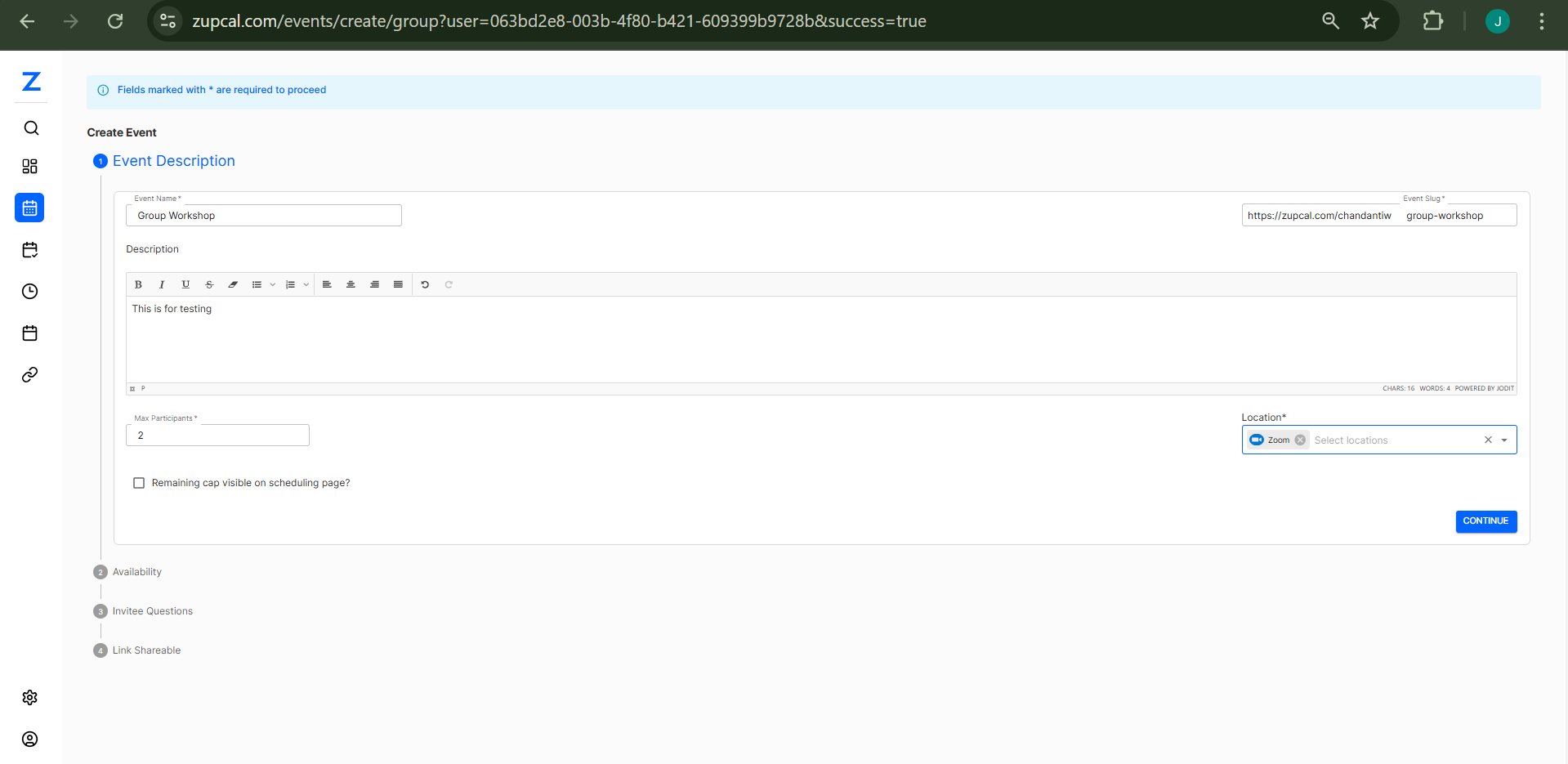
Step 1: Event Description
-
Navigate to Create Event
- Go to
zupcal.com/events/create/group - You'll see the "Create Event" interface
- Go to
-
Fill in Basic Information
- Event Name: Enter a descriptive name
- Description: Add event details
- Event Slug: Auto-generated URL
- Location: Select Zoom or custom
-
Set Participant Limits
- Define maximum attendees
- Toggle visibility for remaining slots
-
Click "CONTINUE" to proceed
Step 2: Invitee Questions and Policies
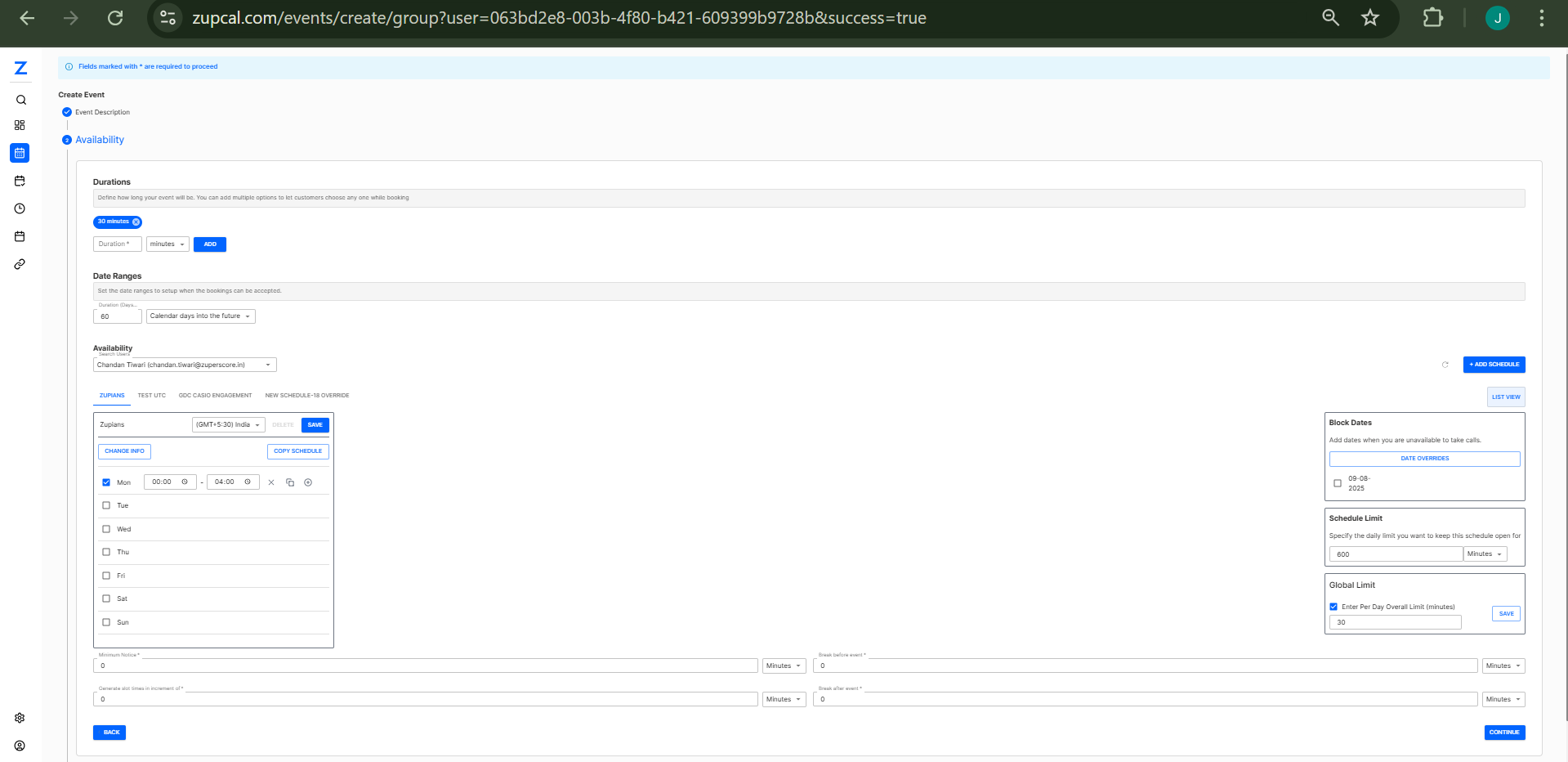
Invitee Questions
- Set custom questions
- Customize flow
Redirect and Confirmation
- Post-booking redirect URLs
- Confirmation messages
Guest Management
- Set guest permissions
Policies Section
-
Reschedule Policy
- ✅ Enable rescheduling
- Set time limits
- Terms and conditions
-
Cancellation Policy
- ✅ Enable cancellation
- Set deadline
- Terms and conditions
Additional Settings
- Advanced configurations
- Navigation Options
- Click "BACK", "FINISH →", or proceed to Availability
Step 3: Availability Configuration
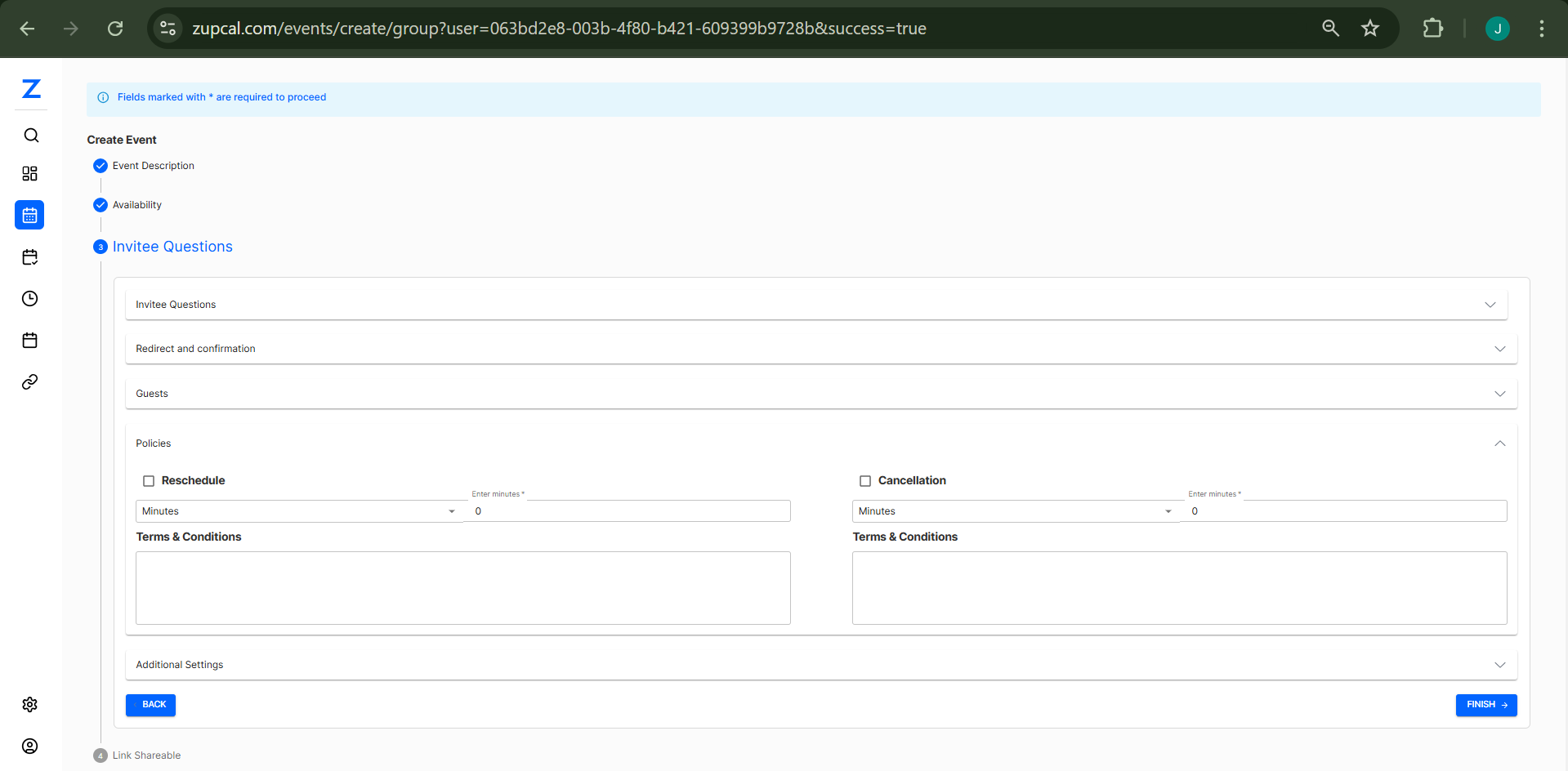
Duration Settings
- Set event duration (e.g., "2 Hours")
- Presets or custom durations
Date Ranges
- Configure booking window (default: 60 days)
Availability
- Select Timezone (e.g., India GMT+5:30)
- Use schedule builder
- Time ranges
- Day selection
- Buffer times
Right Panel Options
- Block Dates: Add unavailable dates
- Schedule Limit: Daily limit (e.g., 20 mins)
- Global Limit: ✅ Enforce overall daily limit (e.g., 30 mins)
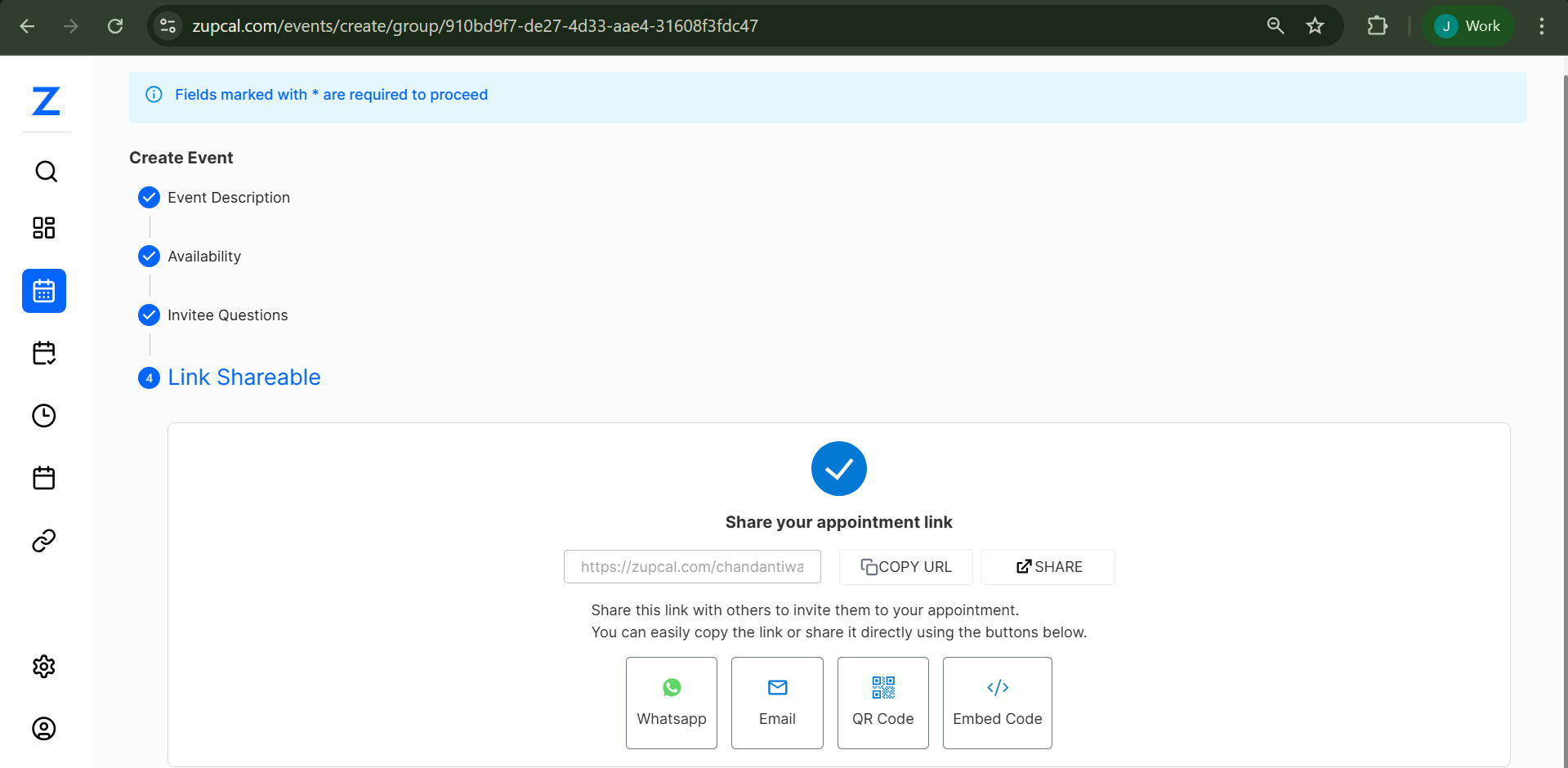
Step 4: Finalize and Share
- Review Settings
- Click "CONTINUE" to create event
- Share Link with participants
🌟 Key Features
🎯 Participant Management
- Set limits
- Track spots
- Manage guests
📅 Flexible Scheduling
- Time zone support
- Recurring patterns
- Custom durations
🔧 Customization Options
- Participant questions
- Branded confirmation
- Video platform integration
📊 Analytics & Control
- Booking caps
- Cancellation/reschedule policies
- Block dates
✅ Best Practices
For Organizers
- Use clear titles
- Detailed descriptions
- Realistic participant caps
- Include buffer time
- Set timezone correctly
For Participants
- Book early
- Read requirements
- Confirm via email
- Prepare in advance
🔗 Integration Options
Video Conferencing
- Zoom Integration
- Add custom platforms
Calendar Sync
- Auto calendar invites
- Cross-platform
- Reminders
🧩 Troubleshooting
Q: Participants can't see available time slots
- Check availability & timezone
- Confirm date range settings
Q: Too many booking conflicts
- Adjust buffer times
- Reduce session frequency
- Set limits
Q: No confirmation received?
- Check spam
- Verify emails
- Review settings
👥 Group Event 🧠 Frequently Asked Questions (FAQ)
1. What's the difference between individual and group events?
Group events allow multiple participants to book the same time slot, while individual events are one-on-one sessions.
2. Can I limit the number of participants?
Yes. You can set a maximum participant limit in the Event Description section.
3. How do participants know if spots are still available?
Enable the option “Remaining cap visible on scheduling page” to show available spots.
4. Can I set different availability for different days?
Yes, use the Weekly Schedule Builder to define day-wise time slots.
5. How do I handle different time zones?
Zupcal auto-converts event times based on the participant’s local time zone.
6. Can participants reschedule or cancel?
Yes, if the reschedule/cancel policy is enabled in Step 2 of the event setup.
7. How do I integrate with Zoom?
Select Zoom in the Location field to auto-generate meeting links.
8. Can I export participant lists?
Yes. Export the list directly from the event dashboard.
9. What happens if I need to cancel the entire event?
Cancel it via the dashboard, and all participants will be notified automatically.
10. Is there a limit to how many group events I can create?
That depends on your Zupcal plan. Check plan details for limits.
11. Can I charge for group events?
Yes, payment integration is supported on selected plans.