Collective Round Robin Guide
Overview
Collective Round Robin is a powerful scheduling feature in Zupcal that allows you to create a single event where multiple team members can be assigned as potential hosts. This feature enables automatic load balancing and fair distribution of appointments across your team members.
What is Collective Round Robin?
Collective Round Robin allows you to create a single scheduling link that automatically distributes incoming appointments among multiple team members in a rotating fashion. This ensures:
- Fair distribution of appointments across all team members
- Automated scheduling without manual assignment
- Single shareable link for all team members
- Load balancing to prevent any single person from being overbooked
Step-by-Step Setup Process
Step 1: Create Event Description
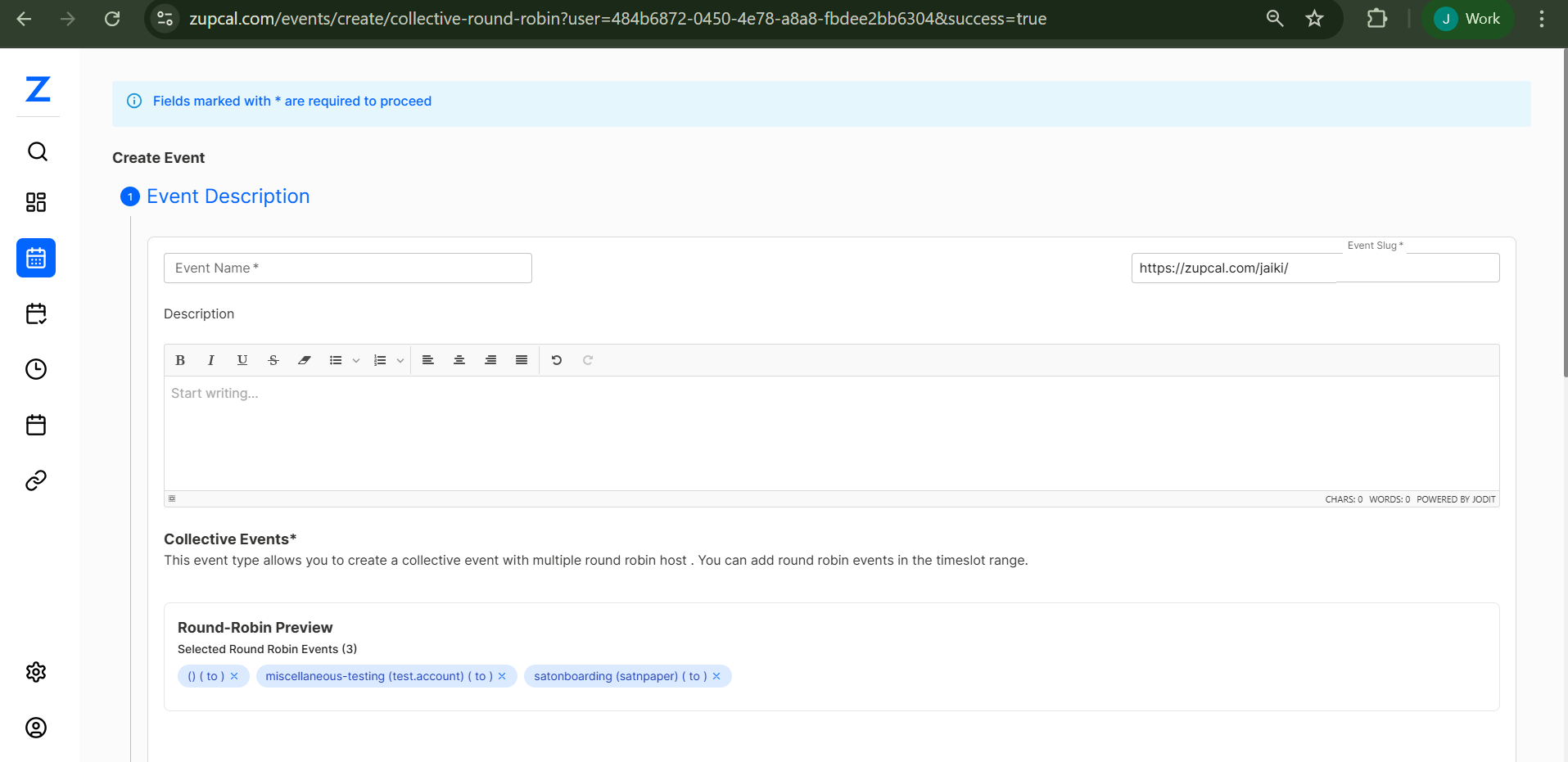
-
Navigate to Event Creation
- Go to
zupcal.com/events/create/collective-round-robin - You'll see the "Create Event" interface
- Go to
-
Fill Required Fields
- Event Name: Enter a descriptive name for your collective event
- Event Slug: This will auto-populate based on your event name (e.g.,
https://zupcal.com/jaiki/) - Description: Use the rich text editor to provide detailed information about the appointment
-
Configure Event Details
- Use the formatting toolbar for rich text descriptions
- Add any necessary information about the appointment process
- Include preparation instructions or requirements
Step 2: Select Round Robin Events
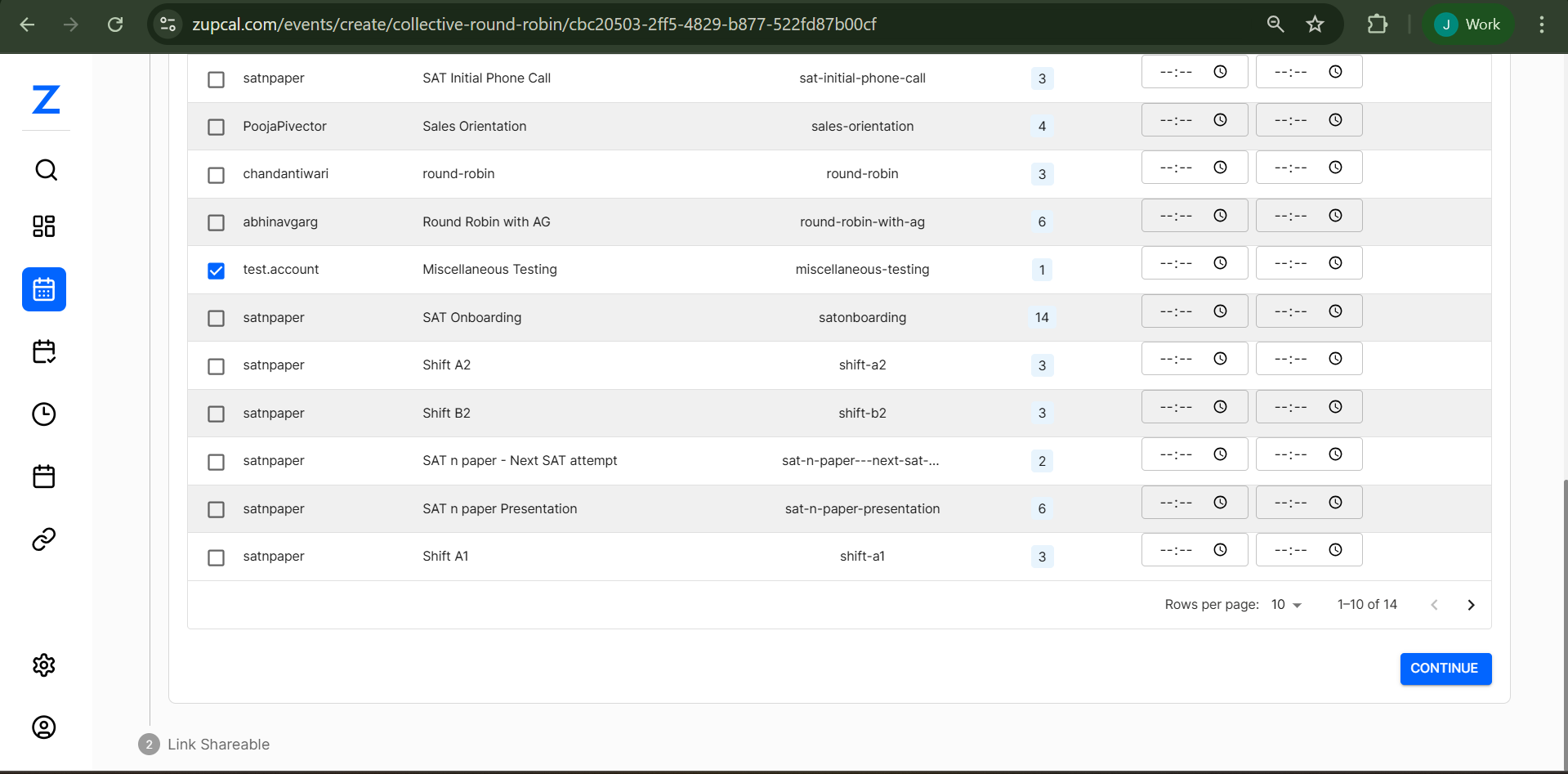 In the "Collective Events" section, you'll see:
-
Event Type Description: "This event type allows you to create a collective event with multiple round robin host. You can add round robin events in the timeslot range."
-
Round-Robin Preview Section: Shows "Selected Round Robin Events (3)" with selected events like:
() ( to )miscellaneous-testing (test.account) ( to )satonboarding (satnpaper) ( to )
Step 3: Team Member Selection
The final step shows a comprehensive list of available team members and their events:
Available Team Members and Events:
| Team Member | Event Type | Event Slug | Capacity | Time Slots |
|---|---|---|---|---|
| satnpaper | SAT Initial Phone Call | sat-initial-phone-call | 3 | Configurable |
| PoojaPivector | Sales Orientation | sales-orientation | 4 | Configurable |
| chandantiwari | round-robin | round-robin | 3 | Configurable |
| abhinavgarg | Round Robin with AG | round-robin-with-ag | 6 | Configurable |
| test.account | Miscellaneous Testing | miscellaneous-testing | 1 | Configurable |
| satnpaper | SAT Onboarding | satonboarding | 14 | Configurable |
| satnpaper | Shift A2 | shift-a2 | 3 | Configurable |
| satnpaper | Shift B2 | shift-b2 | 3 | Configurable |
| satnpaper | SAT n paper - Next SAT attempt | sat-n-paper---next-sat-... | 2 | Configurable |
| satnpaper | SAT n paper Presentation | sat-n-paper-presentation | 6 | Configurable |
| satnpaper | Shift A1 | shift-a1 | 3 | Configurable |
Selection Process:
- Review Available Events: Browse through all available round-robin events
- Check Desired Events: Select the checkboxes for events you want to include
- Configure Time Slots: Set specific time ranges for each selected event
- Set Capacity: Define how many appointments each person can handle
- Click Continue: Finalize your selection
Step 4: Link Shareable
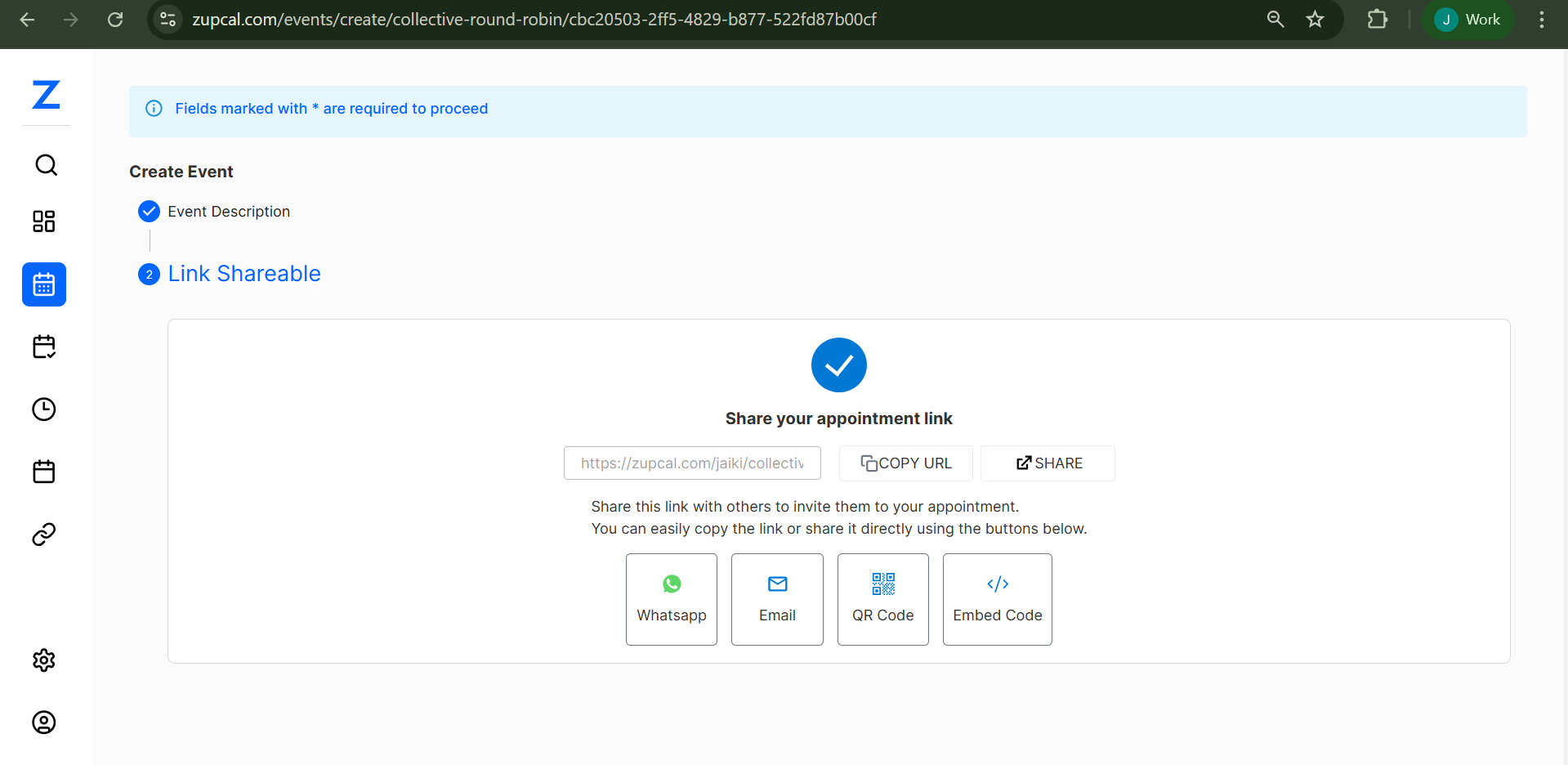
After completing the event description, you'll move to the "Link Shareable" step:
- Confirmation: You'll see a checkmark indicating successful setup
- Share Your Appointment Link: The system generates a unique URL
- Sharing Options:
- Copy URL: Direct link copying
- Share Button: Quick sharing options
- WhatsApp: Direct WhatsApp sharing
- Email: Email integration
- QR Code: Generate QR code for easy access
- Embed Code: HTML embed code for websites
Key Features
1. Automatic Load Balancing
The system automatically distributes appointments across selected team members based on:
- Current availability
- Existing appointment load
- Configured capacity limits
- Time zone preferences
2. Flexible Time Slot Management
- Each team member can have different available time slots
- Configurable capacity per person per time slot
- Automatic conflict resolution
3. Multiple Sharing Options
- Single URL: One link works for all team members
- Multi-platform sharing: WhatsApp, Email, QR codes
- Embed capability: Integration with websites
- Custom branding: Personalized URLs with your brand
4. Real-time Availability
- Live sync with all team members' calendars
- Automatic updates when appointments are booked
- Conflict prevention across all integrated calendars
Best Practices
1. Event Setup
- Clear naming conventions: Use descriptive event names
- Detailed descriptions: Include all necessary information
- Consistent formatting: Maintain professional appearance
2. Team Member Selection
- Balanced capacity: Ensure fair distribution of appointment loads
- Skill matching: Select team members with relevant expertise
- Availability alignment: Choose members with overlapping time slots
3. Time Management
- Buffer time: Include preparation time between appointments
- Time zone considerations: Account for global team members
- Peak hour management: Distribute high-demand time slots fairly
🧠 Frequently Asked Questions (FAQ)
1. What happens if all team members are busy at a requested time?
2. Can I add or remove team members after creating the collective event?
3. How does the system decide who gets the next appointment?
4. Can team members have different time zones?
5. What if a team member needs to cancel or reschedule?
6. Can I set different appointment durations per team member?
7. Does this work with Google Calendar, Outlook, etc.?
8. Can I embed the round-robin scheduler on my website?
9. How do notifications work for collective events?
10. What's the maximum number of team members I can add?
11. Can I set daily or weekly limits for team members?
12. What happens if someone books multiple appointments?
Troubleshooting
Common Issues
-
Team member not receiving notifications
- Verify email settings in team member's profile
- Check spam/junk folders
- Ensure calendar integration is active
-
Availability not showing correctly
- Confirm calendar sync status
- Check time zone settings
- Verify working hours configuration
-
Uneven distribution of appointments
- Review capacity settings for each team member
- Check availability patterns
- Adjust round-robin weights if available
Getting Support
If you encounter issues not covered in this guide:
- Contact support through logging the issue in Trouble Shooter Settings>> Trouble Shooter
- Email support with specific details about your setup