📘 Booking Listing
This guide provides detailed steps to view, manage, and filter bookings. It covers features for both regular users and administrators.
🧭 Overview
The Booking Listing system allows users to:
- View scheduled events
- Apply advanced filters
- Check event types and statuses
Administrators have access to all user bookings, while regular users can view only their own.
🖥️ Main Interface
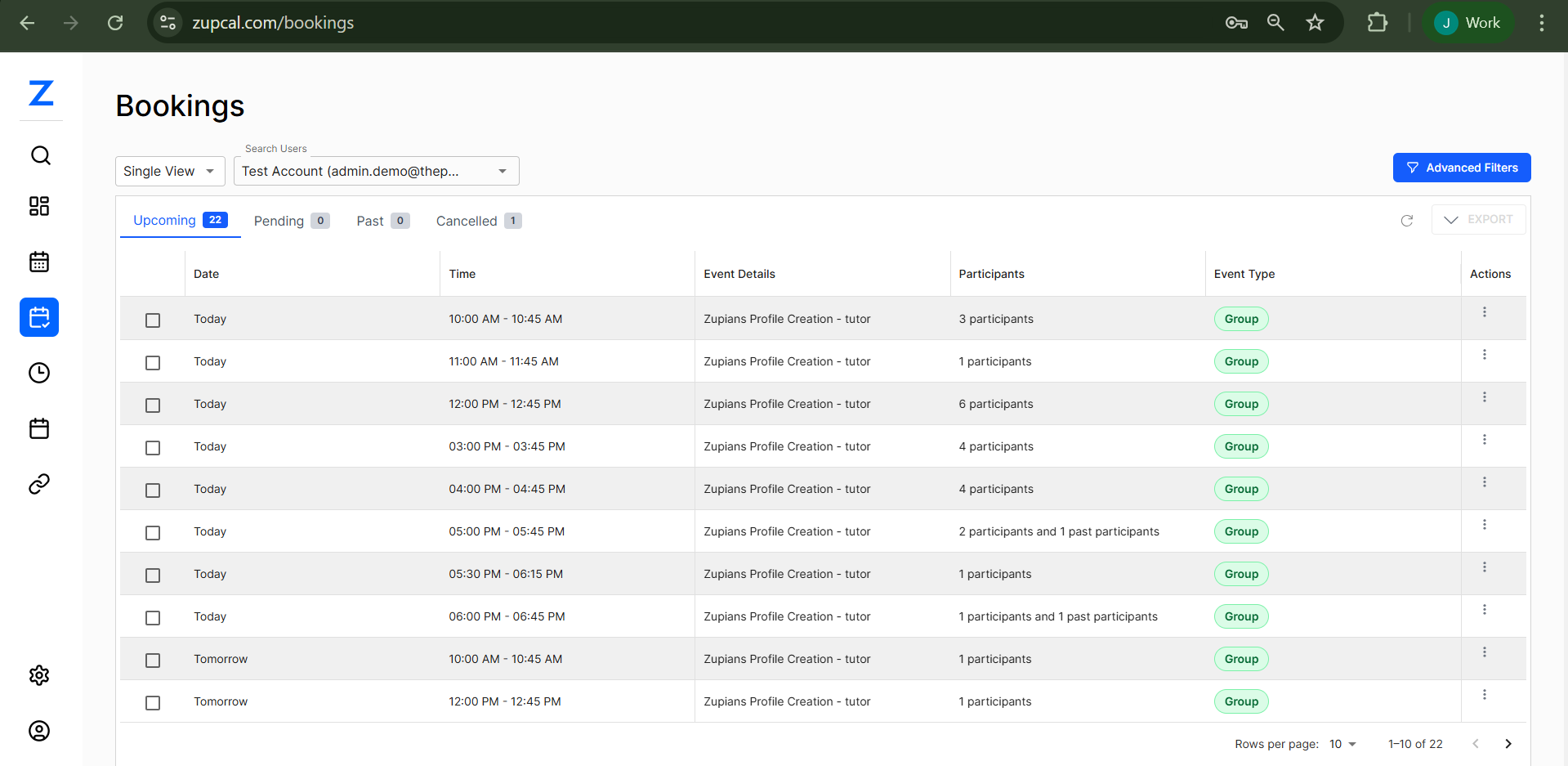
1. 🧭 Select Booking (Actions)
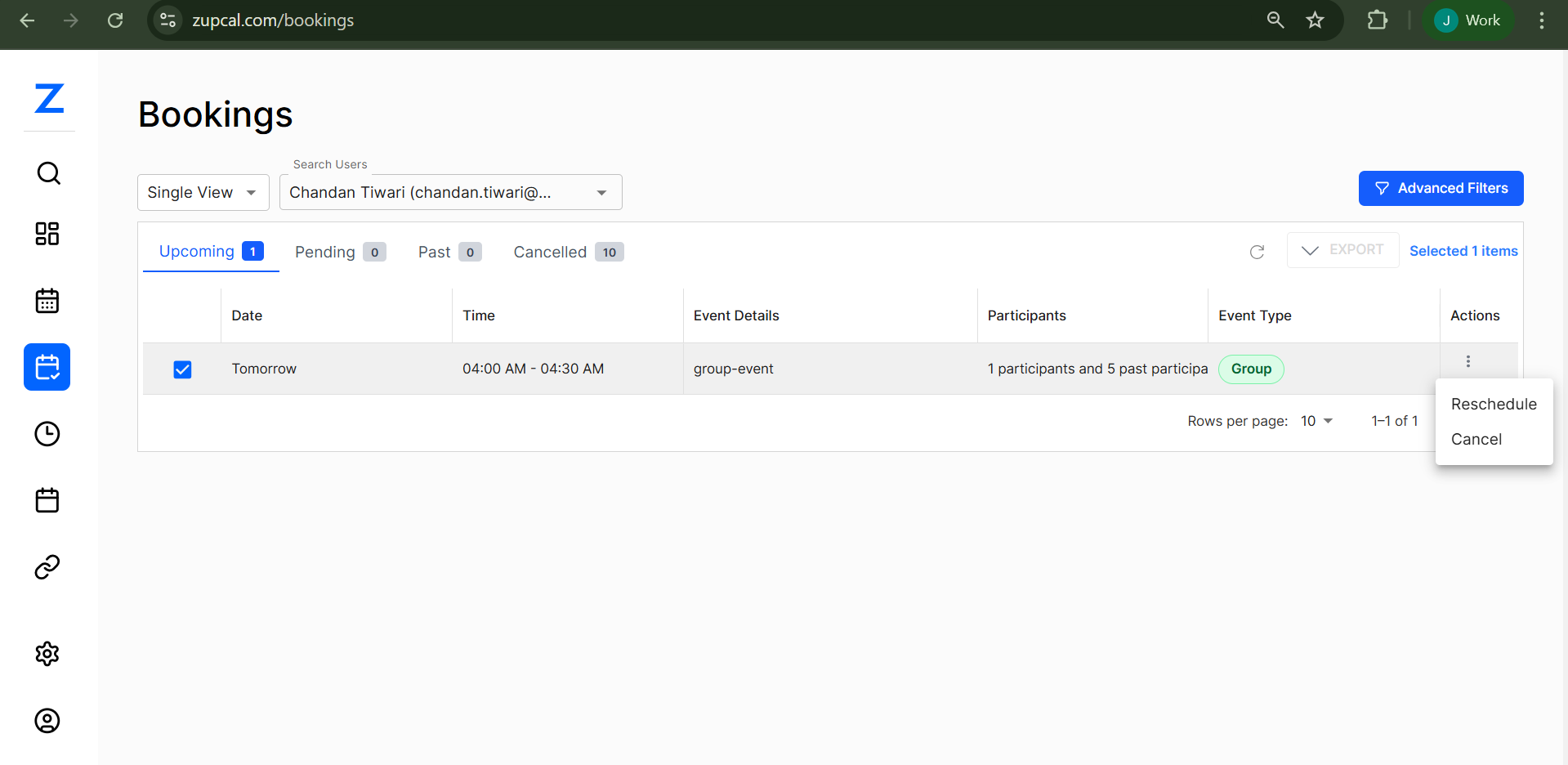
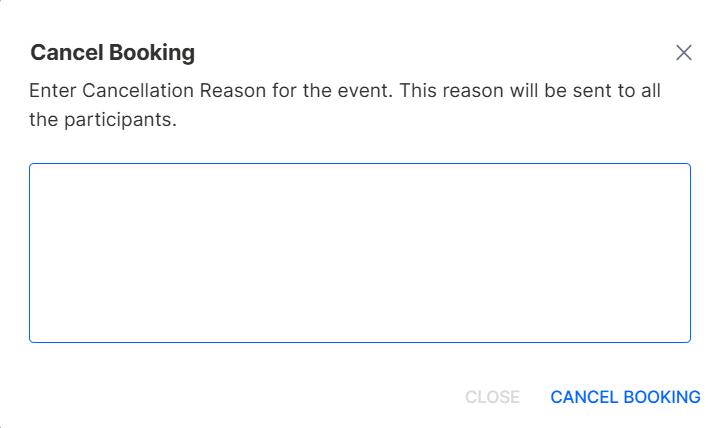
You Can Cancel or Reschedule Booking
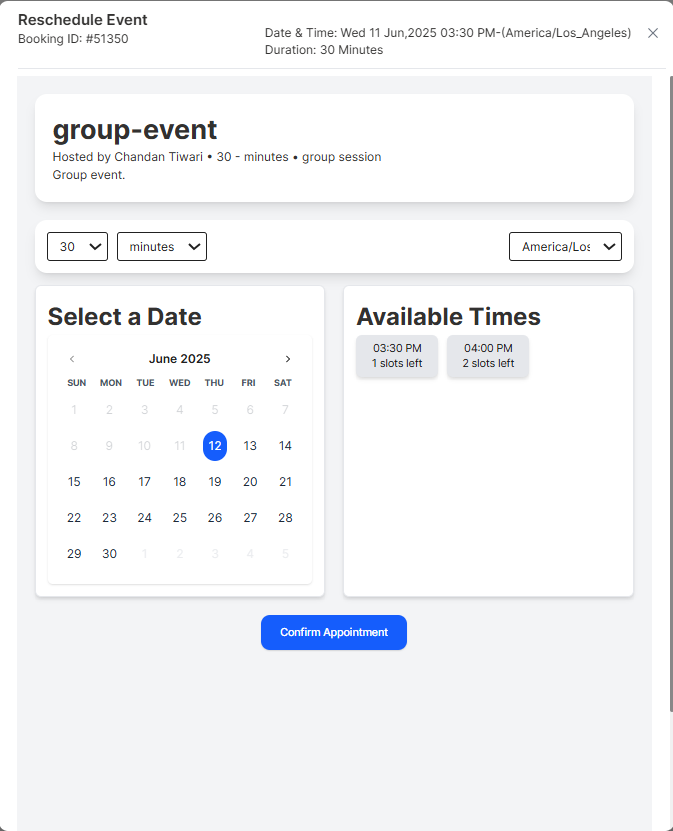
Reschedule Booking
2. 🔝 Top Bar Controls
- Single View Dropdown: Filters by time (Today, Week, Month)
- User Account Selector: (Admin only) Select specific user bookings
- Advanced Filters: Opens detailed filter panel
3. 📂 Booking Status Tabs
- Upcoming (22): Future bookings
- Pending (0): Awaiting confirmation
- Past (0): Completed bookings
- Cancelled (1): Cancelled bookings
👤 Regular User Flow
Step 1: Access Your Bookings
- Log in
- Click "Bookings" in the sidebar
- You’ll see only your bookings (default: Upcoming)
Step 2: View Booking Details
Each row includes:
- Date & Time: Start–End (e.g., 10:00 AM - 10:45 AM)
- Event Info: Name and type (e.g., Profile Creation - tutor)
- Participants: Number involved
- Event Type: One-on-One, Group, etc.
- Actions Menu: Three-dot menu for options
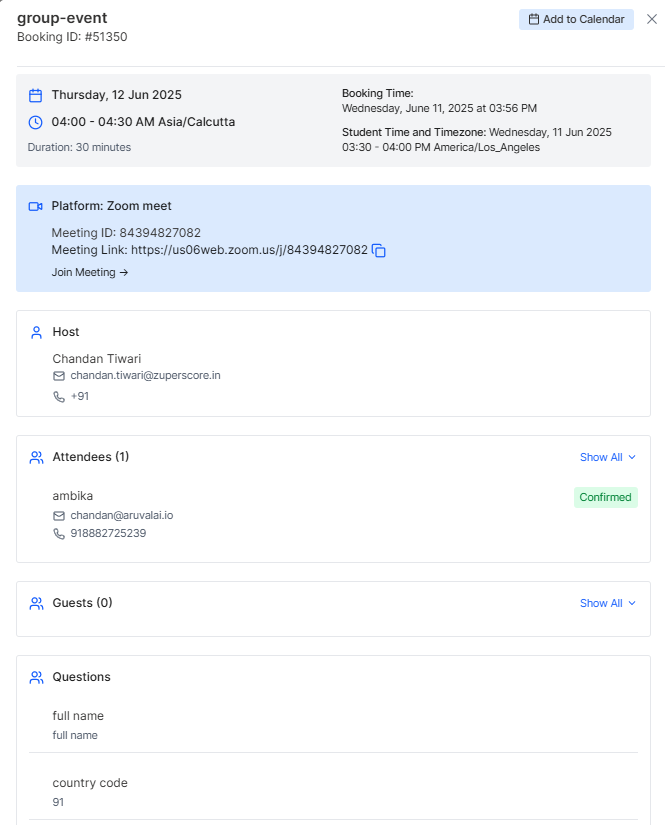
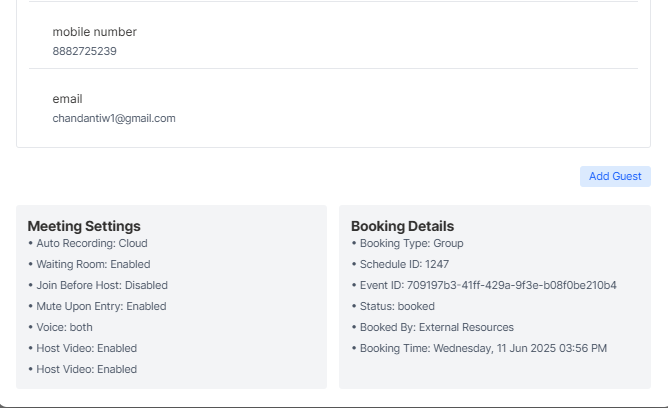
Clicking on Time on any Row You will get details view
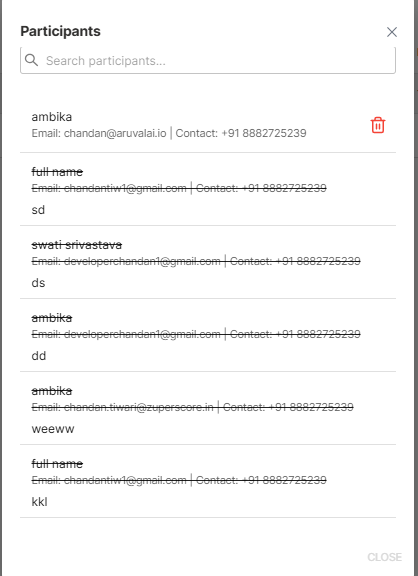
Clicking on Participants on any Row You will get details view
Step 3: Use Filters
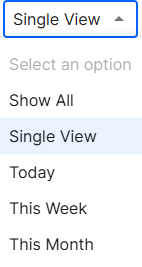
🔽 Quick Time Filters
- Show All
- Today
- This Week
- This Month
- Single View: Focus on individual booking
📌 Status Tabs
Click any tab:
- Upcoming
- Pending
- Past
- Cancelled
👨💼 Administrator Flow
Step 1: View All User Bookings
- Log in as admin
- Navigate to "Bookings"
- Use the User Account Selector to pick a user
Default user:
Test Account (admin.demo@thep...)
Step 2: Manage Bookings
- View bookings of the selected user
- All filter tools still apply
- Use Actions menu for admin-level changes
🧠 Advanced Filtering System
Accessing Advanced Filters
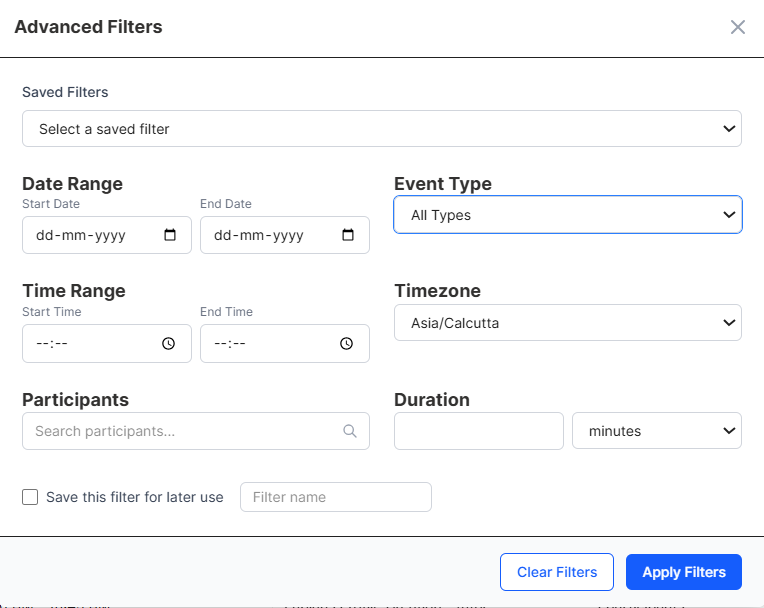
- Click the "Advanced Filters" button (top-right)
🧰 Filter Categories
1. ✅ Saved Filters
- Use "Select a saved filter" to load presets
- Great for recurring searches
2. 📆 Date Range
- Format: dd-mm-yyyy
- Fields: Start Date, End Date
3. 🗂️ Event Types
- All Types
- One on One
- Group
- Collective
- Round Robin
Export & Pagination
- Export: Booking list can be exported (e.g., CSV)
- Rows per Page: Options include 5, 10, 25, 50, 100
4. ⏰ Time Range
- Filter start and end times
- Format:
--:--
5. 🌐 Timezone Settings
- Default: Asia/Calcutta
- Dropdown to select other timezones
6. 🧑🤝🧑 Participants Filter
- Search by name/email
- Quick participant lookup
7. ⏳ Duration
- Filter by session length in minutes
💾 Saving Filters
- Check "Save this filter for later use"
- Enter Filter name
- Click "Apply Filters"
Saved filters will appear under "Saved Filters" dropdown.
🎛️ Apply or Reset Filters
- Apply Filters: Save and filter
- Clear Filters: Reset to default
📚 Event Type Descriptions
🎯 One on One
- Private session between 2 people
- Used for: Interviews, tutoring, consulting
👥 Group
- 3–8 participants
- Used for: Workshops, team meetings
🧑🏫 Collective
- Large sessions (webinars, trainings)
- May include recordings, tools
🔄 Round Robin
- Participants rotate turns
- Structured speaking order
🧠 Frequently Asked Questions (FAQ)
Q: How do I view my upcoming bookings?
A: Go to Bookings > Upcoming tab (this is the default view).
Q: Can I see past bookings?
A: Yes, switch to the Past tab to view completed or expired bookings.
Q: What do numbers beside tabs mean?
A: These show the count of bookings, e.g., "Upcoming (22)”.
Q: How to filter just today's bookings?
A: Use "Single View > Today" or apply today’s date using Advanced Filters.
Q: Can I save my filters?
A: Yes. In Advanced Filters, enable “Save this filter” to reuse it easily.
Q: What's "Single View" for?
A: It shows individual bookings in a cleaner, focused format for easier tracking.
Q: Difference between Group & Collective?
A: - Group = 3–8 participants - Collective = Large sessions like webinars
Q: How does Round Robin work?
A: Participants are booked one-by-one in a rotating or priority-based sequence.
Q: Can I change event type after booking?
A: Depends on permissions. If allowed, use the Actions menu on the booking.
Q: How to view a specific user's bookings?
A: Admins can use the User Account Selector at the top of the screen.
Q: Can regular users see others' bookings?
A: No. Only admins have access to global booking visibility.
Q: How to manage others' bookings?
A: Select the user from the dropdown, then apply filters or use the Actions menu.
Q: Why do I see past participants?
A: They were initially part of the booking but removed later (data is retained).
Q: What timezone are bookings shown in?
A: Default is Asia/Calcutta, but you can change this in the filter options.
Q: How many bookings per page?
A: 10 bookings per page are shown (e.g., “1–10 of 22”).
Q: My bookings aren’t showing. Why?
A: - Check if you're on the correct tab - Verify filters applied - Confirm date, participant, or event-type filters
Q: Filters not working?
A: - Clear existing filters - Check date format compatibility - Try applying filters one at a time
Q: Actions menu missing?
A: - It may be a past booking - You might lack the necessary permissions - On smaller screens, try scrolling horizontally
Q: Can I export my bookings?
A: Yes. Both regular users and admins can export the bookings visible in their current view.
Q: What are the rows per page options?
A: You can choose to display 5, 10, 25, 50, or 100 rows per page depending on your preference.
🧩 Best Practices
👤 For Users
- Regularly check bookings
- Use time-based filters
- Save your most-used filter combinations
- Verify your timezone
🛡️ For Admins
- Periodically audit user bookings
- Use saved filters for quick audits
- Document booking changes for transparency
- Train team on filter usage