Groups Guide
Overview
The Groups feature allows administrators to organize users into logical groups for better management and role assignment. Groups can be created with specific role templates and user assignments, making it easier to manage permissions and access control across your organization.
Accessing Groups Management
- Navigate to Settings from your dashboard
- Click on the GROUPS tab in the settings navigation
- You'll see the Groups management interface with options to create and manage groups
Creating a New Group
Step 1: Group Details Setup
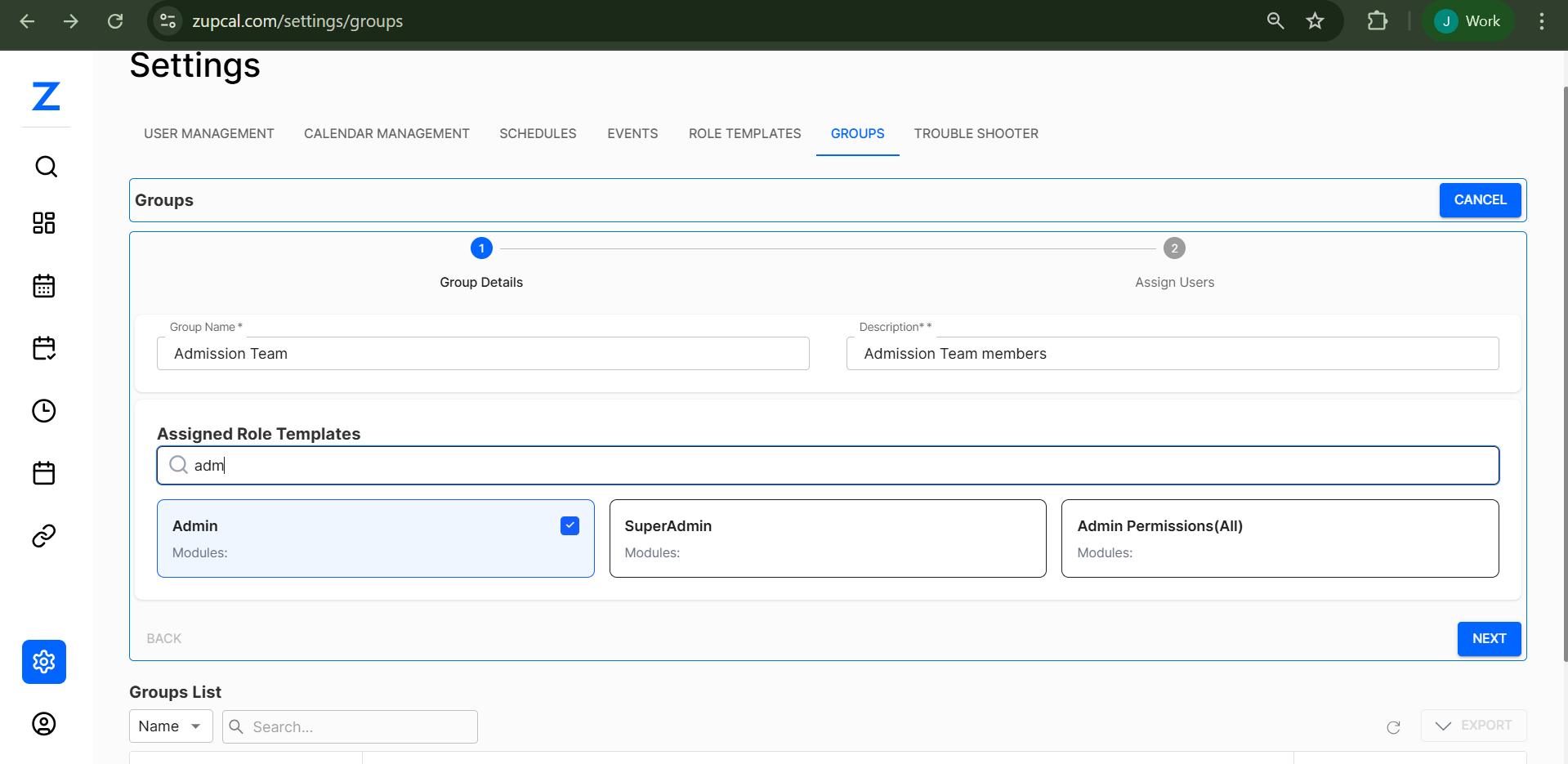
- Click the CREATE GROUP button in the top-right corner
- Fill in the Group Details section:
- Group Name: Enter a descriptive name for your group (e.g., "Admission Team")
- Description: Provide a detailed description of the group's purpose (e.g., "Admission Team members")
Step 2: Assign Role Templates
In the Assigned Role Templates section:
- Search for Roles: Use the search box to filter available role templates
- Select Role Templates: Choose from available options:
- Admin: Basic administrative permissions
- SuperAdmin: Enhanced administrative capabilities
- Admin Permissions(All): Complete administrative access
- View Modules: Each role template shows associated modules and permissions
- Click NEXT to proceed to user assignment
Step 3: Assign Users to Group
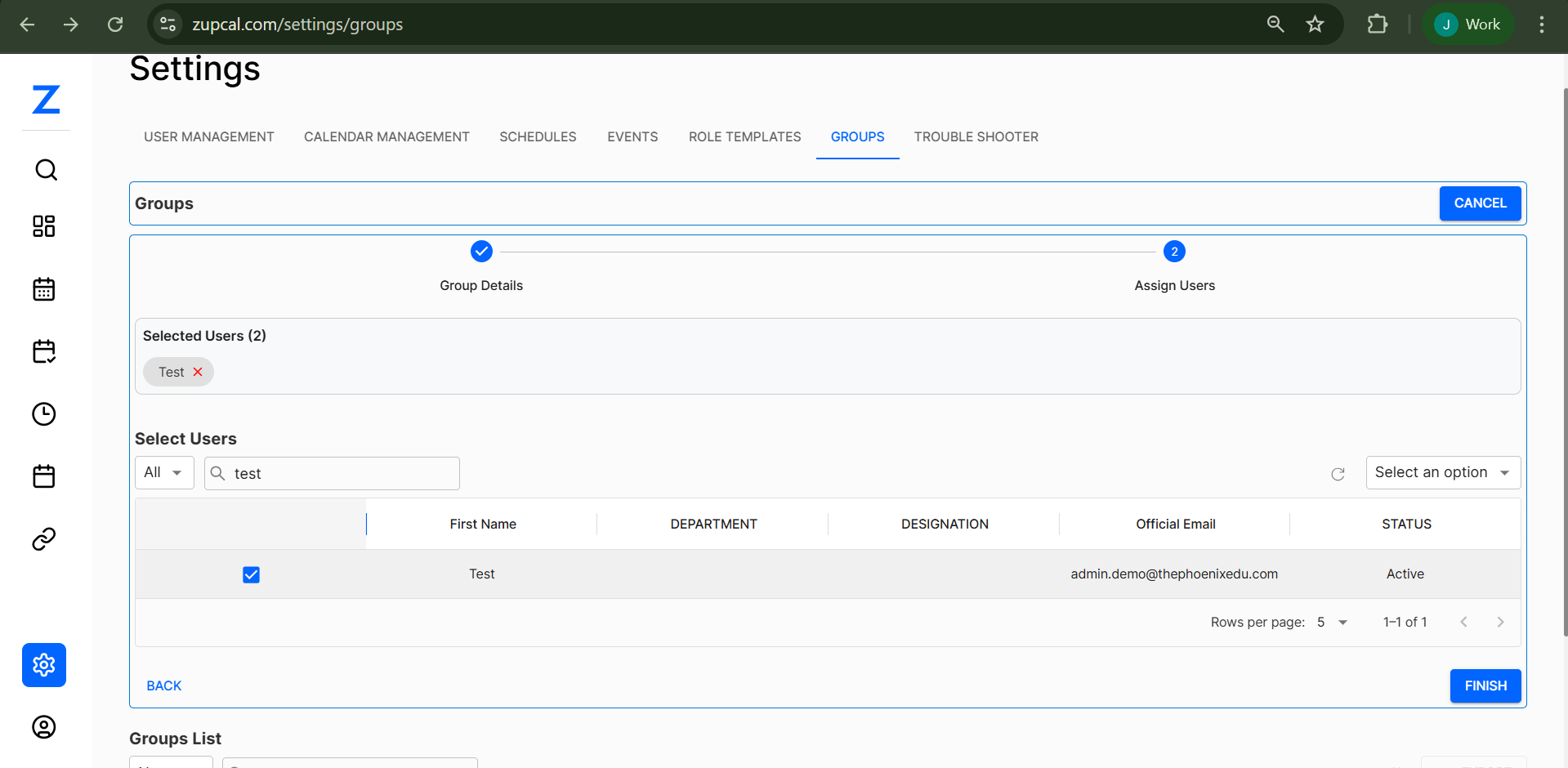
- Review Selected Users: The interface shows "Selected Users (2)" indicating current selections
- Search and Filter Users:
- Use the Select Users dropdown to filter by criteria
- Enter search terms in the search box to find specific users
- Filter by "All" or specific categories
- User Selection Table:
- Checkbox: Select/deselect users for the group
- First Name: User's first name
- Department: User's department information
- Designation: User's job title or role
- Official Email: User's work email address
- Status: Current user status (Active/Inactive)
- Pagination: Navigate through multiple pages of users if needed
- Remove Users: Click the "X" next to a user's name in the "Selected Users" section to remove them
- Click FINISH to complete group creation
Managing Existing Groups
Groups List View
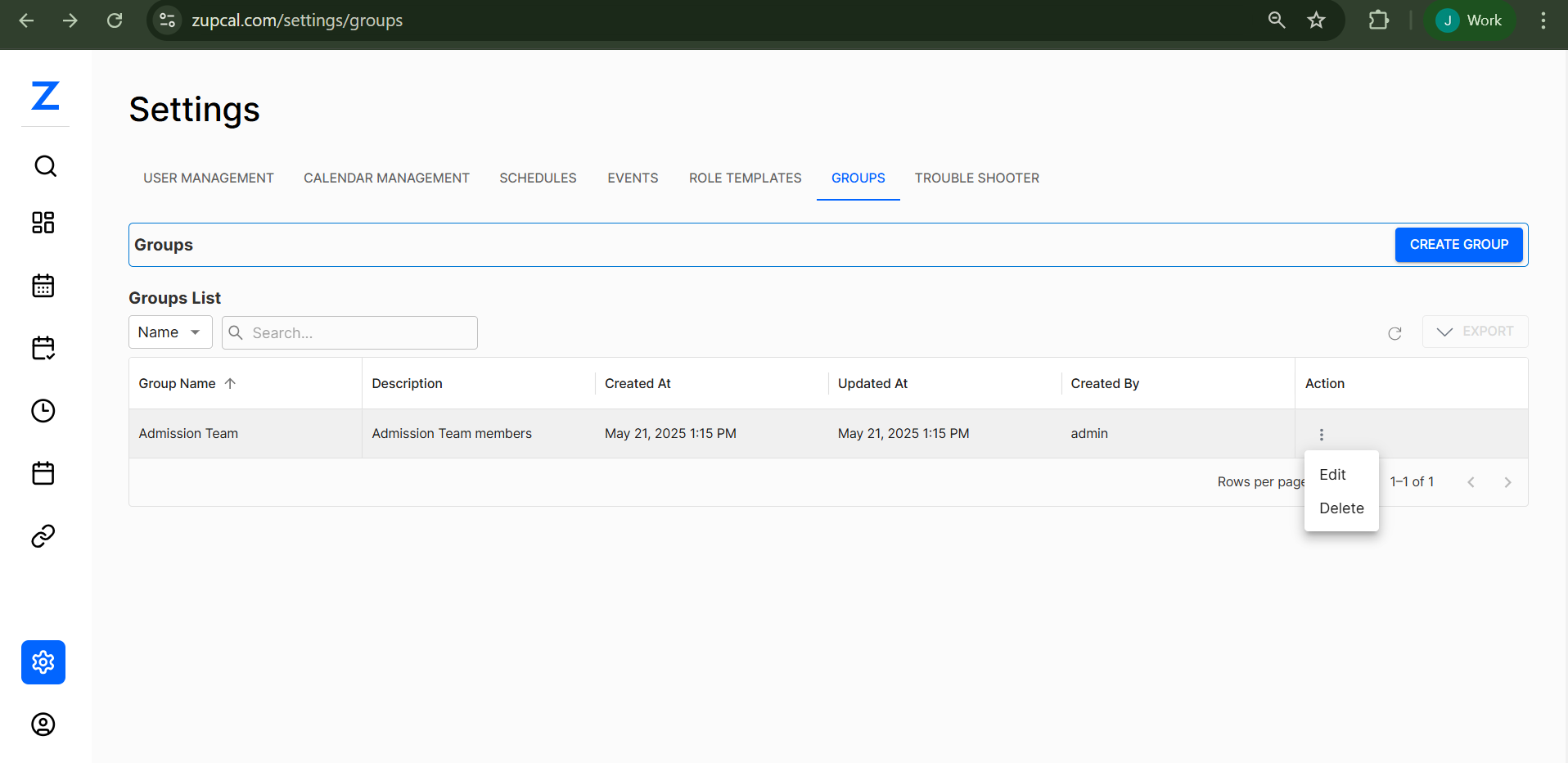
The Groups List displays all created groups with the following information:
- Group Name: Name of the group with sorting capability
- Description: Brief description of the group's purpose
- Created At: Timestamp of group creation
- Updated At: Last modification timestamp
- Created By: User who created the group
- Action: Available actions for each group
Group Actions
For each group, you can perform the following actions through the Action menu (⋮):
Edit Group
- Click the three-dot menu (⋮) next to the group
- Select Edit from the dropdown
- Modify group details, role templates, or user assignments
- Follow the same steps as group creation to make changes
Delete Group
- Click the three-dot menu (⋮) next to the group
- Select Delete from the dropdown
- Confirmation Prompt: A dialog will appear asking "Are you sure to delete, it cannot be undone"
- Confirm the deletion to permanently remove the group
Delete Confirmation
When deleting a group, you will see the confirmation message: "Are you sure to delete, it cannot be undone". This action is permanent and cannot be reversed. Ensure you really want to delete the group before confirming.
Features and Capabilities
Search and Filter
- Search Bar: Locate specific groups using the search functionality
- Export Options: Export group data for external use
- Refresh: Update the groups list with latest changes
Pagination
- Rows per page: Customize how many groups to display per page
- Navigation: Move between pages using pagination controls
- Total Count: View total number of groups (e.g., "1-1 of 1")
Role Template Integration
- Groups can be assigned multiple role templates
- Each role template defines specific permissions and module access
- Role templates can be searched and filtered during assignment
- Visual indication of selected role templates with checkmarks
User Management
- Add multiple users to a group simultaneously
- Search and filter users by various criteria
- View comprehensive user information before assignment
- Remove users from groups easily
- Real-time count of selected users
Best Practices
Group Naming
- Use descriptive, meaningful names for groups
- Follow consistent naming conventions
- Include department or function in the name when relevant
Role Assignment
- Assign role templates based on job functions
- Review permissions carefully before assignment
- Use least privilege principle - assign minimal necessary permissions
User Management
- Regularly review group memberships
- Remove users who no longer need access
- Keep group descriptions updated
Maintenance
- Periodically audit groups for relevance
- Clean up unused or redundant groups
- Update role templates as organizational needs change
Workflow Summary
- Planning: Identify the need for a new group and determine required permissions
- Creation: Set up group details and description
- Role Assignment: Select appropriate role templates
- User Assignment: Add relevant users to the group
- Review: Verify all settings and complete creation
- Management: Ongoing editing, user management, and maintenance
- Cleanup: Delete groups when no longer needed (with proper confirmation)
🧠 Frequently Asked Questions (FAQ)
1. What is the purpose of Groups in the system?
Groups allow you to organize users logically and assign role templates efficiently. Instead of assigning roles to individual users, you can create groups with specific permissions and add users to those groups, making user management more streamlined and organized.
2. Can a user belong to multiple groups?
Yes. - Users can be part of multiple groups - Their effective permissions are a combination of all role templates from those groups
3. What happens to users when a group is deleted?
Users remain in the system, but: - They lose permissions assigned through that group - Only the group structure and its role mappings are removed
4. Are there any limitations on group names?
Yes, informally: - Group names must be unique and descriptive - No hard character limit is shown, but keep them concise and meaningful
5. Can I create a group without assigning any role templates?
Technically yes, but not recommended. - A group without role templates serves no functional purpose
6. What's the difference between Admin, SuperAdmin, and Admin Permissions(All)?
These are levels of administrative access: - Admin: Basic permissions for standard tasks - SuperAdmin: Elevated access for broader control - Admin Permissions (All): Full administrative control across all modules
7. How do I remove a user from a group after creation?
There are two options: - Use the three-dot menu → "Edit" group → remove users - Click the “X” beside the user’s name in the selected list
8. Can I search users by department or designation during group assignment?
Yes. - The user assignment panel shows department & designation - You can search and filter users easily
9. What does "Selected Users (2)" mean during group creation?
It indicates: - The number of users currently selected for the group - The count updates as users are added or removed
10. How can I see which role templates are assigned to a group?
When viewing or editing a group: - The Assigned Role Templates section shows all linked templates - Checkmarks indicate current assignments
11. What information is shown in the Groups List?
Each group entry displays: - Name, Description - Created by, Created/Updated dates - Action options (Edit/Delete)
12. Can I export the Groups List?
Yes. - Use the export option available in the Groups List view - Helpful for external reporting or analysis
13. What happens when I delete a group?
You’ll see a confirmation prompt: > "Are you sure to delete, it cannot be undone" - Deletion is permanent
14. Can I recover a deleted group?
No. - Once deleted, a group cannot be restored - Always confirm the deletion intent
15. Should I delete unused groups?
Yes, if: - The group is no longer needed - Deletion keeps the system organized and clean - But double-check before doing so
16. I can't find a user to assign in a group. What should I do?
Try these steps: - Use search by name or email - Make sure "All users" is selected, not a filtered view - Verify the user is active and exists in the system - Look for possible name variations
17. Why don’t I see role templates when creating a group?
Possible reasons: - No templates exist yet - You lack permissions to view them - System issue — try refreshing or contact admin
18. The Groups List appears empty. What could be wrong?
Try these fixes: - Refresh the list - Clear filters - Check your permissions - Confirm with other admins if the groups were created