Global Events Settings
Welcome to Global Events Settings!
Effortlessly manage all your event-related configurations in one centralized location.
⚙️ Accessing Global Events Settings
Navigate to your event management dashboard to configure all scheduling options.
👣 Steps to Access Settings
-
Log into zupcal:
Visit zupcal.com/login and sign in. -
Navigate to Settings:
- Go to Settings from the main menu.
- Click on EVENTS tab.
- Select Global Events Settings.
-
Choose Configuration Section:
- GENERAL SETTINGS for basic configurations
- SCHEDULING for booking policies
- AVAILABILITY for time management
- NOTIFICATIONS for reminders
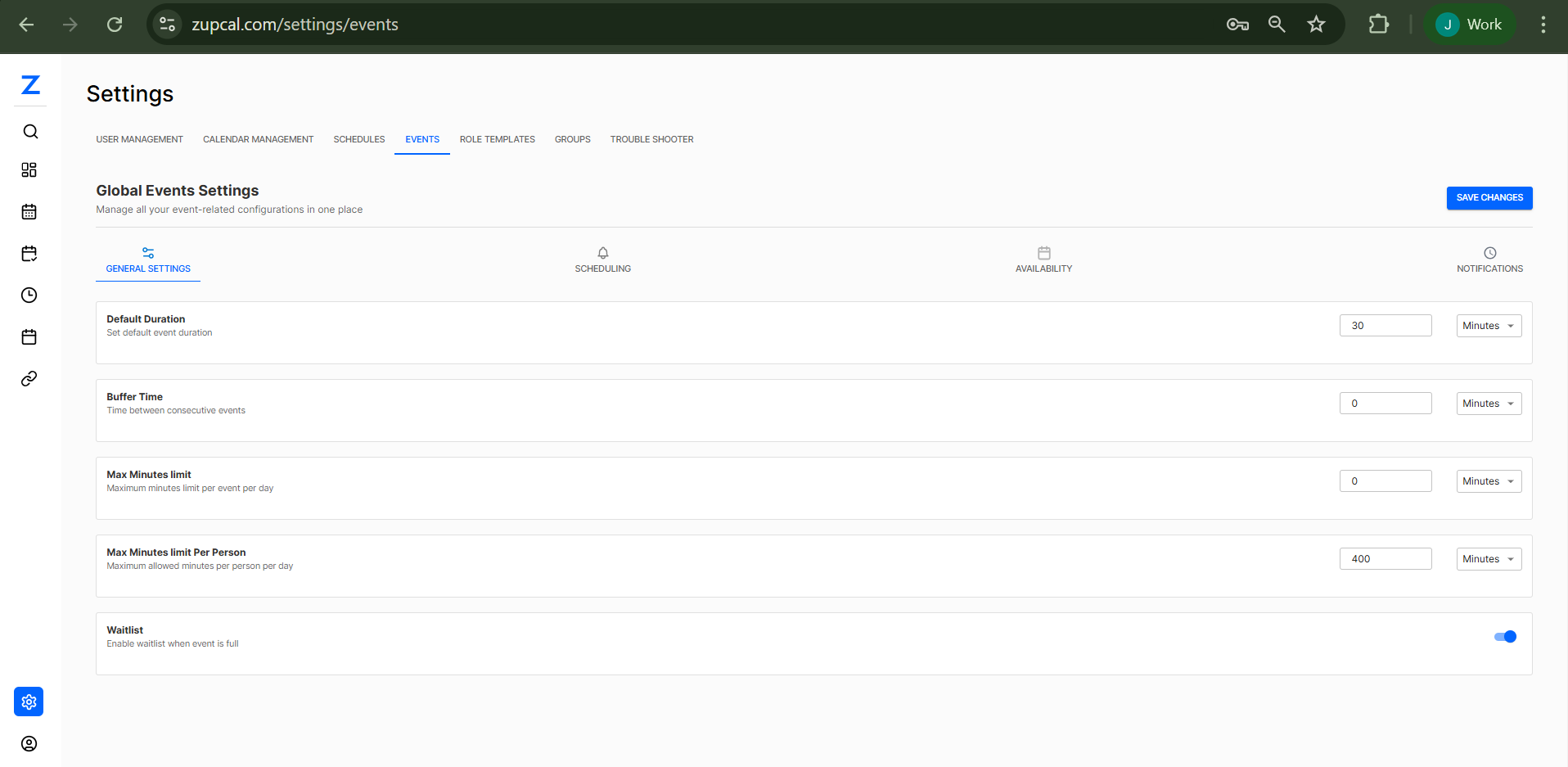
🔧 General Settings
Configure basic event parameters that apply to all your events.
⏱️ Default Duration
Set the standard length for new events.
- Default Value: 30 minutes
- Customizable: Adjust based on your typical meeting length
- Use Case: Streamlines event creation process
⏰ Buffer Time
Add gaps between consecutive events.
- Default Value: 0 minutes
- Purpose: Prevents back-to-back scheduling conflicts
- Recommendation: Set 5-15 minutes for transition time
📊 Max Minutes Limit
Control daily event limits per day.
- Default Value: 0 (unlimited)
- Purpose: Prevents over-booking on daily basis
- Use Case: Maintain work-life balance
👤 Max Minutes Limit Per Person
Restrict individual booking time per day.
- Default Value: 400 minutes
- Purpose: Ensures fair time distribution
- Benefits: Prevents excessive individual bookings
📝 Waitlist
Enable overflow booking management.
- Toggle: On/Off switch
- Function: Manages bookings when events are full
- Benefit: Captures demand beyond capacity
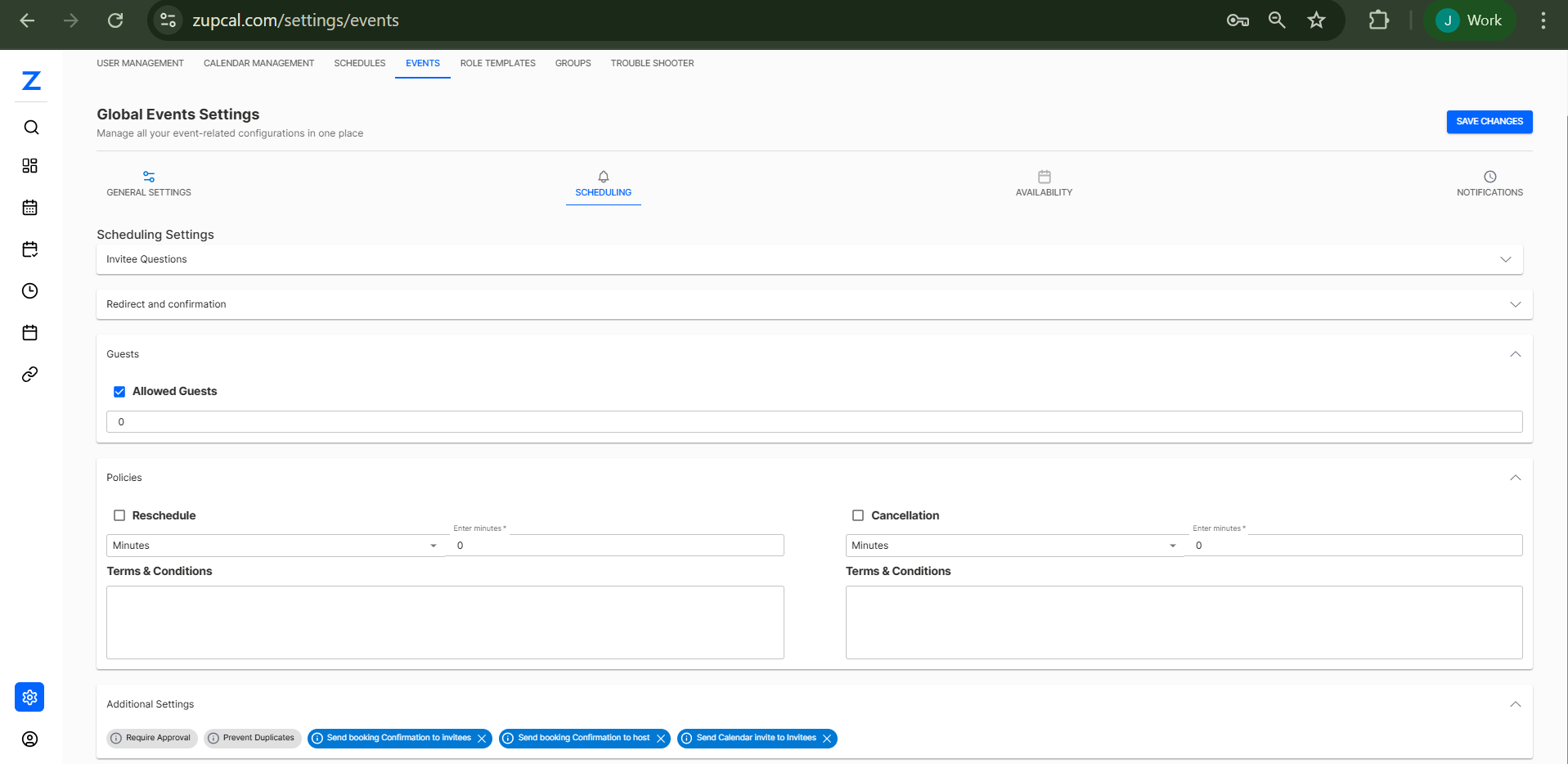
📅 Scheduling Settings
Configure booking policies and invitee requirements.
❓ Invitee Questions
Collect essential information from event bookers.
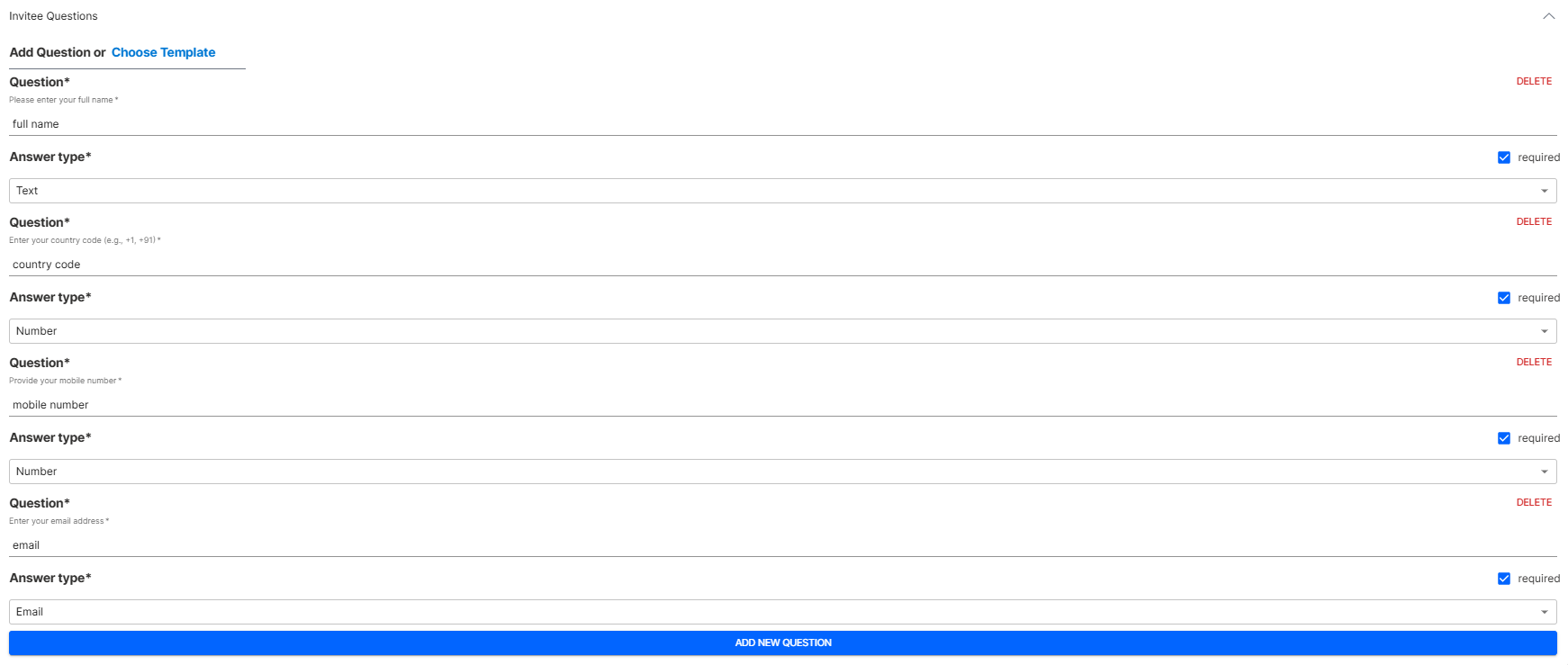
📋 Default Questions Include:
- Full Name (Text, Required)
- Country Code (Number, Required)
- Mobile Number (Number, Required)
- Email Address (Email, Required)
🛠️ Question Configuration:
- Answer Types: Text, Number, Email
- Required/Optional: Toggle for each question
- Custom Questions: Add using "ADD NEW QUESTION"
- Management: Delete questions as needed
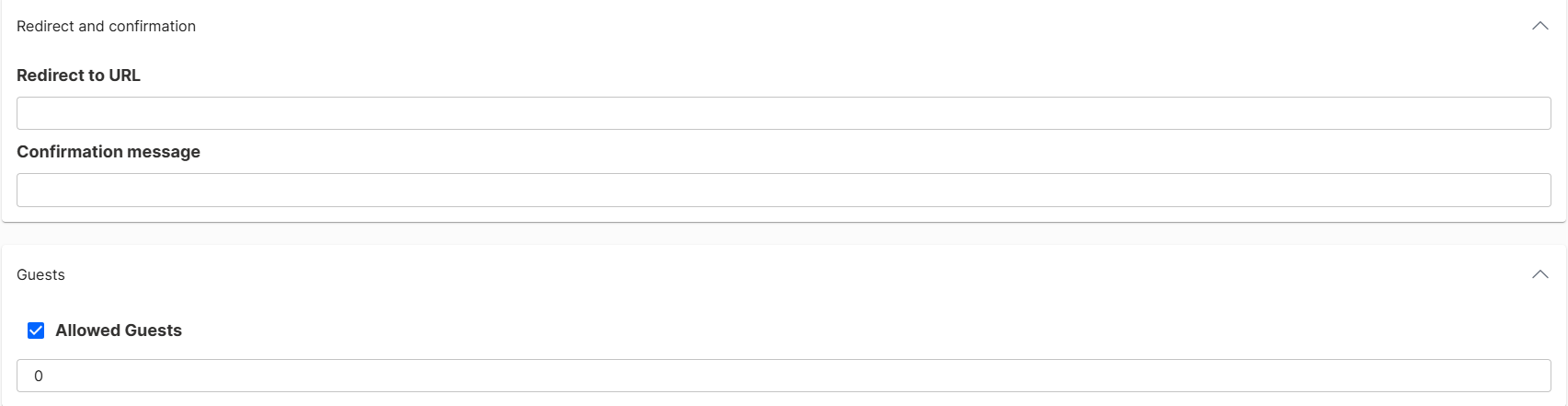
🔄 Redirect and Confirmation
- Purpose: Manage post-booking user experience
- Options: Configure redirect destinations
- Confirmation: Set up booking confirmation flow
👥 Guests Management
- Allowed Guests: Enable/disable additional attendees
- Guest Limit: Default set to 0
- Purpose: Control meeting size and participation
📋 Policies
🔄 Reschedule Policy
- Configuration: Minimum time before event for changes
- Default: 0 minutes (no restriction)
- Terms: Add specific rescheduling conditions
❌ Cancellation Policy
- Configuration: Minimum time before event for cancellation
- Default: 0 minutes (no restriction)
- Terms: Add specific cancellation conditions
🔧 Additional Settings
Available configuration options:
- ✅ Require Approval: Manual booking approval
- 🚫 Prevent Duplicates: Avoid double-bookings
- 📧 Send booking Confirmation to Invitees: Automated emails
- 📧 Send booking Confirmation to Host: Host notifications
- 📅 Send Calendar Invite to Invitees: Auto calendar invites
🕒 Availability Settings
Manage your time slots and scheduling availability.
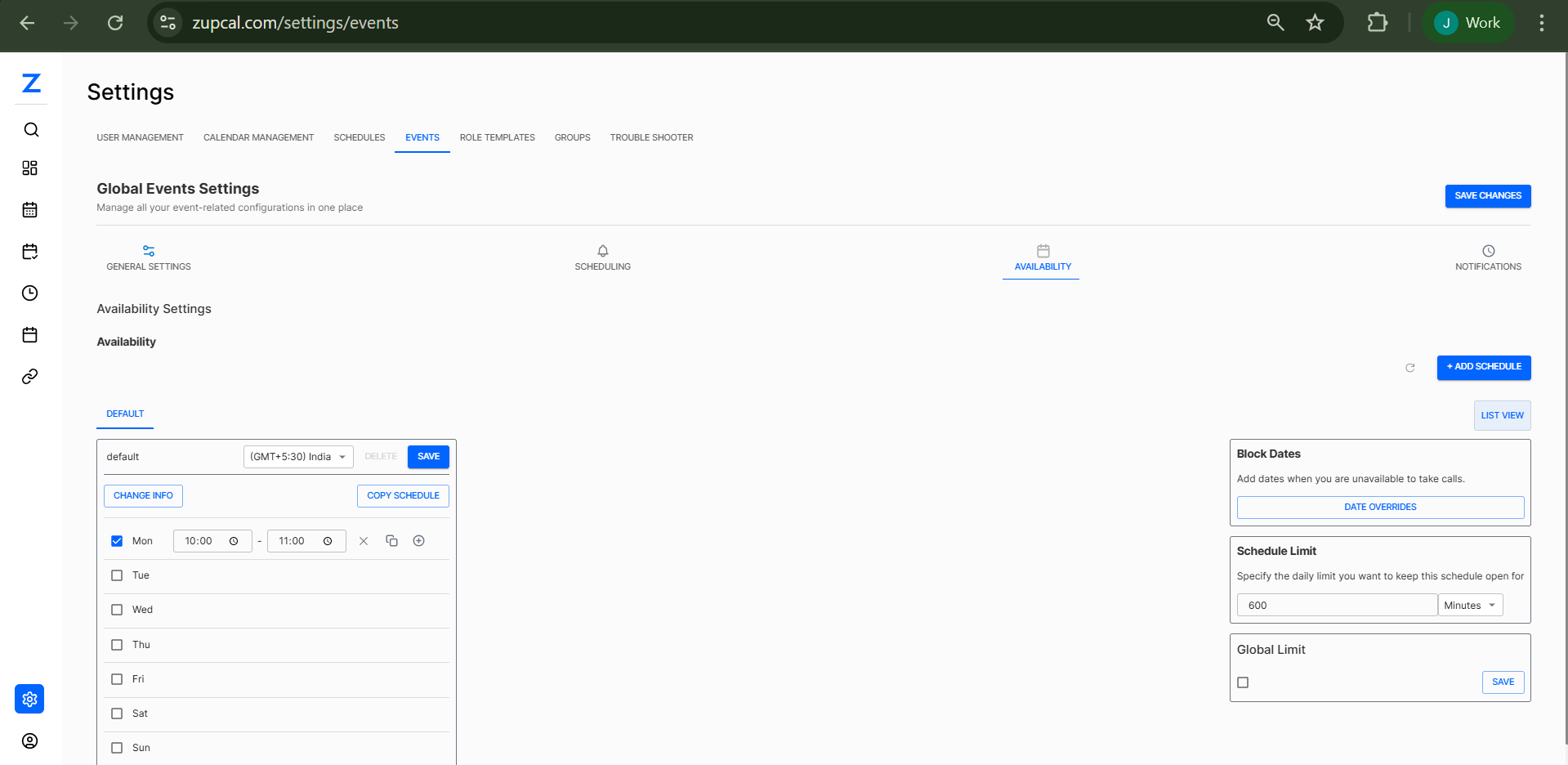
📅 Default Availability Schedule
- Timezone: GMT+5:30 India (customizable)
- Schedule Name: Default (customizable)
- Actions: Change Info, Copy Schedule, Save
📆 Weekly Schedule Configuration:
Configure each day individually:
- Monday through Sunday: Individual day setup
- Time Slots: Set start/end times (e.g., 10:00 - 11:00)
- Multiple Slots: Add multiple time blocks per day
- Day Toggle: Enable/disable specific weekdays
🚫 Block Dates
- Purpose: Mark unavailable dates
- Function: Prevent bookings on specific days
- Use Cases: Holidays, personal time, blocked periods
- Access: Click "DATE OVERRIDES" to manage
⏳ Schedule Limit
- Daily Limit: Maximum schedule open time
- Default: 600 minutes (10 hours)
- Purpose: Prevent over-booking and maintain balance
🌐 Global Limit
- Organization-wide: Overall scheduling restrictions
- Configuration: Enable/disable as needed
- Scope: Applies across all scheduling activities
🔔 Notification Settings
Configure automated reminders and communications.
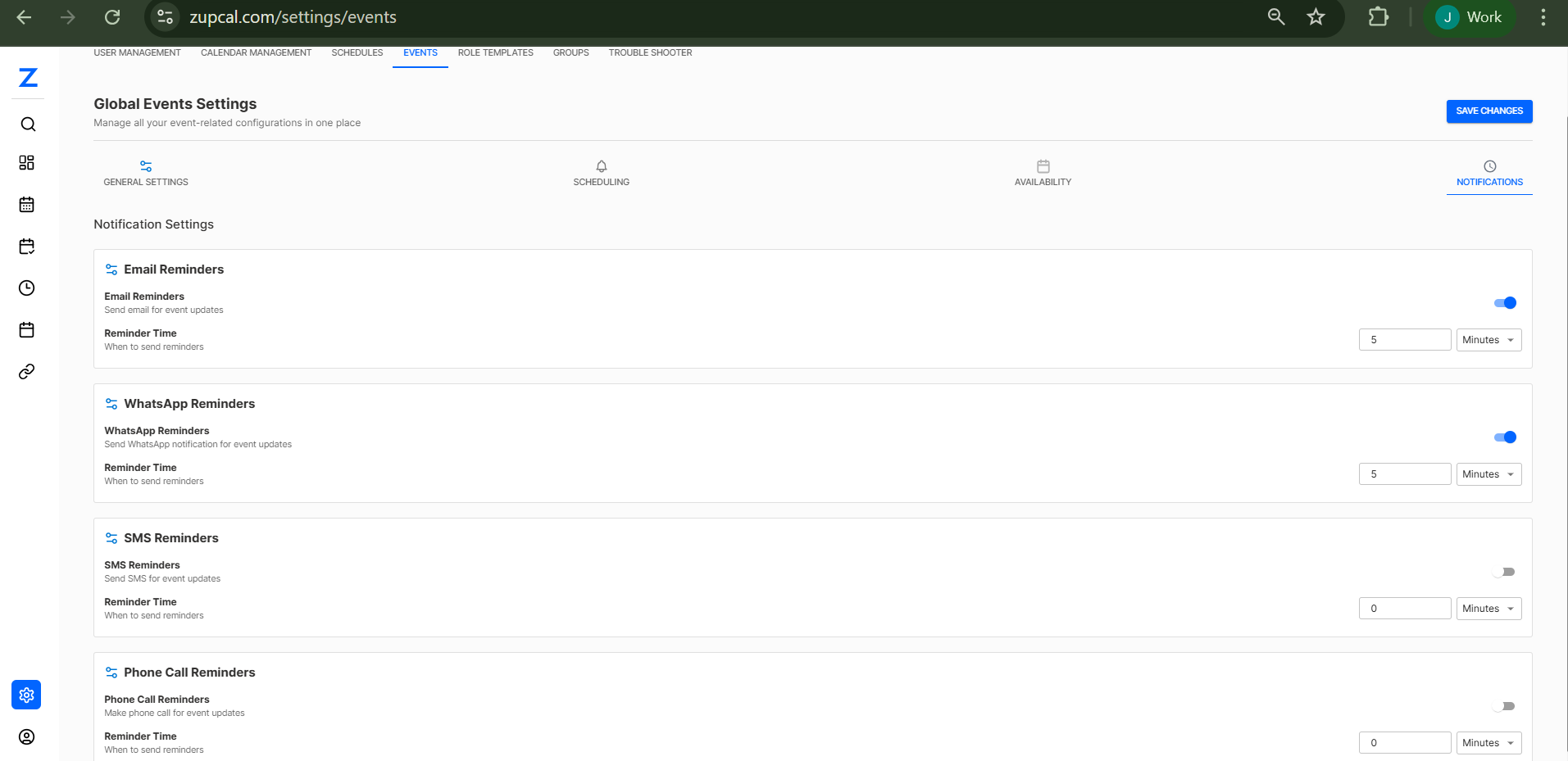
📧 Email Reminders
- Status: Enabled by default
- Timing: 5 minutes before event (customizable)
- Purpose: Reduce no-shows and improve attendance
- Reliability: Most dependable notification method
📱 WhatsApp Reminders
- Status: Enabled by default
- Timing: 5 minutes before event (customizable)
- Benefits: Instant mobile notifications
- Use Case: High engagement communication
📲 SMS Reminders
- Status: Currently disabled
- Timing: 0 minutes (when enabled)
- Purpose: Backup communication method
- Note: May incur additional charges
📞 Phone Call Reminders
- Status: Currently disabled
- Timing: 0 minutes (when enabled)
- Use Case: High-priority events
- Note: Typically for critical meetings only
💡 Best Practices
🎯 General Settings Optimization
- Set realistic default durations based on typical meetings
- Use buffer time to prevent scheduling conflicts
- Configure daily limits to maintain work-life balance
- Enable waitlist for popular time slots
📋 Scheduling Configuration
- Keep invitee questions relevant and minimal
- Set appropriate reschedule/cancellation policies
- Enable approval for sensitive or limited events
- Test booking flow before going live
⏰ Availability Management
- Regularly update availability schedule
- Block dates well in advance for planned absences
- Set reasonable daily limits to prevent burnout
- Use multiple schedules for different event types
📢 Notification Strategy
- Enable multiple reminder channels for important events
- Set reminder times that work for your audience
- Test notification settings to ensure delivery
- Consider timezone differences for global attendees
🛠️ Troubleshooting
Common Issues and Solutions
🚫 Events not showing available times
- Check availability schedule configuration
- Verify timezone settings
- Review blocked dates
- Ensure days are enabled in weekly schedule
📈 Too many booking requests
- Adjust daily/person limits
- Enable approval requirements
- Review and reduce availability hours
- Increase buffer time between meetings
📵 Notifications not being sent
- Verify notification settings are enabled
- Check reminder time configurations
- Confirm contact information accuracy
- Test with sample bookings
❓ Invitee questions not appearing
- Ensure questions are marked as required
- Check if template is properly configured
- Verify question types are set correctly
- Test booking flow end-to-end
🧠 Frequently Asked Questions (FAQ)
1. How do I change the default meeting duration?
2. What is buffer time and why should I use it?
3. How do daily limits work?
4. Can I have different availability for different days?
5. How do I block specific dates?
6. Can I make some invitee questions optional?
7. Which notification method is most reliable?
8. How do reschedule and cancellation policies work?
9. What does "Require Approval" do?
10. How does the waitlist feature work?
11. Can I have multiple availability schedules?
12. Why isn't my calendar integration working?
13. Invitees say they can't see available times
14. I'm getting too many booking requests
15. My timezone appears incorrect to invitees
🚀 Getting Started with Global Events Settings
Once configured, you can manage:
- ⚙️ Event Configurations - Default settings and policies
- 📅 Scheduling Rules - Booking policies and requirements
- 🕒 Availability Management - Time slots and blocked dates
- 🔔 Communication - Automated reminders and notifications
🛠 Additional Notes
- Use the SAVE CHANGES button to apply configurations
- Test all settings with sample bookings before going live
- Regularly review and update policies based on usage patterns
- Consider timezone differences for global scheduling
💡 Tip: Enable the waitlist feature and set appropriate buffer times to optimize your scheduling efficiency and reduce conflicts