Calendar Management
The Calendar Management system allows administrators and authorized users to manage organizational holidays, schedule events, and maintain company-wide calendar information.
Access Control
Who Can Access Calendar Management
- Administrators: Full access to all calendar management features
- HR Personnel: Custom access permissions for holiday and calendar operations
- Authorized Users: Users with specific permissions granted by administrators
Note: Only users with admin privileges or custom HR access can add, edit, or manage holidays and calendar events in the system.
Managing Holidays
Adding New Holidays
- Navigate to Settings → Calendar Management
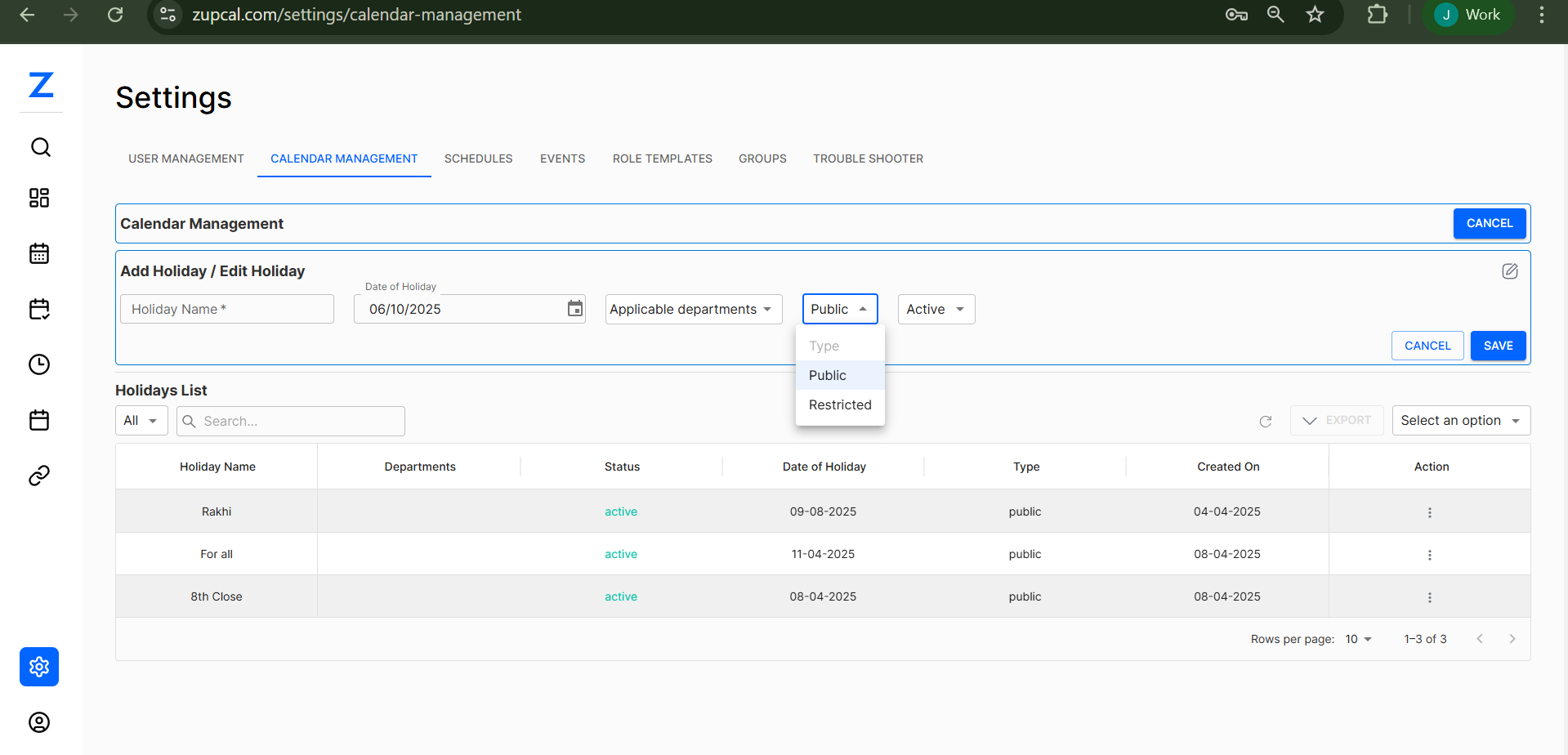
- Click on the Add Holiday/Edit Holiday section or click ADD HOLIDAY button
- Fill in the required information:
Required Fields
- Holiday Name: Name of the holiday (e.g., "Rakhi", "Diwali", "Christmas")
- Date of Holiday: Select the specific date using the date picker (format: DD/MM/YYYY)
Configuration Options
- Applicable Departments: Select which departments this holiday applies to
- Choose specific departments from the dropdown
- Leave unselected for company-wide holidays
- Type: Set holiday visibility and access level
- Public: Visible to all users in applicable departments
- Restricted: Limited visibility based on user permissions
- Status: Set holiday status
- Active: Holiday is active and will be observed
- Inactive: Holiday is disabled but retained in system
- Click SAVE to create the holiday
Holiday Notifications
When a new holiday is created, the system automatically sends:
- Email Notification: Department-specific notifications to relevant users
- System Notification: Real-time notifications to users in applicable departments
- Calendar Updates: Automatic integration with user calendars
Holidays List Overview
Table Structure
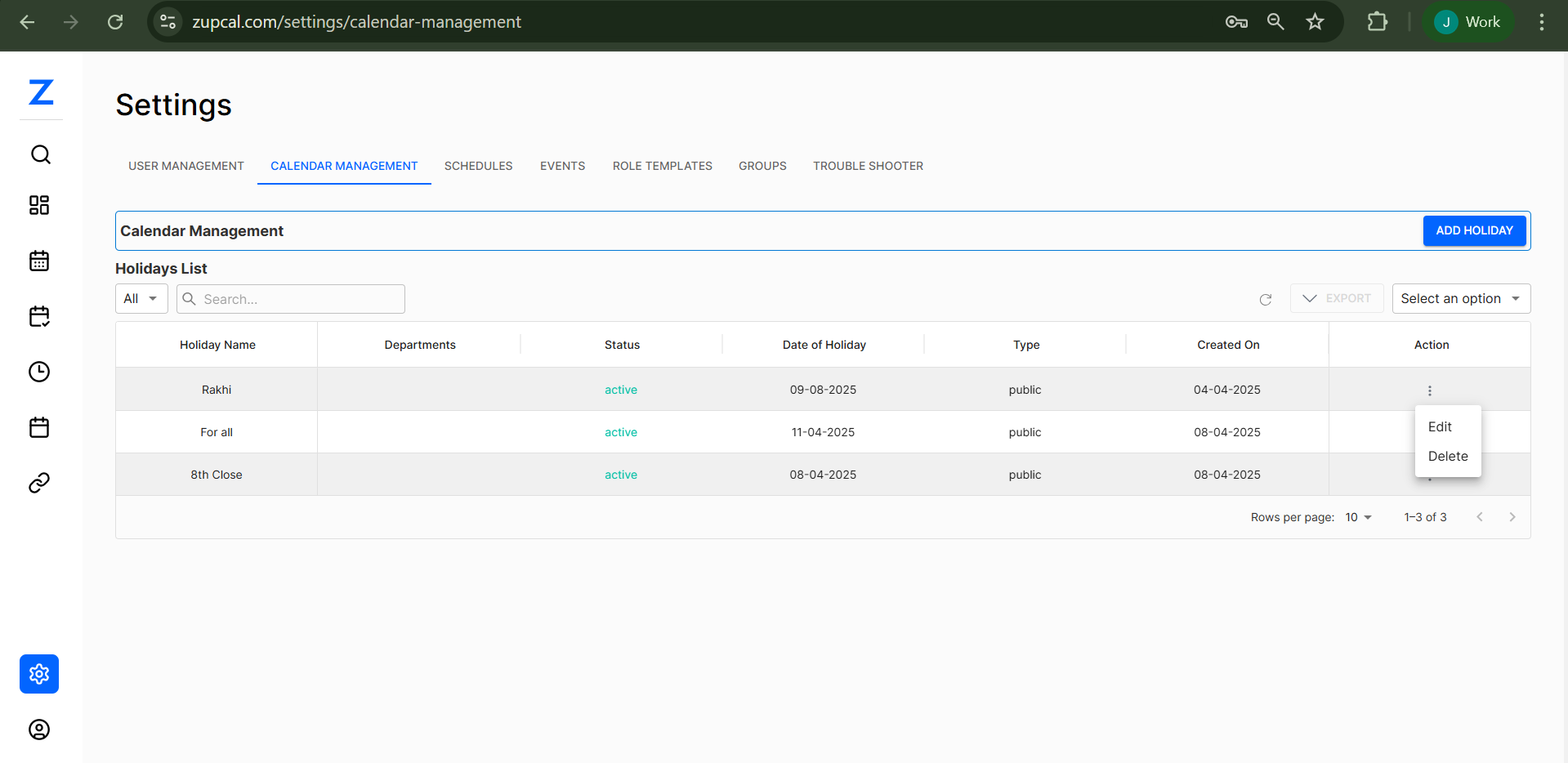
The Holidays List displays all holidays in a comprehensive table format:
- Holiday Name: Name of the holiday
- Departments: Which departments the holiday applies to (shows "For all" for company-wide holidays)
- Status: Current status (Active/Inactive) with color coding
- Green "active" indicates the holiday is currently active
- Date of Holiday: Scheduled date in DD-MM-YYYY format
- Type: Holiday type (Public/Restricted)
- Created On: Date when the holiday was added to the system
- Action: Available operations menu (⋮)
Search and Filter Functionality
Search Options
- Use the search bar to find holidays by name
- Search is case-insensitive and supports partial matches
- Filter results in real-time as you type
Filter Controls
- All: Display all holidays regardless of status
- Active: Show only active holidays
- Inactive: Show only disabled holidays
- Department-specific: Filter by department assignments
Holiday Management Operations
Editing Holidays
- Click on the Action menu (⋮) next to any holiday
- Select Edit from the dropdown menu
- Modify any of the following:
- Holiday name and date
- Department assignments
- Type (Public/Restricted)
- Status (Active/Inactive)
- Click SAVE to apply changes
Edit Capabilities
- Change holiday dates for rescheduling
- Update department assignments
- Modify visibility settings
- Enable or disable holidays without deletion
Delete with Confirmation
Permanent Holiday Deletion
- Click Action → Delete
- System displays confirmation prompt:
⚠️ Are you sure you want to delete this holiday?
This action cannot be undone and will permanently remove:
- Holiday from all department calendars
- Associated notifications and reminders
- Historical holiday data

[Cancel] [Delete Permanently]
- Click Delete Permanently to confirm
- Holiday will be irreversibly removed from the system
⚠️ Warning: Holiday deletion is permanent and cannot be undone. Consider setting the status to "Inactive" instead if you may need to restore the holiday later. Department user will be notify on deletion.
Calendar Management Features
Department-Specific Holidays
Public Holidays
- Visible to all users within assigned departments
- Automatically appear on user calendars
- Include in scheduling and availability calculations
- Send notifications to all applicable users
Restricted Holidays
- Limited visibility based on user roles and permissions
- May require special access to view or manage
- Useful for department-specific observances
- Controlled notification distribution
Holiday Types and Applications
Company-Wide Holidays
- Apply to all departments (shown as "For all")
- Typically include national holidays, major festivals
- Affect entire organization's schedule
- Sent to all users regardless of department
Department-Specific Holidays
- Target specific departments or teams
- Allow for localized or team-specific observances
- Enable flexible holiday management
- Customizable notification scope
Bulk Operations and Management
Export Functionality
- Use the EXPORT button to download holiday data
- Export includes all holiday information in spreadsheet format
- Useful for backup, reporting, and external calendar integration
- Maintains formatting and date structures
Pagination and Display
- Configure "Rows per page" (default: 10)
- Navigate through multiple pages of holidays
- Display shows current page range (e.g., "1-3 of 3")
- Efficient handling of large holiday datasets
Holiday Management Best Practices
Planning and Scheduling
- Annual Planning: Set up holidays for the entire fiscal year in advance
- Department Coordination: Coordinate with department heads for specific observances
- Date Verification: Double-check holiday dates, especially for lunar calendar events
- Lead Time: Add holidays well in advance to allow for planning
Communication and Notifications
- Clear Naming: Use consistent and clear holiday names
- Timely Updates: Update holidays promptly when changes occur
- Department Alignment: Ensure holidays align with department needs and cultural considerations
- Documentation: Keep records of holiday decisions and approvals
System Maintenance
- Regular Reviews: Periodically review and update holiday lists
- Status Management: Use Active/Inactive status rather than deletion when possible
- Backup: Regularly export holiday data for backup purposes
- Integration: Ensure holidays integrate properly with other calendar systems
Troubleshooting
Common Issues
Holiday Not Appearing on User Calendars
- Verify holiday status is "Active"
- Check if user's department is included in "Applicable Departments"
- Confirm holiday type permissions match user access level
- Refresh user calendar or clear cache
Notification Issues
- Check if users are in the correct departments
- Verify email notification settings
- Confirm holiday type allows notifications
- Check spam/junk folders for holiday emails
Date Display Problems
- Verify date format matches system settings (DD/MM/YYYY)
- Check timezone configurations
- Confirm calendar integration settings
- Validate date picker functionality
Support and Maintenance
For additional assistance with calendar management:
- Contact system administrator for permission issues
- Review notification settings in user preferences
- Check integration with external calendar systems
- Submit support tickets for technical difficulties
🧠 Frequently Asked Questions (FAQ)
Q: Who can add holidays to the calendar system?
Only administrators and users with custom HR access permissions can add, edit, or manage holidays in the system. Regular users cannot create or modify holiday entries.
Q: What notifications are sent when a new holiday is created?
When a new holiday is created, the system sends email notifications and system notifications to users in the applicable departments. The notifications are department-specific, ensuring only relevant users are informed.
Q: What's the difference between Public and Restricted holiday types?
Public holidays are visible to all users within the assigned departments and automatically appear on their calendars. Restricted holidays have limited visibility based on user roles and permissions, useful for department-specific or sensitive observances.
Q: How do I create a company-wide holiday that applies to all departments?
When creating a holiday, either leave the "Applicable Departments" field unselected or select all departments. The system will show "For all" in the Departments column, indicating it applies to the entire organization.
Q: Can I edit a holiday after it's been created?
Yes, administrators and HR personnel can edit holidays by clicking the Action menu (⋮) next to the holiday name and selecting "Edit". You can modify the name, date, department assignments, type, and status.
Q: What happens when I delete a holiday?
The system will show a confirmation dialog: "Are you sure you want to delete this holiday? This action cannot be undone." Deletion permanently removes the holiday from all department calendars and associated data. Consider making it "Inactive" instead.
Q: How do I search for a specific holiday?
Use the search bar in the Holidays List section. You can search by holiday name, and the search supports partial matches. Results filter in real-time as you type.
Q: Why isn't a holiday showing up on some users' calendars?
Check if the holiday status is "Active", verify that the users' departments are included in "Applicable Departments", and confirm the holiday type (Public/Restricted) matches the users' access permissions.
Q: Can I temporarily disable a holiday without deleting it?
Yes, you can edit the holiday and change its status from "Active" to "Inactive". This removes it from active calendars while preserving all holiday data for future use.
Q: How do I export the holidays list?
Click the "EXPORT" button in the Holidays List section. This will download all holiday data in a spreadsheet format, including names, dates, departments, and status information.
Q: What date format should I use when adding holidays?
The system uses DD/MM/YYYY format (e.g., 06/10/2025). Use the date picker to ensure correct formatting, or enter dates manually following this format.
Q: Can different departments have different holidays?
Yes, you can assign holidays to specific departments using the "Applicable Departments" dropdown. This allows for localized observances while maintaining company-wide holidays for common celebrations.
Q: How many holidays can I display per page?
The default setting shows 10 holidays per page, but you can adjust this using the "Rows per page" dropdown. The system efficiently handles pagination for large numbers of holidays.
Q: What information is shown in the holidays list?
The holidays list displays Holiday Name, applicable Departments, Status (with color coding), Date of Holiday, Type (Public/Restricted), Created On date, and Action menu for each holiday.
Q: Can I filter holidays by department or status?
Yes, you can use the filter dropdown to show "All" holidays or filter by specific criteria. You can also search for holidays by name using the search bar.
Q: What should I do if users report not receiving holiday notifications?
Verify that users are in the correct departments for the holiday, check their email notification preferences, confirm the holiday type allows notifications, and ask them to check spam/junk folders.
Q: How far in advance should I add holidays to the system?
It's recommended to add holidays well in advance, ideally at the beginning of each fiscal year or quarter. This allows users to plan accordingly and ensures proper calendar integration.
Q: Can I recover a deleted holiday?
No, holiday deletion is permanent and cannot be undone. All associated data including calendar entries and notifications are permanently removed. Always use the "Inactive" status instead of deletion when possible.