User Management
The User Management system allows administrators and authorized users to manage user accounts, roles, and permissions within the platform.
Access Control
Who Can Access User Management
- Administrators: Full access to all user management features
- HR Personnel: Custom access permissions for user-related operations
- Authorized Users: Users with specific permissions granted by administrators
Note: Only users with admin privileges or custom HR access can add, edit, or manage other users in the system.
Adding New Users
Creating a User Account
- Navigate to Settings → User Management
- Click on the Add User/Edit User section
- Fill in the required information:
Required Fields
- First Name: User's first name
- Last Name: User's last name
- User Name: Unique username for the account
- Official Email: Primary email address for the user
- Password: Initial password for the user account
- Confirm Password: Re-enter password for verification
- Email: Secondary email (if different from official email)
- Mobile Number: Contact number with country code
Optional Fields
- Middle Name: User's middle name
- Applicable Departments: Select relevant departments
- Status: Set account status (Active/Inactive)
- Contract Type: Define employment or contract type
- Click SAVE to create the user account
User Notifications
When a new user is created, the system automatically sends:
- Email Notification: Welcome email with account details and login instructions
- Web Push Notification: Real-time notification to relevant administrators
Managing Existing Users
Users List Overview
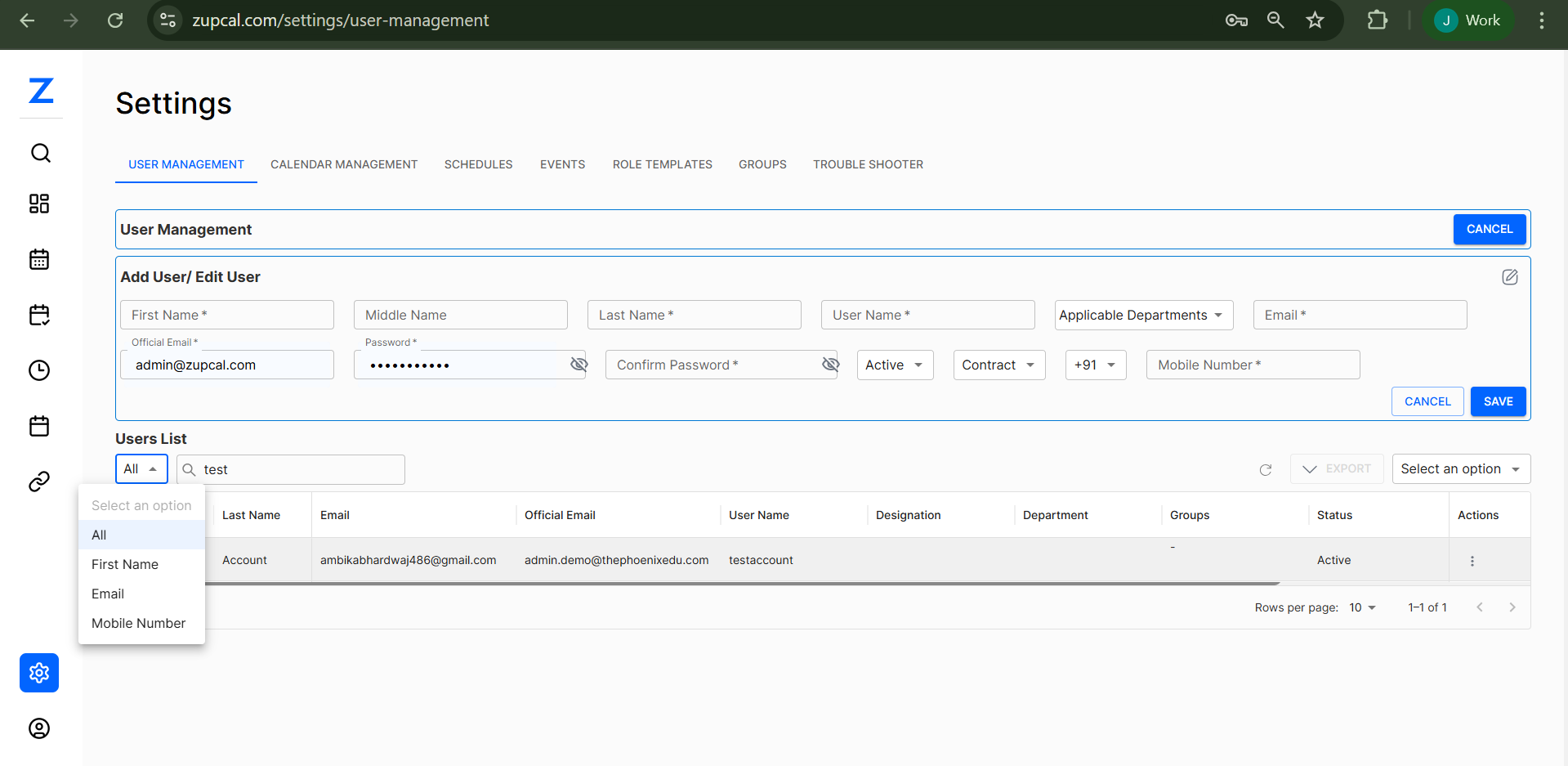
The Users List displays all users in a tabular format with the following columns:
- First Name: User's first name
- Last Name: User's last name
- Email: Primary email address
- Official Email: Work email address
- User Name: System username
- Designation: Job title or role
- Department: Assigned department
- Groups: User group memberships
- Status: Account status (Active/Inactive)
- Actions: Available operations menu
Search and Filter Options
Search Functionality
- Use the search bar to find users by name, email, or username
- Search is case-insensitive and supports partial matches
Filter Options
Access the filter dropdown to sort by:
- All: Display all users
- First Name: Sort alphabetically by first name
- Email: Sort by email address
- Mobile Number: Sort by phone number
User Actions
Profile Viewing
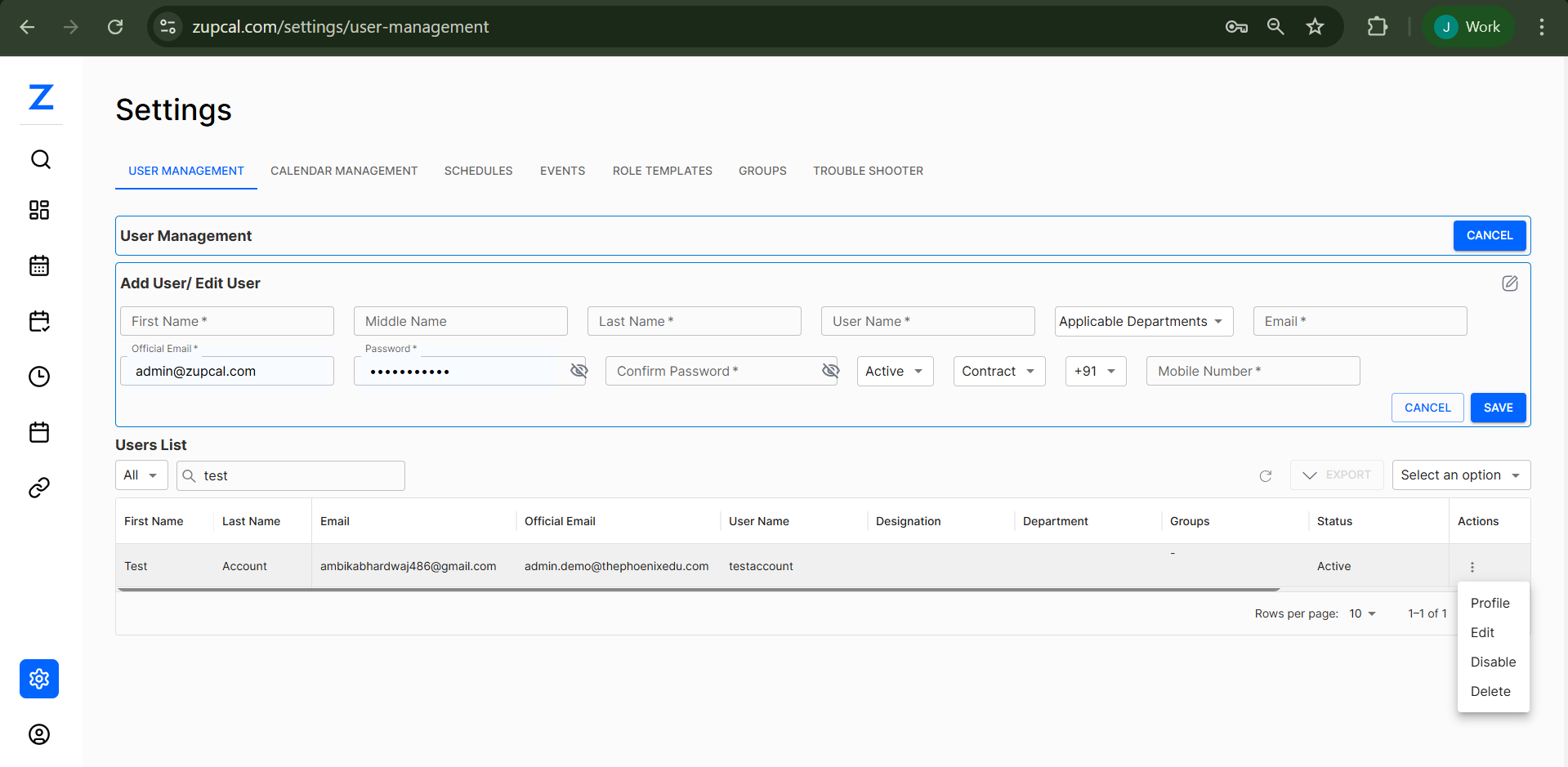
- Click on the Actions menu (⋮) next to any user
- Select Profile to view complete user information
- View includes:
- Personal information
- Contact details
- Department and role assignments
- Account status and permissions
- Activity history
Edit Capabilities
Editing User Information
- Click Actions → Edit
- Modify any of the following:
- Personal details (name, contact information)
- Account credentials
- Department assignments
- Status and permissions
- Role assignments
Permission Requirements
- Only administrators and HR personnel can edit user accounts
- Users cannot edit their own administrative privileges
- Certain fields may be restricted based on user roles
Disable/Enable Functionality
Disabling a User Account
- Select Actions → Disable
- Confirm the action when prompted
- Disabled users:
- Cannot log into the system
- Retain all data and settings
- Can be re-enabled at any time
Enabling a Disabled Account
- Select Actions → Enable
- User regains full access to assigned features
- All previous settings and data remain intact
Delete with Confirmation
Permanent User Deletion
- Click Actions → Delete
- System displays confirmation prompt:
⚠️ Are you sure you want to delete this user?
This action cannot be undone and will permanently remove:
- User account and profile
- All associated data and history
- Department and group memberships

[Cancel] [Delete Permanently]
- Click Delete Permanently to confirm
- User and all associated data will be irreversibly removed
⚠️ Warning: User deletion is permanent and cannot be undone. Consider disabling the account instead if you may need to restore access later.
User Management Best Practices
Security Guidelines
- Regular Access Reviews: Periodically review user permissions and access levels
- Strong Password Policies: Ensure users follow company password requirements
- Immediate Deactivation: Disable accounts immediately when employees leave
- Role-Based Access: Assign minimum necessary permissions based on job functions
Data Management
- Regular Backups: Maintain regular backups before making bulk changes
- Audit Trail: Monitor user management activities through system logs
- Department Alignment: Keep user department assignments current
- Contact Information: Ensure all contact details are up-to-date
Operational Efficiency
- Bulk Operations: Use export/import features for managing multiple users
- Standardized Naming: Follow consistent naming conventions for usernames
- Documentation: Maintain records of user roles and responsibilities
- Training: Ensure HR personnel are trained on user management procedures
Troubleshooting
Common Issues
User Cannot Access System
- Verify account status is "Active"
- Check if user has been assigned to appropriate groups
- Confirm email verification is complete
- Reset password if login attempts fail
Email Notifications Not Received
- Check spam/junk folders
- Verify email address is correct
- Confirm email server configuration
- Check notification settings in user preferences
Permission Errors
- Verify user has necessary role assignments
- Check department-based permissions
- Confirm group memberships are correct
- Contact system administrator for privilege escalation
🧠 Frequently Asked Questions (FAQ)
Q: Who can add new users to the system?
Only administrators and users with custom HR access permissions can add new users. Regular users cannot create or invite other users to the platform.
Q: What notifications are sent when a new user is created?
When a new user is created, the system automatically sends an email notification to the new user with their account details and login instructions. Additionally, web push notifications are sent to relevant administrators and HR personnel.
Q: Can I edit a user's information after creating their account?
Yes, administrators and HR personnel can edit user information at any time by clicking Actions → Edit next to the user's name in the Users List. You can modify personal details, contact information, department assignments, and account status.
Q: What's the difference between disabling and deleting a user?
Disabling a user temporarily prevents them from logging in while preserving all their data and settings. They can be re-enabled later. Deleting a user permanently removes their account and all associated data, which cannot be undone.
Q: How do I search for a specific user?
Use the search bar in the Users List section. You can search by first name, last name, email, or username. The search is case-insensitive and supports partial matches for easier finding.
Q: What happens when I try to delete a user?
The system will show a confirmation dialog asking "Are you sure you want to delete this user? This action cannot be undone." You must click "Delete Permanently" to confirm. This will irreversibly remove the user and all their associated data.
Q: Can I filter the users list by department or status?
Yes, you can use the filter dropdown to sort users by various criteria including First Name, Email, and Mobile Number. The "All" option displays all users regardless of their status or department.
Q: What should I do if a user reports they didn't receive their welcome email?
First, ask them to check their spam/junk folder. Verify that their email address was entered correctly in their profile. If the issue persists, check the email server configuration or contact your system administrator.
Q: How do I assign a user to multiple departments?
In the "Add User/Edit User" section, use the "Applicable Departments" dropdown which allows multiple selections. You can assign users to several departments based on their role and responsibilities.
Q: Can users view other users' profiles?
Profile viewing capabilities depend on user permissions and roles. Generally, administrators and HR personnel can view all profiles, while regular users may have limited access based on their assigned permissions and department memberships.
Q: What information is included in a user's profile view?
The profile view includes personal information, contact details, department and role assignments, account status and permissions, and activity history. The exact information visible depends on your access level.
Q: How do I change a user's status from Active to Inactive?
Click the Actions menu (⋮) next to the user's name and select "Disable". This will change their status to Inactive and prevent them from logging in. To reactivate, select "Enable" from the same menu.
Q: What happens if I accidentally delete a user?
User deletion is permanent and cannot be undone. All user data, including their profile, history, and associated records, will be permanently removed. It's recommended to disable users instead of deleting them unless absolutely necessary.
Q: Can I see who created or modified a user account?
User management activities are typically logged in the system audit trail. Contact your system administrator to access these logs if you need to track who made specific changes to user accounts.
Q: How do I set up a new user's password?
When creating a new user, enter their initial password in the "Password" field and confirm it in the "Confirm Password" field. Both fields are masked for security. The user will receive their login credentials via email and should change their password on first login.
Q: What should I do if a user's account is locked or they can't log in?
First, verify their account status is "Active" in the Users List. Check if they're assigned to appropriate groups and departments. If login attempts continue to fail, try resetting their password or contact your system administrator for further assistance.
Q: Can I export the users list for reporting purposes?
The interface shows an "EXPORT" option in the Users List section. This allows you to export user data for reporting, backup, or analysis purposes. The export typically includes all visible user information in a spreadsheet format.
Q: How many users can I display per page in the Users List?
The system shows "Rows per page: 10" by default, but you can adjust this setting to display more or fewer users per page based on your preference and system performance.
Support Resources
For additional assistance with user management:
- Contact your system administrator
- Review system logs for detailed error information
- Check the troubleshooting section in Settings
- Submit a support ticket for technical issues